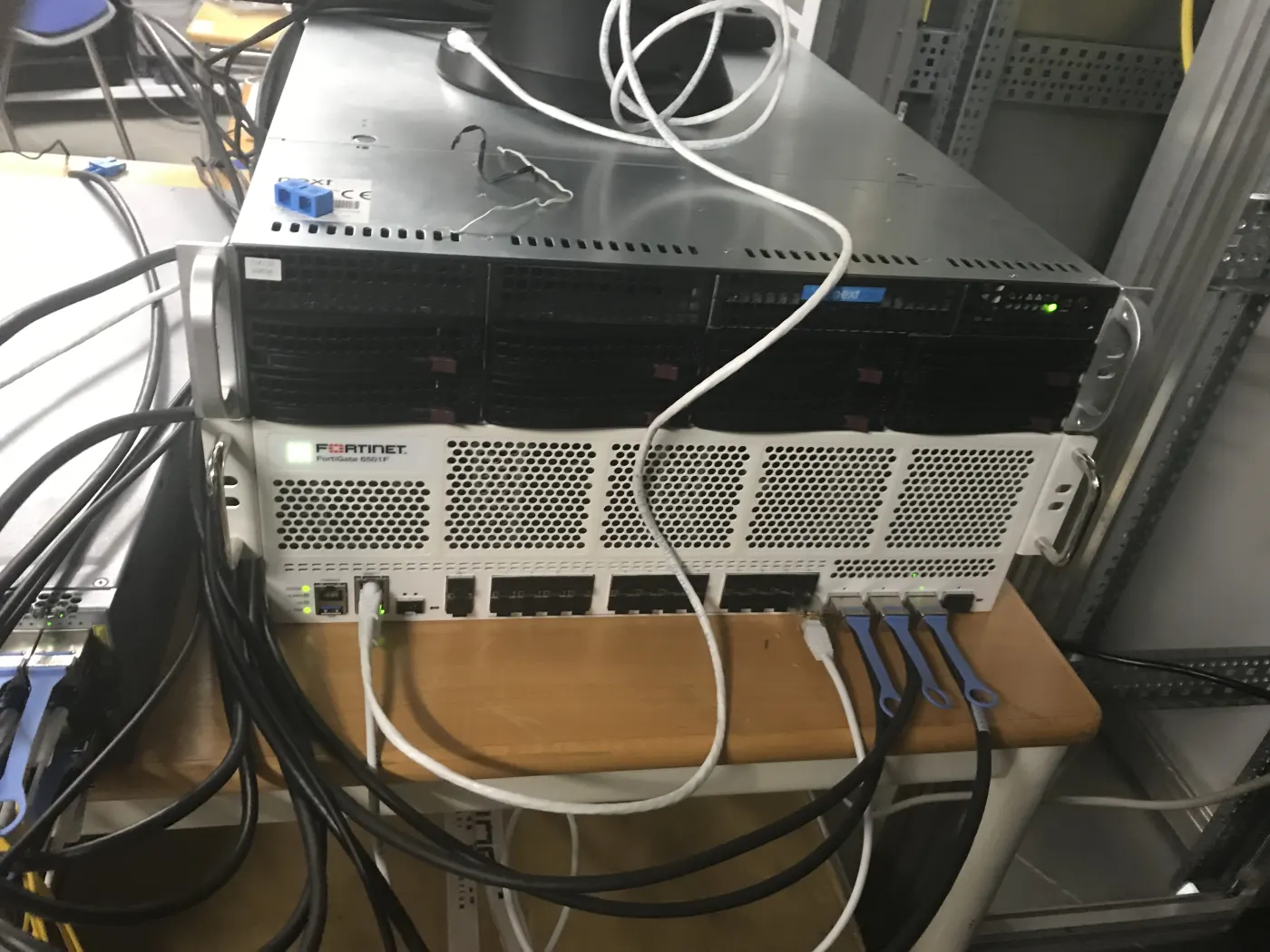
In today's corporate business world, it is a critical requirement for branches in different locations, data centers, and remote working personnel to securely access head office resources. The most stable, performant, and common method of providing this secure connection is IPSec (Internet Protocol Security) VPN technology. FortiGate firewalls, one of the leaders in the enterprise network security market, can manage IPSec VPN tunnels highly efficiently with their high hardware acceleration (ASIC) capabilities.
Establishing a secure Site-to-Site tunnel between branches is not just about connecting two locations; it also requires guaranteeing data integrity, confidentiality, and authentication with the highest level of encryption standards. An incorrectly configured VPN tunnel can lead to serious security vulnerabilities or performance losses in your network. In this guide, we will examine in detail step-by-step Site-to-Site IPSec VPN tunnel installation, Phase 1 and Phase 2 parameters, and connection troubleshooting methods between two FortiGate devices.
What is IPSec VPN and How Does It Work?
IPSec is a protocol suite used to encrypt and authenticate communications over IP networks. Two basic phases are operated when establishing an IPSec VPN tunnel:
- Phase 1 (IKE SA): This is the phase where two FortiGate devices securely recognize each other, authentication is performed, and encrypted keys to be used for Phase 2 are created. Diffie-Hellman (DH) key exchange and encryption algorithms (AES, DES, etc.) are determined in this phase.
- Phase 2 (IPSec SA): This is the phase where the parameters of the tunnel where actual data will be carried are determined. Which local networks (subnets) will talk to each other and with which encryption protocol (ESP or AH) the data will be packaged are defined in this phase.
Step-by-Step FortiGate Site-to-Site IPSec VPN Deployment
Before starting the installation, determine the external IP addresses (WAN IP) and local network (LAN) IP blocks that will communicate over the tunnel for both locations. In this guide, we will use the Headquarters (Location A) and Branch (Location B) scenario.
Step 1: Starting with VPN Wizard
Log in to the FortiGate interface and follow the VPN > IPsec Tunnels steps from the left menu. Click the Create New > IPsec Tunnel button at the top.
- Name: Enter a descriptive name for the tunnel (e.g.,
HQ-Branch-VPN). - Template Type: Select the Site to Site option for easy installation, and the FortiGate template if you are connecting between FortiGate devices.
- Next click the button to proceed.
Step 2: Authentication and Connection Settings
- Remote IP Address: Enter the external IP address (WAN IP) of the opposite branch.
- Outgoing Interface: Select your WAN interface that provides internet access (usually
wan1orport1). - Authentication Method: Check the Pre-shared Key option and enter a strong pre-shared key (password) that will be exactly the same on both devices.
- Next click the button.
Step 3: Policy & Routing Settings
In this phase, we will define which local networks will talk to each other.
- Local Interface: Select the internal interface to which your local network is connected (usually
lanorinternal). - Local Subnet: Enter your own local network IP block (e.g.,
192.168.10.0/24). - Remote Subnet: Enter the opposite branch's local network IP block (e.g.,
192.168.20.0/24). - Create click the button to complete the wizard.
Important Note: The VPN Wizard will automatically create the necessary static routes and firewall policies in the background. However, if you want to make manual customizations, it is recommended to check these rules.
Manual Optimization of Security Parameters (Custom Configuration)
If you want to establish a completely customized (Custom) tunnel instead of the wizard or optimize the tunnel created by the wizard according to the highest security standards, you should prefer these parameters in Phase 1 and Phase 2 settings:
- IKE Version: If possible, prefer the IKEv2 version, which is more secure, fast, and stable.
- Encryption: Absolutely do not use old and insecure DES/3DES algorithms. Select at least the AES-256 encryption algorithm.
- Authentication: Prefer SHA-256 or higher algorithms for integrity control.
- Diffie-Hellman (DH) Group: Enable at least Group 14 (2048-bit) or higher groups (Group 19, 20) for key exchange security.
FortiGate IPSec VPN Troubleshooting
If connection cannot be established after the tunnel is established or if it appears red (Down) in the tunnel status, you can follow these steps to solve the problem:
- Phase 1 Mismatch: If the tunnel does not start at all, Pre-shared Key, IKE version, encryption algorithms, or DH groups on both sides may not match. Compare Phase 1 settings on both devices exactly.
- Phase 2 Mismatch: If Phase 1 is successfully established (Up) but Phase 2 is not established, there may be an error in the defined local and remote network (Local/Remote Subnet) IP blocks. For example, if the block defined as
192.168.10.0/24on one side is entered as192.168.10.0/25on the opposite side, the tunnel cannot be established. - NAT Traversal (NAT-T): If one or both of the devices are behind an ADSL modem and receive an internal IP, enable the NAT Traversal feature in Phase 1 settings.
Correct configuration of your network infrastructure and firewall policies determines not only VPN performance but also your overall network security. For more detailed information on this topic, you can review our Network Security, Firewall and IDS/IPS Solutions page.
Professional Network and Firewall Management Services
Installation of FortiGate firewalls, design of IPSec VPN tunnels, configuration of redundant (SD-WAN) network architectures, and protection processes against cyber threats require expertise. As Leon-X, with our expert engineer staff based in Ankara, we analyze your corporate network infrastructures and deploy the most secure and performant VPN solutions.
You can benefit from our Firewall, EDR and Antivirus Management Solutions services for 24/7 proactive monitoring and management of your firewall policies, VPN tunnels, and cybersecurity infrastructure.
To install and commission all network infrastructure, router, switch, and firewall devices of your company in professional standards, you can examine our Router, Switch and Firewall Deployment Service solutions.
You can also review our other guides where we handle network security, corporate compliance, and information security standards:
- For KVKK compliant network security and firewall configurations: IT Infrastructure for KVKK Compliance
- For data retention periods and secure destruction methods: Obligations of Deletion, Destruction, and Anonymization in KVKK
- For compliance of camera and physical security systems: Camera Systems Within the Scope of KVKK
- For information security management system standards: What is ISO 27001?
- For access authorization standards in server and storage infrastructures: ISO 27001 Access Control
- For security and design of backup systems: The Role of Backup Policies
- For cyber incident monitoring and logging processes: ISO 27001 and Cybersecurity Incidents
- For server disk technologies and performance comparisons: Dell PowerEdge Drive Types
- For data security standards in cloud infrastructures: ISO 27001 and Cloud Computing
- For system room and physical infrastructure security: ISO 27001 Scope Definition
To establish secure, redundant, and high-performance network connections between branches, optimize your FortiGate rules, and strengthen your cybersecurity infrastructure, you can contact us at any time.
Frequently Asked Questions
Is it mandatory for FortiGate devices on both sides of an IPSec VPN tunnel to be the same model?
No. Since IPSec is a standard protocol suite, a tunnel can be established smoothly between different model FortiGate devices (for example, FortiGate 100F at Headquarters, FortiGate 40F at Branch). It is even possible to establish an IPSec VPN tunnel between FortiGate and a different brand firewall (Cisco, Sophos, pfSense, etc.); however, using the same brand devices on both sides provides ease of management and additional integration features.
What is the difference between IPSec VPN and SSL VPN?
Site-to-Site IPSec VPN is used to connect two fixed locations (for example, two office buildings) to each other at the network level, and users do not need to install any software on their computers. SSL VPN, on the other hand, is generally designed to allow remote working personnel (Home-office, mobile workers) to securely connect to the office network through a client software (FortiClient) they install on their computers.
Does traffic passing through an IPSec VPN tunnel slow down my internet speed?
Since all data passing through the tunnel is encrypted and packaged, an additional load is placed on the processors of the devices. FortiGate devices have special ASIC (SPU) chips that undertake these encryption processes in hardware, so performance loss is at a minimum level. However, the bandwidth of your internet line (especially upload speeds) and the download speeds of the opposite side are the most important factors directly determining the speed you will feel when transferring files over VPN.
Conclusion
FortiGate IPSec VPN solutions enable geographically distributed organizations to operate on a secure, uninterrupted, and high-performance network infrastructure. A Site-to-Site VPN tunnel configured with correct encryption algorithms, strong DH groups, and error-free route/policy definitions guarantees that your corporate data remains completely secure while being carried over the internet. Keeping operational continuity at the highest level while protecting your infrastructure against cyber threats is the most fundamental output of a correctly designed network architecture.