One of the most critical issues encountered in virtualization infrastructures is ESXi hosts losing access to their storage areas (datastores). This situation, known as "VMware cannot see datastore" or "Datastore inaccessible," leads to virtual machines (VMs) halting and severe data access outages.
In this guide, we will detail the root causes of the invisible datastore issue in VMware environments and the troubleshooting steps you need to follow to resolve these outages.
Root Causes of Datastore Access Issues
An ESXi host's inability to see a datastore usually stems from physical connectivity, configuration errors, or a problem on the storage array (SAN/NAS). Identifying the source of the problem is critical for applying the correct resolution step.
1. All Paths Down (APD) and Permanent Device Loss (PDL)
Datastore access issues are generally divided into two main categories:
- APD (All Paths Down): The sudden loss of all communication paths between the ESXi host and the storage device. The host does not know if the device is permanently gone and waits for the connection to return. Switch failures or fiber cable breaks typically cause APDs.
- PDL (Permanent Device Loss): The storage device returning a clear SCSI error code to the ESXi host indicating "I am no longer here" or "this LUN has been deleted." Accidentally deleted LUNs or authorization (zoning/masking) errors create PDLs. For diagnosis and step-by-step remediation, see the VMware Permanent Device Loss (PDL) Error guide.
2. Network and Connectivity (Storage Fabric) Errors
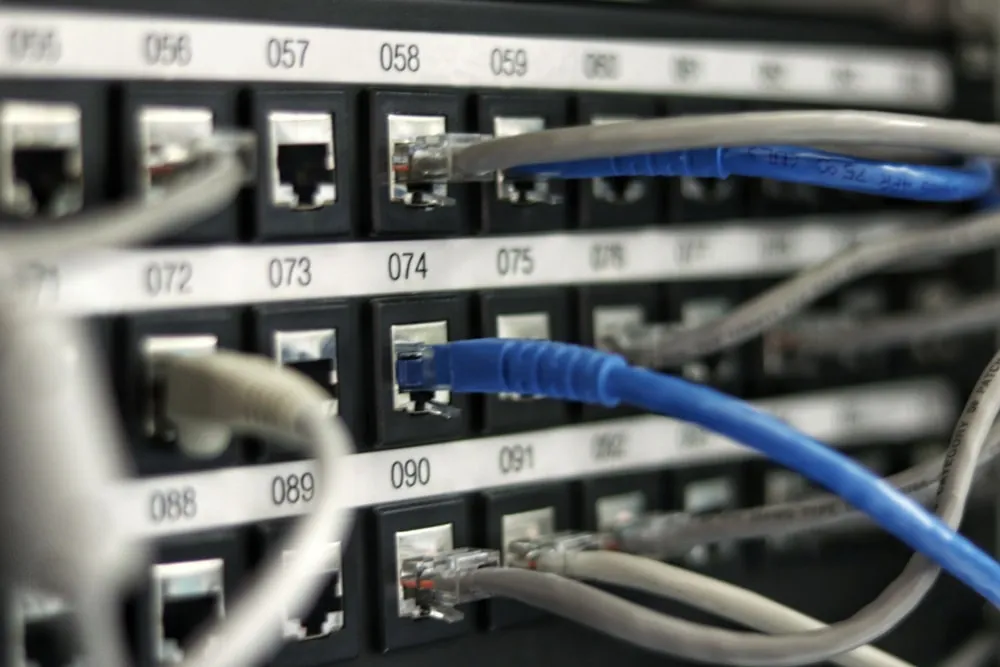
Physical or logical breaks in the iSCSI, NFS, or Fiber Channel (FC) infrastructure prevent datastore access. Incorrect VLAN configurations, faulty SFP modules, or port errors on the switch are the most common connectivity issues.
3. LUN Masking and Zoning Errors
On the storage unit side, if the relevant LUN is not correctly assigned to the ESXi host's WWN (World Wide Name) or IQN address, it prevents the host from seeing the datastore. This authorization step is frequently forgotten, especially during new host additions or storage updates.
Step-by-Step Troubleshooting Guide
You can follow these steps in order to restore datastore access:
Step 1: Check the Storage Array
Log into the storage management interface to understand whether the issue is on the ESXi side or the storage side.
- Ensure the LUN is online and in a healthy state.
- Verify that the host's WWN/IQN addresses are correctly mapped to the LUN (LUN Masking).
Step 2: Perform a Rescan on the ESXi Host
If you have made a change on the storage side, you need to rescan the storage adapters for the ESXi host to detect this change.
- Select the relevant host via the vSphere Client.
- Go to the Configure > Storage > Storage Adapters menu.
- Click the "Rescan Storage" button to ensure new LUNs are scanned.
Step 3: Inspect Physical Connections and Switch Logs
If the rescan operation does not yield results, check the physical layer.
- Connect to the FC or iSCSI switch interfaces to confirm whether the relevant ports are in the "Up" state.
- Examine switch logs for faulty packets (CRC errors) or port flapping situations.
Step 4: Analyze ESXi Logs (vmkernel.log)
To confirm whether the issue is APD or PDL, connect to the ESXi host via SSH and read the logs:
tail -f /var/log/vmkernel.log | grep -i "APD\|PDL\|scsi"
These logs will show specific SCSI error codes returning from the storage device and allow you to drill down to the root cause of the problem.
Tip: For similar storage issues encountered in vSAN architectures, you can also review our article titled VMware vSAN Health Error.
Best Practices to Prevent Outages
Making your infrastructure resilient before experiencing datastore losses is the most effective method.
- Multipathing Configuration: Always establish redundant paths (MPIO) between the host and storage and correctly configure active-active or round-robin policies.
- Regular Firmware Updates: Keep the firmware versions of HBA cards, switches, and storage units up to date according to the hardware compatibility list (HCL).
To ensure the continuity of your virtualization infrastructure and detect potential bottlenecks in advance, you can take advantage of our Virtualization Performance and Continuity Optimization service.
Conclusion
The "VMware cannot see datastore" error is a critical issue that requires virtualization administrators to intervene quickly and accurately. Understanding the concepts of APD and PDL, correctly designing the storage fabric structure, and using log analysis effectively significantly shortens the mean time to resolution (MTTR) for such outages.
To ensure the uninterrupted operation of your IT infrastructure and receive professional support, you can review our Managed Services solutions or contact us to speak with our expert engineers.