A Dell firmware version mismatch alert is rarely just a cosmetic warning. Behind it, there may be stale inventory data, compliance tasks that skipped one component, delayed synchronization between iDRAC and hardware inventory, incorrect baseline interpretation, or components that truly remain on different firmware levels. The short answer is this: to resolve the issue safely, first separate a real firmware inconsistency from an inventory-visibility problem; then validate compliance, refresh inventory, and confirm the state component by component.
This guide is especially useful for:
- system teams managing Dell PowerEdge servers
- organizations using OpenManage Enterprise for firmware compliance
- IT managers operating iDRAC and Lifecycle Controller workflows
- infrastructure teams troubleshooting “still non-compliant after update” scenarios
Quick Summary
- A firmware version mismatch alert does not always mean the package level is genuinely wrong; sometimes inventory has not refreshed yet.
- Dell OpenManage Enterprise manages firmware and driver compliance through iDRAC visibility, so iDRAC-side issues can affect compliance results.
- Dell KB
000216467shows that in some compliance workflows, iDRAC may not be updated when selected alongside other components, and the task may finish as “failed - completed with errors.” - Dell release notes also document cases where firmware inventory may appear as
NAor hardware inventory may not reflect the latest state immediately. - The first goal is to separate a real mismatch from stale inventory or visibility noise.
- The safest method combines inventory refresh, component-level validation, limited-scope correction, and post-check verification.
Table of Contents
- What Does Dell Firmware Version Mismatch Actually Mean?
- How Do You Separate a Real Mismatch from a Visibility Problem?
- What Are the Most Common Root Causes?
- What Is the Safe Remediation Flow?
- How Do You Prevent It from Happening Again?
- Checklist
- Frequently Asked Questions
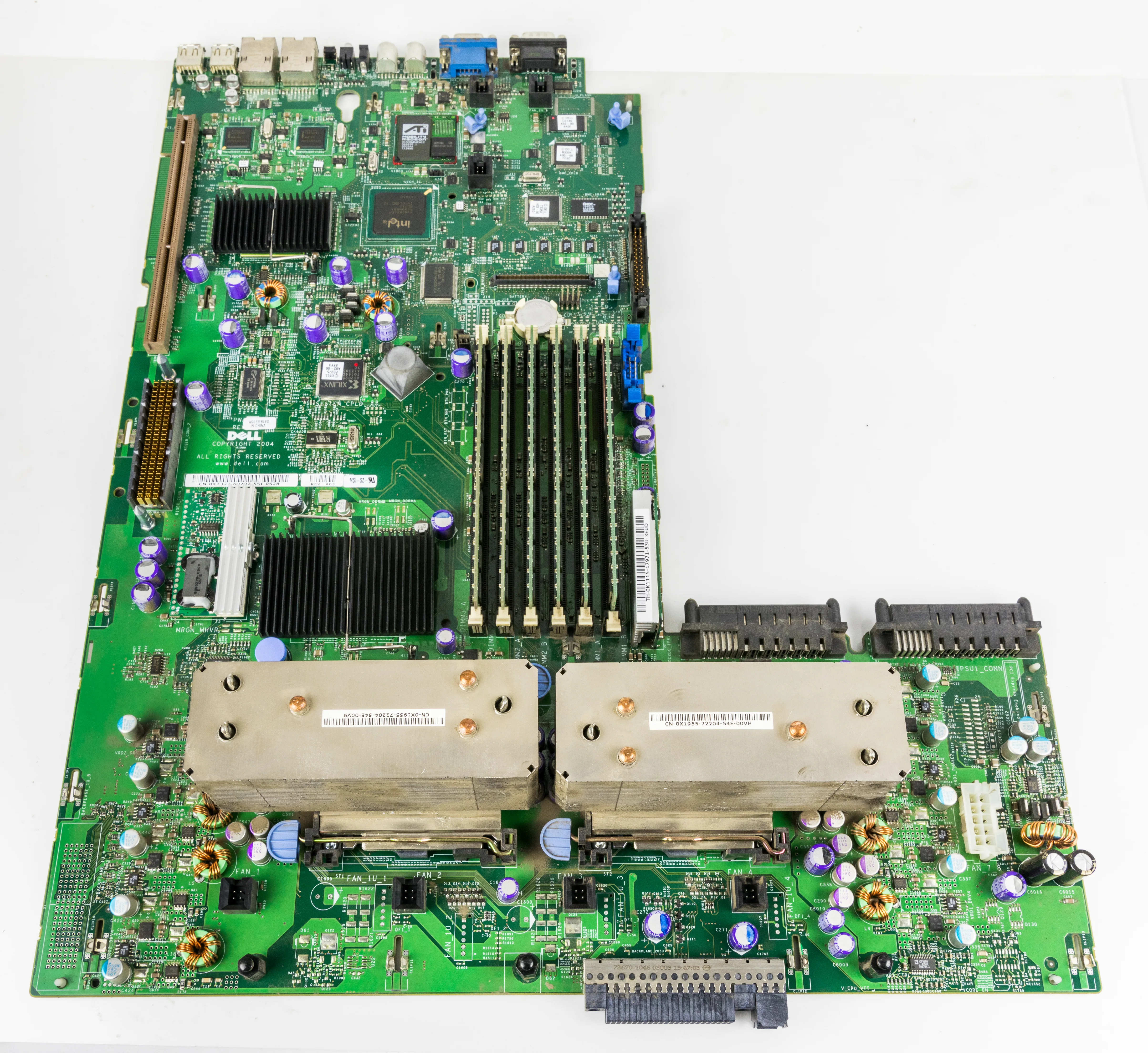
Image: Wikimedia Commons - Dell PowerEdge 2800 system board.
What Does Dell Firmware Version Mismatch Actually Mean?
This warning typically points to one of three situations:
- the target component is genuinely not at the expected firmware baseline
- the update was applied but the management layer has not reflected the new version yet
- the compliance or inventory workflow is interpreting one component incorrectly
Dell’s OpenManage Enterprise documentation states that firmware and driver compliance is managed through iDRAC-based visibility across discovered devices. That matters because a mismatch alert is influenced not only by hardware state, but also by the visibility chain itself.
The first question should therefore always be:
- is the firmware actually wrong
- or is the platform reporting the right firmware incorrectly
How Do You Separate a Real Mismatch from a Visibility Problem?
1. Identify the exact component
Which component shows the mismatch?
- BIOS
- iDRAC
- PERC / RAID controller
- NIC / FC adapter
- disk or backplane component
A generic “server non-compliant” approach slows down diagnosis. Component-level analysis is required.
2. Refresh inventory
Dell release notes and integration guidance show that inventory may need to be refreshed after firmware work is completed. If this step is skipped:
- the visible state may differ from the real state
- the wrong escalation may be opened
- the same update may be retried unnecessarily
3. Verify the actual version from a second source
Read both:
- the OpenManage compliance view
- the actual firmware inventory in iDRAC or Lifecycle Controller
If those two views disagree, the issue is often a visibility or synchronization problem rather than a true firmware defect.
4. Interpret “completed with errors” carefully
Dell KB 000216467 documents that when multiple components are selected, iDRAC firmware may not be updated even though other components are. That makes this distinction critical, because one failed compliance task does not necessarily mean the whole server stayed outdated.
What Are the Most Common Root Causes?
Compliance task skipped iDRAC
According to Dell’s KB, some multi-component update workflows may leave iDRAC unchanged. As a result:
- other components may be updated
- iDRAC may remain old
- the compliance result may finish with errors
- the overall device may appear mismatched
Inventory did not refresh in time
Dell integration and release notes show that inventory refresh may be required after firmware operations. If that is missed, the true state and the reported state can diverge.
Components shown as NA or incorrectly listed
iDRAC release notes include cases where components can appear in firmware inventory as NA or where inventory entries may not fully reflect reality. That can produce false mismatch signals, especially for absent or inactive components.
Wrong catalog or baseline interpretation
If the selected catalog or compliance baseline does not match the actual PowerEdge generation or support matrix, mismatch alerts can appear even when the host is otherwise healthy.
Blindly re-running the same update workflow
If the root cause is not separated first, repeatedly launching the same compliance workflow can:
- create unnecessary queue churn
- increase operational risk
- make iDRAC and Lifecycle visibility harder to interpret
What Is the Safe Remediation Flow?
1. Identify the exact mismatched component
Replace “server is mismatched” with precise language such as “iDRAC remains outdated,” “NIC inventory differs,” or “PERC is outside baseline.”
2. Compare compliance output with real inventory
Compare OpenManage Enterprise results against the live firmware inventory in iDRAC. If one shows the new version and the other does not, fix the visibility layer first.
3. Refresh inventory and rescan compliance
Run the inventory refresh or compliance rescan process again after the update. Dell documentation makes it clear that post-update inventory collection matters.
4. Handle iDRAC separately if needed
Because Dell KB 000216467 documents skipped iDRAC updates in multi-component tasks, iDRAC should be treated separately when it is the mismatched component.
5. Apply the smallest corrective change possible
Instead of re-baselining the entire server:
- target only the missing component
- reduce maintenance-window risk
- make the result easier to validate
6. Perform post-check validation
Afterward, verify all three views together:
- actual iDRAC firmware version
- OpenManage compliance state
- operating-system or hypervisor hardware health where relevant
Related Content
- Dell Server Firmware Update Failed Sorunu Nasıl Çözülür?
- Dell PowerEdge Audit Log ISO 27001 Uyumu
- Dell PowerEdge Server ISO 27001 Uyumlu Nasıl Yapılandırılır?
How Do You Prevent It from Happening Again?
Make compliance and inventory refresh part of procedure
If post-update verification steps are not written down, teams may rely only on task status and make the wrong decision.
Track iDRAC and other critical components separately
Especially for iDRAC, Lifecycle, and storage/network controllers, a single overall success screen is not enough.
Avoid overly large update batches in one maintenance window
Smaller, verifiable update sets make mismatch diagnosis easier.
Review baseline logic regularly
Outdated catalogs or the wrong baseline choice can generate false mismatch alerts.
Checklist
- The mismatched component was identified precisely
- OpenManage output was compared with iDRAC inventory
- Inventory refresh and compliance rescan were performed
- iDRAC and other critical components were validated separately
- Catalog, baseline, and model alignment were rechecked
- Post-fix validation completed after the limited-scope correction
Next Step with Leon-X
If Dell firmware version mismatch issues are not separated correctly, teams either loop through unnecessary update cycles or miss the real inconsistency. Leon-X helps standardize firmware compliance, inventory visibility, and maintenance workflows so server lifecycle operations become more reliable.
Relevant pages:
- Managed Services
- Patch Management and Security Update Automation
- Hardware & Software Services
- Contact
Frequently Asked Questions
Does a firmware version mismatch always mean a real problem?
No. Sometimes there is a real inconsistency, but sometimes the issue is stale inventory or delayed compliance visibility.
If OpenManage says “failed - completed with errors,” did every component fail?
No. Dell’s KB shows that in some cases only iDRAC is skipped while other components still update successfully.
Why is inventory refresh important?
Because after firmware work, the real version and the reported version may not synchronize instantly. Without refresh, diagnosis can be wrong.
Can updating iDRAC separately be safer?
Yes. In some multi-component workflows, treating iDRAC separately is more controlled and easier to validate.
What is the biggest operational mistake?
Re-running the same compliance task repeatedly before separating a real mismatch from an inventory problem.
Conclusion
Dell firmware version mismatch is not just about a missing update. In many cases it is the combined result of compliance output, inventory timing, and component-level visibility. The right approach is to separate a real mismatch from a reporting problem, validate iDRAC and other critical components independently, and then formalize the compliance workflow so the same issue is less likely to return.
Sources
- PowerEdge: iDRAC not updated as part of overall firmware compliance task
- OpenManage Enterprise 4.4.x User's Guide - Managing device firmware and drivers
- Dell Update Packages Release Notes
- iDRAC9 Version 4.40.40.151 Release Notes
- Dell EMC OpenManage Integration with Microsoft Windows Admin Center - Viewing update compliance
- Wikimedia Commons - Dell PowerEdge 2800 system board