The Dell server firmware update failed error is rarely just one generic update problem. In practice it can be tied to catalog mismatch, outdated iDRAC, broken Lifecycle Controller job state, wrong package type, an interrupted reboot stage, or poor maintenance sequencing. The short answer is this: in the March 25, 2026 context, the safest way to resolve this error is to first determine whether the failure happened during preparation, job scheduling, or reboot/apply execution, then work through iDRAC and Lifecycle Controller job queue health, firmware-package compatibility, and support-matrix validation. This guide is written for teams that want to handle failed Dell firmware updates with controlled diagnosis instead of random retries.
This guide is especially useful for:
- system administrators managing Dell PowerEdge environments
- infrastructure teams hitting firmware-update failure during maintenance windows
- organizations using iDRAC and Lifecycle Controller update workflows
- IT leaders trying to standardize server lifecycle and patching discipline
Quick Summary
Firmware Update Failedis not a single root cause. It can appear at different stages of the update chain.- Dell iDRAC documentation shows that firmware jobs are scheduled and executed through a job-queue model.
- Dell KB guidance confirms that some failures are caused by outdated iDRAC versions, blocked job state, or update jobs that never start.
- Lifecycle Controller update failures should be separated into catalog, package, and target-hardware compatibility problems.
- The biggest mistake is rerunning the same package repeatedly without isolating the real failure point.
- The safest model combines pre-checks, controlled maintenance windows, limited-scope execution, and post-update validation.
Table of Contents
- What Does the Dell Server Firmware Update Failed Error Actually Mean?
- How Can You Tell Which Stage Failed?
- What Root Causes Happen Most Often?
- What Is the Safe Diagnosis and Fix Flow?
- What Should Be Checked After the Update?
- Common Mistakes
- Checklist
- Frequently Asked Questions
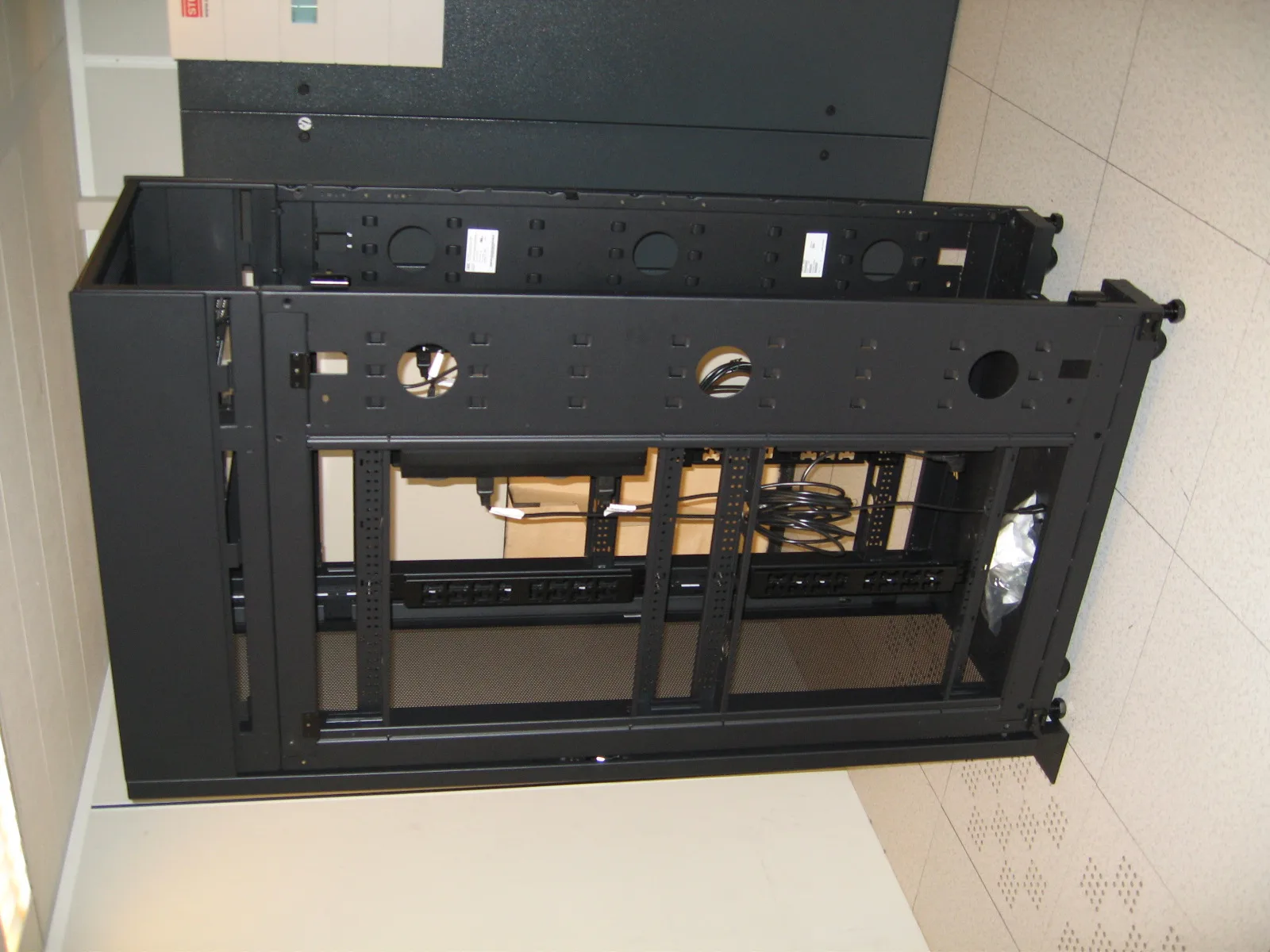
Image: Wikimedia Commons - IBM server rack.
What Does the Dell Server Firmware Update Failed Error Actually Mean?
This error means the firmware-update chain did not complete successfully somewhere along the process. The first diagnostic split should be:
- did the update job never start?
- was the job created but never applied?
- did the update fail during reboot or activation?
- was the package accepted but not installed on the target component?
Dell support documentation makes this distinction important. An update scheduled through iDRAC job control and an update launched through Lifecycle Controller repository flows may look similar, but they fail in different places and for different reasons.
How Can You Tell Which Stage Failed?
The fastest way to diagnose the issue is to separate it into three stages.
1. Preparation and pre-check stage
Problems here usually involve:
- wrong or incompatible update package
- mismatch between target model and component
- missing minimum BIOS or iDRAC prerequisite
- broken or incomplete catalog or repository content
These failures usually appear before the real apply phase begins.
2. Job scheduling and queue stage
Dell KB guidance confirms that in some cases a firmware update job does not start at all until iDRAC itself is updated. At this stage you should check:
- whether the job queue is healthy
- whether older jobs are stuck or failed
- whether the iDRAC version meets Dell’s recommended level
- whether the maintenance window logic matches the update method
3. Reboot and apply stage
After a package is accepted and scheduled, the actual install can depend on reboot sequencing. At this stage, common issues include:
- the host being shut down unexpectedly
- power interruption or unstable maintenance flow
- the OS or hypervisor interfering with the required reboot sequence
- too many dependent components being updated together
These are the cases where the job started but did not finish cleanly.
What Root Causes Happen Most Often?
Outdated iDRAC or Lifecycle Controller version
Dell KB guidance shows that some firmware jobs may not start on older iDRAC levels. That makes iDRAC version one of the first things to verify.
Broken or blocked job queue
Stale or failed jobs can interfere with new firmware attempts. Retrying without checking queue state wastes time and can deepen confusion.
Wrong package or catalog mismatch
If the DUP package, repository source, or hardware target is wrong, the update may fail before or during apply. Similar package names across server generations can be misleading.
Poor reboot dependency handling
Some firmware updates require a planned reboot. If the maintenance window is not controlled correctly, the update can end in a partial or inconsistent state.
Updating too many components together
Trying to update BIOS, iDRAC, RAID controller, NIC, and storage firmware in one random pass increases risk. A more staged approach is safer.
What Is the Safe Diagnosis and Fix Flow?
In practice, the safer sequence looks like this:
1. Preserve the evidence
Capture the message, job ID, iDRAC events, and Lifecycle Log entries first. Do not immediately reset or fire a second update job without evidence.
2. Identify the target component
Was the failed update for BIOS, iDRAC, PERC, NIC, or another component? Treat the problem as component-specific, not just “firmware.”
3. Read the job queue and lifecycle log
Pending, failed, or stuck jobs often explain why new attempts are not moving forward. Job queue state is central to this type of troubleshooting.
4. Validate package and model compatibility
Reconfirm server model, target component, current version, and destination version. Do not assume similar PowerEdge packages are interchangeable.
5. Bring iDRAC to a healthy baseline if needed
As Dell’s KB suggests, some cases require updating iDRAC first so the actual firmware job can start correctly.
6. Retry with smaller scope
Instead of rerunning a whole update bundle, retry a single component or a smaller set of changes in a controlled way.
7. Produce post-check evidence
After the retry, confirm the actual active firmware version, hardware health, and lifecycle events. If relevant, also validate device visibility inside the OS or hypervisor.
What Should Be Checked After the Update?
A success message alone is not enough. Validate:
- whether the new firmware version is really active
- whether iDRAC and Lifecycle Log are clean after the change
- whether RAID, NIC, and storage-controller health is normal
- whether the OS or hypervisor still sees devices correctly
- whether any new boot or performance anomaly appeared after maintenance
Without these checks, teams often assume the update is finished when the platform is still in a degraded or inconsistent state.
Related Content
- How to Configure a Dell PowerEdge Server for ISO 27001 Alignment?
- Dell PowerEdge Audit Log ISO 27001 Alignment
- What Is Dell PowerEdge? Detailed Architecture Guide
Common Mistakes
Rerunning the same package without isolating the real cause
This can make queue or state problems harder to understand.
Never checking the iDRAC version
An outdated iDRAC can prevent the firmware job from starting at all.
Loading too many components in one maintenance window
If something breaks, it becomes much harder to identify which dependency caused the failure.
Skipping pre-update health and log snapshots
You lose comparison evidence for post-fix validation.
Skipping post-checks after a reported success
The package may have finished with warnings, the version may not be active, or hardware health may still be degraded.
Checklist
- the failed component was identified clearly
- Lifecycle Log and job queue records were reviewed
- iDRAC version and minimum prerequisites were checked
- package, catalog, and model compatibility were revalidated
- reboot and maintenance-window dependencies were reviewed
- the retry was limited in scope
- post-update version and hardware health checks were completed
Next Step with Leon-X
The Dell server firmware update failed error is not just a maintenance inconvenience. If handled poorly, it weakens business continuity, security hygiene, and server lifecycle discipline. Leon-X helps teams standardize firmware-update operations with repeatable pre-check, rollout, rollback, and evidence-generation practices.
Related pages:
- Managed Services
- Patch Management and Security Update Automation
- Hardware and Software Services
- Contact
Frequently Asked Questions
What should be checked first in a firmware update failed case?
First determine whether the problem happened during preparation, job scheduling, or reboot/apply. That split drives the rest of the troubleshooting path.
Can an old iDRAC version prevent the update job from starting?
Yes. Dell support guidance confirms that some firmware jobs do not begin until iDRAC is brought to an appropriate baseline.
Does clearing the job queue always solve the issue?
Not always. It can help in some cases, but package compatibility and firmware prerequisites still need to be validated.
Is it safe to update BIOS, iDRAC, and RAID firmware all at once?
It can be risky. A staged and observable update flow is usually safer.
Is additional validation needed after a reported success?
Yes. Active version state, hardware health, and OS or hypervisor visibility should still be confirmed.
Conclusion
The Dell server firmware update failed error should not be handled with blind retries. As of March 25, 2026, the strongest approach is to validate job queue state, iDRAC version, package compatibility, reboot flow, and post-update evidence together. That makes firmware lifecycle operations more predictable and reduces the chance of repeating the same failure pattern.