A VMware host disconnected error means vCenter has lost its management relationship with the host, but that does not always mean the host is actually down. The short answer is this: in the April 14, 2025 context, the safest way to handle this problem is to separate real host failure from lost vCenter communication, then check management networking, DNS and trust state, agent behavior, and storage impact in order. This guide is written for teams that want a safer response flow when a host appears as Disconnected in vCenter.
This guide is especially for:
- VMware administrators
- operations and support teams
- datacenter infrastructure specialists
- IT teams dealing with vCenter-to-host connectivity problems
Quick Summary
Disconnectedlooks similar toNot Responding, but the diagnosis is not identical.- First separate host liveness from vCenter communication loss.
- Management networking, DNS/time mismatch, certificates, and agents are common causes.
- Reconnect or restart attempts before diagnosis can increase risk.
- Permanent correction requires root-cause analysis after the event.
- That is why the right approach is controlled diagnosis with verified intervention.
Table of Contents
- What Does a Host Disconnected Error Actually Mean?
- What Should Be Checked in the First 10 Minutes?
- What Are the Most Common Root Causes?
- When Should You Consider Reconnect, Agent Restart, or Reboot?
- How Do You Prevent It Permanently?
- Quick Response Checklist
- Frequently Asked Questions

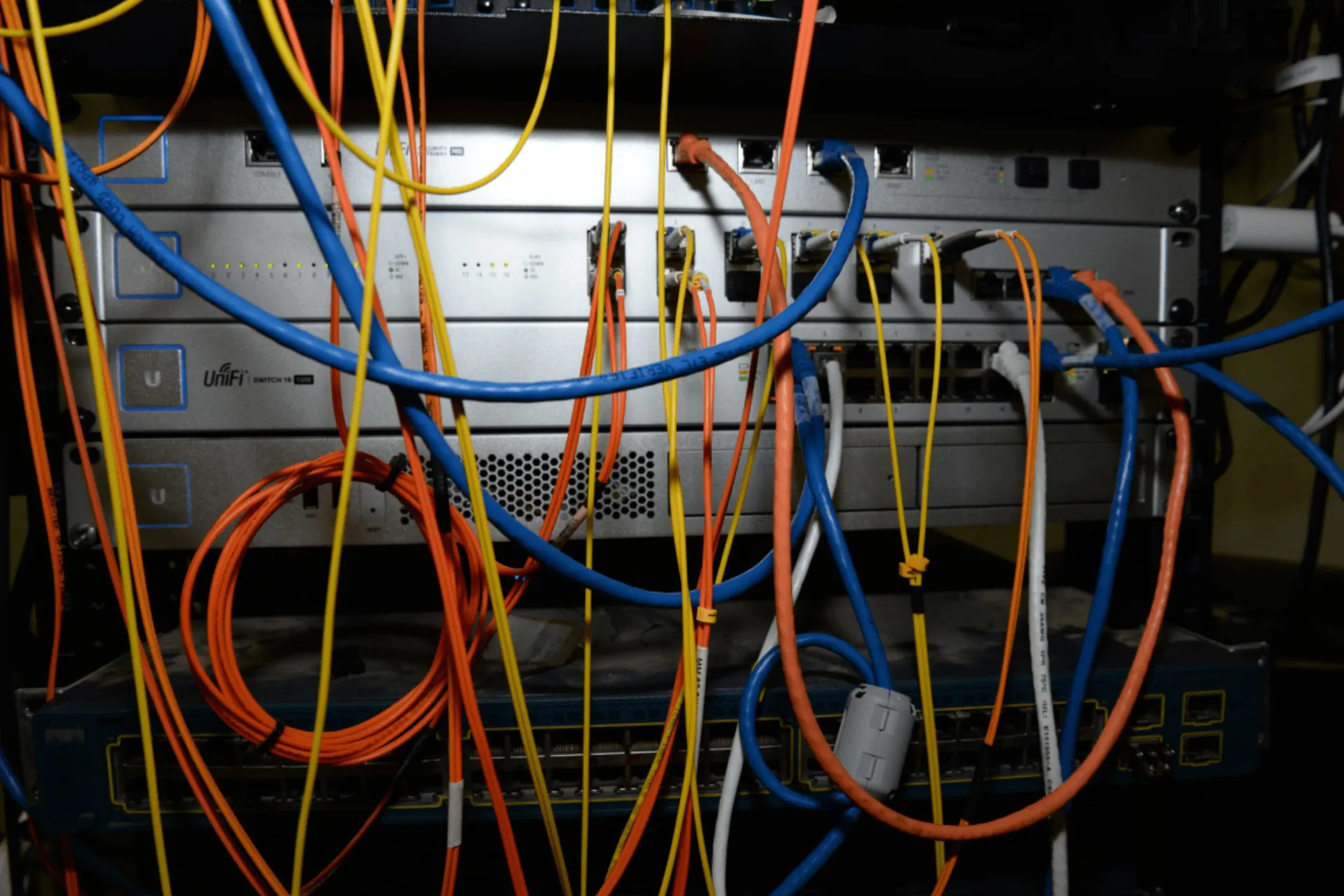
Image: Wikimedia Commons - Data Center Fish Eye View (noirlab-racks-155).
What Does a Host Disconnected Error Actually Mean?
This status means vCenter can no longer maintain active management communication with the host. In practice, one of these situations may exist:
- the host is alive but vCenter communication is lost
- management services are inconsistent or stuck
- DNS, certificate, or clock mismatch is breaking trust
- network or upstream path problems exist
This distinction matters because not every disconnected event should be handled the same way.
What Should Be Checked in the First 10 Minutes?
The first goal is to determine host health and identify the layer where communication failed. The most useful early checks are:
- Confirm alarm timing and whether other hosts are affected at the same time.
- Use out-of-band access if available to confirm the host is alive and stable.
- Verify management IP reachability, DNS resolution, and time sync.
- Check whether virtual machines are still running through alternate channels.
- Review whether storage, HA, or network alarms occurred in the same window.
This separation prevents unnecessary heavy actions such as immediate host reboot.
What Are the Most Common Root Causes?
The most common causes behind a Host Disconnected state are:
- management network interruption
- DNS resolution issues between vCenter and host
- certificate or trust relationship problem
- stuck host management agents
- time / NTP inconsistency
- upstream switch, firewall, or routing issue
In many environments, the problem is not the host itself but the trust and communication path between vCenter and the host.
When Should You Consider Reconnect, Agent Restart, or Reboot?
Clicking Reconnect immediately or rebooting the host should not be the default reflex. The response order depends on what failed.
A safer approach is:
- verify host liveness and workload impact
- inspect DNS, certificates, and management networking
- review agent behavior
- only consider reconnect after clarifying the communication layer
A riskier approach is:
- rebooting the host before understanding root cause
- forcing reconnect or maintenance while storage or HA is unstable
- applying blind actions across multiple affected hosts
The goal is to restore visibility without making the incident wider.
How Do You Prevent It Permanently?
After the alert clears, teams should review:
- management network separation and resilience
- DNS and NTP consistency
- certificate lifecycle and trust relationships
- host log visibility
- management agent health
- vCenter communication dependencies
Repeated disconnected events usually point to a deeper platform hygiene issue.
Quick Response Checklist
- Separate real host failure from vCenter-only communication loss.
- Verify out-of-band access, management IP, and DNS path.
- Confirm whether virtual machines are still running.
- Review concurrent HA, storage, and network alarms.
- Focus on agent and trust layer only after path checks are complete.
- Document root cause and corrective action after recovery.
Related Content
Next Step with Leon-X
In host disconnected events, diagnosis order matters as much as technical skill. Leon-X helps teams build more resilient VMware environments by reviewing vCenter-host communication, management networking, trust relationships, and operational alarm flows together.
Related pages:
Frequently Asked Questions
Does a host disconnected error mean the host is powered off?
No. The host may still be running while only vCenter communication is lost.
What should be checked first?
Out-of-band access, management IP, DNS, and the vCenter communication layer.
Should reconnect be attempted immediately?
No. First determine whether the issue is network, trust, or agent related.
Is this the same as not responding?
No. They can look similar, but the underlying mechanism and initial priorities may differ.
How is the issue prevented long term?
By reviewing DNS, NTP, certificates, management networking, and agent health together.
Conclusion
A VMware host disconnected error is usually a sign of failure in the management layer rather than a simple host shutdown. In the April 14, 2025 context, the best response is to verify host liveness, isolate the vCenter communication layer, avoid risky interventions, and close the event at root-cause level.