Dell PowerEdge servers, which are at the heart of corporate data centers and server infrastructures, use hardware RAID controllers (PERC - PowerEdge RAID Controller) to ensure high availability and data integrity. However, in server management processes, one of the most common errors encountered after disk failures, power outages, disk insertion/removal operations, or firmware updates is the "Foreign State" warning.
This error can look quite scary to system administrators at first glance because the virtual disk or disk group may become completely inaccessible at the operating system level. However, there is no need to panic. When the right steps are followed, it is possible to reintegrate the disk into the RAID structure and restore the system to its former state without experiencing any data loss. In this guide, we will discuss what the "Foreign State" error on Dell PERC RAID Controllers means, why it occurs, and step-by-step solution paths.
What is Dell PERC RAID "Foreign State" and Why Does It Occur?
If the status of a disk on Dell servers appears as "Foreign" in the iDRAC, OpenManage Server Administrator (OMSA), or PERC BIOS screen, it means that the RAID controller reads the RAID configuration data (metadata) on the disk, but this data does not match the controller's own current configuration table.
The RAID controller checks the RAID credentials stored in a special area (CoD - Configuration on Disk) on the disks at every boot and during operation. If this information does not match the information in the controller memory, the controller puts the disk under protection to protect data security and marks its status as "Foreign".
The most common causes of this situation are:
- Physical Removal and Insertion of the Disk: Removing a disk from a running server and inserting it into another slot, or inserting a disk removed from another Dell server into the current server.
- Power Outages and Unexpected Shutdowns: In case of sudden power losses, the synchronization of the data in the RAID controller's cache and the data on the disk is disrupted.
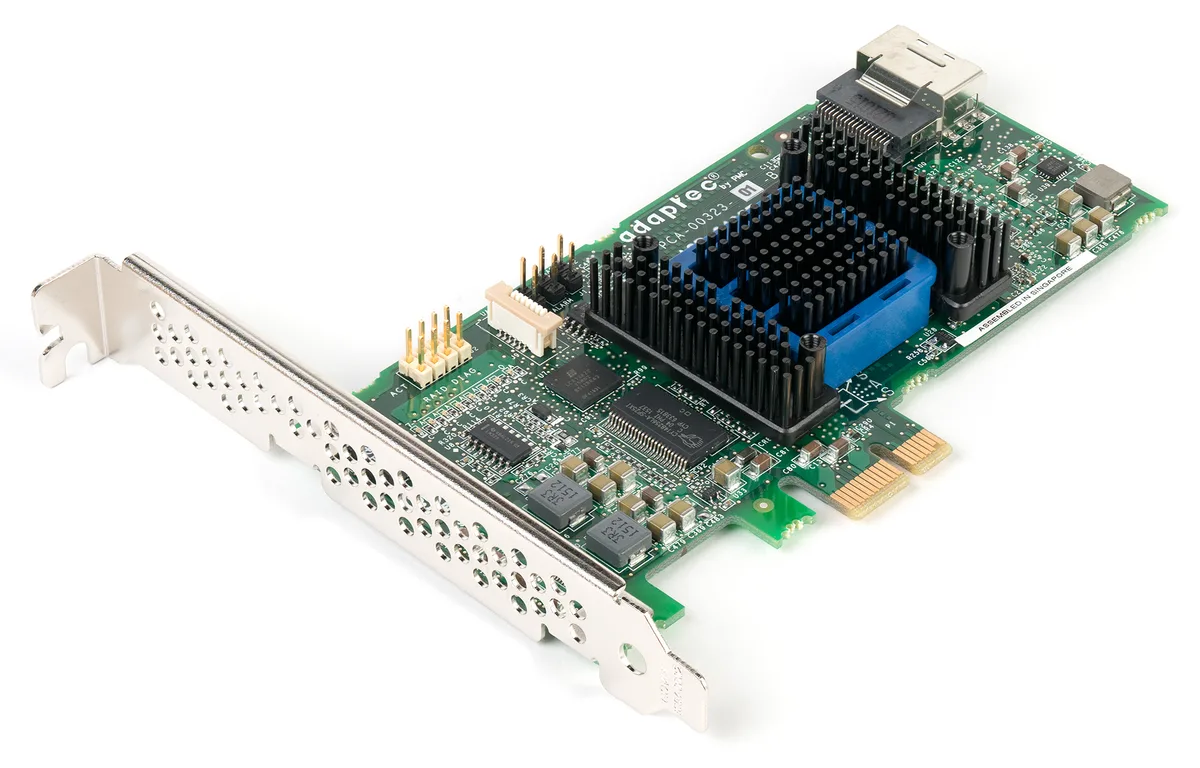
- RAID Controller Replacement: When a failed PERC card is replaced with a new one, the new card detects the old configuration on the disks as "foreign".
- Firmware Incompatibilities: Different interpretation of configuration tables after server BIOS, iDRAC, or PERC firmware updates.
- Temporary Connection Issues (Backplane/Cable Errors): The disk not sitting fully in the slot on the backplane or temporary signal losses causing the controller to assume the disk was lost and see it as foreign when it returns.
Intervention Methods for Disks in Foreign State
When intervening in a disk in Foreign state, you have two basic options: Import and Clear. Knowing the difference between these two options is vital to avoid data loss.
A. Import - Option to Recover Data
The "Import" option reads the old RAID configuration data written on the disk and adds them to the RAID controller's (PERC) own table.
- When Should It Be Used? If one or more disks in an existing RAID structure (e.g., RAID 5 or RAID 10) have fallen into the "Foreign" state due to a momentary interruption, and your goal is to restore the disk to the existing structure along with the data inside, the Import option must absolutely be used. Import is also used when transferring a disk group removed from another server whose data needs to be preserved to the new server.
B. Clear - Option to Reset the Disk
The "Clear" option deletes all RAID configuration data (metadata) on the disk and brings the disk to the "Ready" status. This process does not directly delete the raw data (user data) inside the disk, but it will make accessing the data impossible at the operating system level because it removes the disk from the RAID group.
- When Should It Be Used? If you have inserted a completely new disk or a disk removed from another server into the server, whose old data you do not need, and you want to create a new Virtual Disk on the current server or add it as a spare disk (Hot Spare) to an existing RAID structure, the Clear option must be used.
VERY CRITICAL WARNING: Applying a "Clear" operation to a disk that has fallen into "Foreign" state while you have an active and running RAID structure can lead to the collapse of the entire Virtual Disk and permanent data loss, especially in RAID 0 or RAID 5 structures that do not tolerate multiple disk losses. Therefore, make sure you have an up-to-date backup before performing any operations.
Step-by-Step Foreign State Solution Guide
To resolve the Foreign State error on Dell PERC RAID Controllers, you can use the iDRAC interface, Dell OpenManage Server Administrator (OMSA) software, or the PERC BIOS (Ctrl+R or UEFI Device Settings) screen at server boot. The solution steps over the iDRAC9 interface, which is the most secure and modern method, are as follows:
Method 1: Solution with iDRAC9 Interface (Recommended)
- Connect to your server's iDRAC IP address from your web browser and log in with administrator credentials.
- Click on the Storage tab from the top menu and then select Controllers.
- Select the PERC controller (e.g., PERC H740P Adapter) to which the foreign disk is connected.
- Find the Foreign Configuration Operations menu under Troubleshooting or Setup.
- You will see two options on the screen that appears:
- Import: Select this option to preserve the existing RAID structure and recover the disk with its data.
- Clear: Select this option if you want to completely reset the disk and prepare it for a new configuration.
- After making your selection, click the Apply button. You can select Apply Now to start the process immediately, or At Next Reboot to apply it on the first restart of the server.
- Verify that the status of the disk changes to "Online" (when Import is selected) or "Ready" (when Clear is selected) when the process is complete.
Method 2: Solution with PERC BIOS (Ctrl+R) Screen (Older Generation Servers)
If you do not have iDRAC access or are using an older generation (Rx10, Rx20, Rx30) Dell server, you can use the PERC BIOS screen at server boot:
- Restart the server. Press the
Ctrl + Rkey combination on the boot screen to enter the PERC BIOS Configuration Utility screen. - On the
VD Mgmt(Virtual Disk Management) tab, hover over the top Controller row and press theF2key on the keyboard. - Hover over the Foreign Config option from the opened menu.
- Navigate to the right with the arrow keys and select Import to recover the disk, or Clear to reset the disk, and press
Enter. - Confirm the process by selecting "Yes" in the confirmation window that appears.
- Press
Escto save and exit, and restart the server.
Hardware Health and Infrastructure Management
RAID and disk issues are among the most sensitive topics that directly threaten business continuity in corporate IT infrastructures. It is of critical importance to get professional support to prevent such hardware errors and run your systems uninterruptedly.
- Server Installation and RAID Configuration: You can choose our Server Installation, Configuration and Deployment services to ensure that your new servers are installed with correct RAID levels (RAID 1, 5, 6, 10) and redundant spare disk (Hot Spare) architecture from the very beginning.
- Storage and SAN Solutions: You can benefit from our NAS, SAN Storage Installation and Configuration expertise to meet your servers' data storage needs and configure NAS/SAN devices with correct multipath architecture.
- Backup and Disaster Recovery: You must configure your systems' backup policies professionally to avoid data loss in any disk or RAID controller failure. In this regard, you can examine our Backup, Monitoring, Reporting and Restore Management solutions.
- Corporate IT Consulting: You can work with our expert team in Ankara under our Business and Management Consulting services to maximize the overall performance, security, and legal compliance of your infrastructure.
You can also review our other guides that will strengthen your information security, cybersecurity, and server infrastructure management processes:
- For resolving physical hardware failures and fan errors: Dell Server Fan Failure Error and Solution
- For server overheating and data center cooling issues: Dell Server Overheating Issue Solution
- For troubleshooting server startup and boot issues: Dell Server UEFI Boot Issue Solution
- For resolving iDRAC unresponsive and freeze issues: Dell iDRAC Not Responding Issue Solution
- For resetting and restarting the iDRAC interface: How to Reset Dell iDRAC?
- To optimize server power consumption and reduce costs: How to Reduce Dell PowerEdge Power Consumption?
- For storage access issues in VMware virtualization environments: VMware Permanent Device Loss (PDL) Error
- For resolving VMware datastore inaccessibility issues: VMware Datastore Inaccessible Issue Solution
- For resolving network access issues in VMware virtual machines: VMware VM No Network Access Issue Solution
- For compliance of backup systems with ISO 27001 standards: ISO 27001 Backup Policies
To professionally resolve RAID, disk, and other hardware issues you encounter on your Dell PowerEdge servers without experiencing any data loss, and to optimize your server and storage infrastructure, you can contact us at any time with our expert engineer staff in Ankara.
Frequently Asked Questions
Do I experience data loss when performing an Import operation on a disk in Foreign state?
No, the Import process reads the existing RAID configuration data on the disk and transfers it to the controller, so it does not cause data loss. On the contrary, it is the safest way to recover the disk and the data inside it. However, if there is physical damage (bad sectors, etc.) on the disk itself, some files may be damaged at the operating system level.
I accidentally selected the "Clear" option, can I get my data back?
The Clear process deletes the RAID configuration table on the disk. After this process, the disk becomes "Ready", but the Virtual Disk structure on it is disrupted. If your RAID structure is a simple mirroring structure like RAID 1, you may have a chance to access the data with professional data recovery software. However, in complex structures like RAID 5 or RAID 0, recovering data after Clear requires expertise and is quite difficult. Therefore, make sure to get support before taking any action.
I inserted a brand new disk into the server, but it also appears as "Foreign", what should I do?
If the disk you inserted appears as "Foreign" even though it is completely new, it means that this disk was connected to a RAID controller before leaving the factory or during the testing phase, and some old configuration remnants remained on it. In this case, since you do not need the data inside the disk, you can safely use the Clear option and bring the disk to the "Ready" status to configure it on your current server.
Conclusion
The "Disk Foreign State" warning encountered on Dell servers is a situation that can be easily resolved without experiencing data loss when intervened correctly. The key point of the process is to know that the Import option should be used to recover data, and the Clear option should be used to reset the disk. Performing regular firmware updates, feeding servers with redundant power supplies (PSU), and using uninterruptible power supplies (UPS) will prevent such synchronization errors. Do not hesitate to get professional support for the security of your infrastructure and business continuity.