A VMware vMotion timeout error means the migration session could not finish within the expected time window because the source-to-destination transfer path suffered from delay, instability, or resource pressure. The short answer is this: in the July 7, 2025 context, the safest way to solve it is to validate the vMotion VMkernel network first, then check MTU and IP consistency, and only after that review host CPU, memory, and network pressure. This guide is written for teams that want a more reliable troubleshooting path for repeated vMotion timeout incidents.
This guide is especially for:
- VMware administrators
- network and systems teams
- cluster operations teams
- IT teams seeing performance-related migration failures
Quick Summary
vMotion timeoutis usually a delay or bottleneck problem, not just a hard link failure.- Common causes include packet loss on the vMotion VMkernel path, MTU mismatch, IP conflict, host pressure, and network contention.
- vMotion can time out even when ping succeeds because migration uses a longer and heavier session.
- Incorrect NIC teaming or limited bandwidth can push migration duration past the safe threshold.
- Large-memory VMs raise timeout risk when hosts are already busy.
- That is why analysis should not stop at basic connectivity tests.
Table of Contents
- What Does a vMotion Timeout Error Mean?
- What Should Be Checked in the First 10 Minutes?
- What Are the Most Common Causes?
- Which Interventions Are More Risky?
- How Do You Prevent Repeat Timeouts?
- Quick Response Checklist
- Frequently Asked Questions

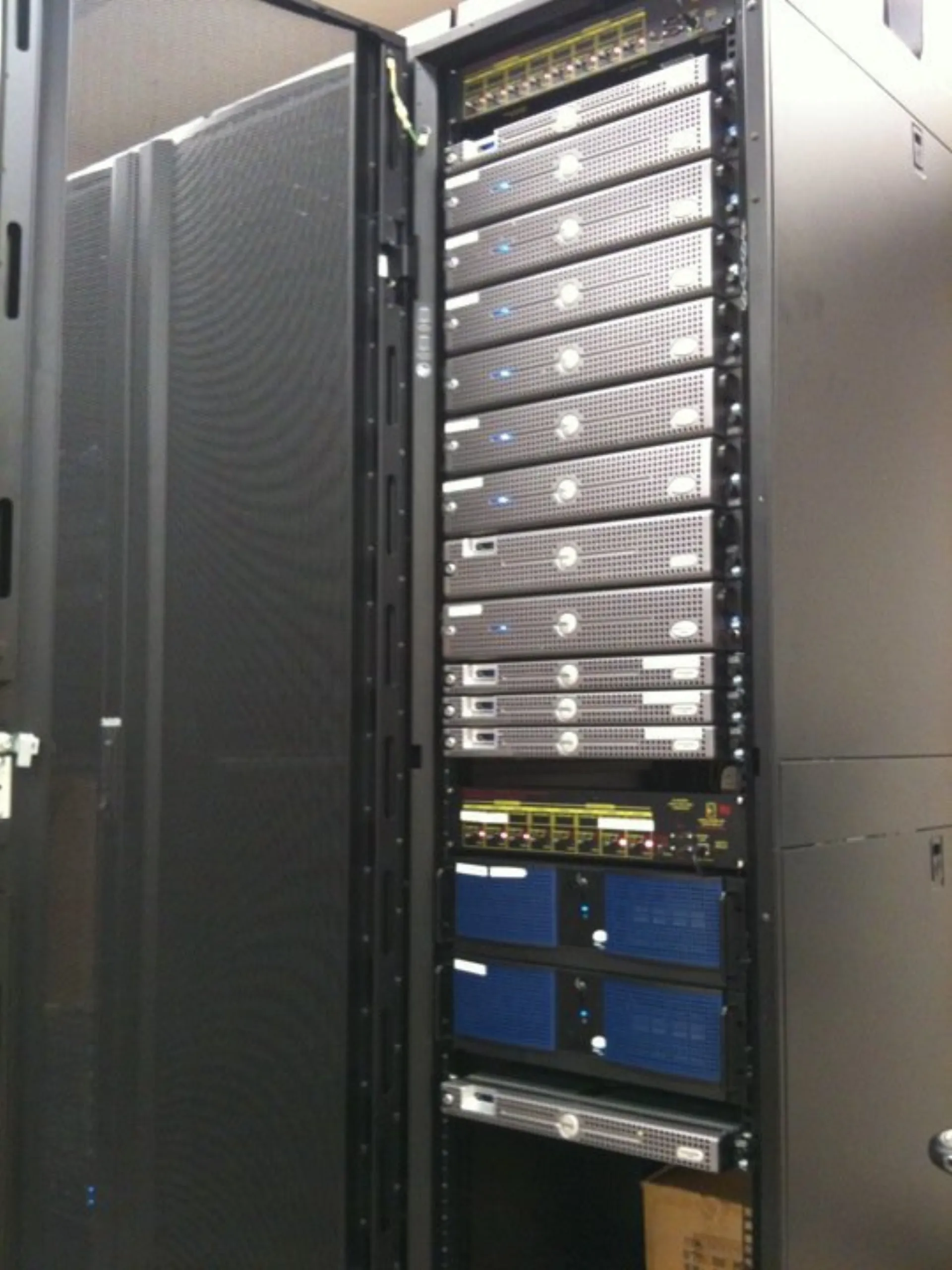
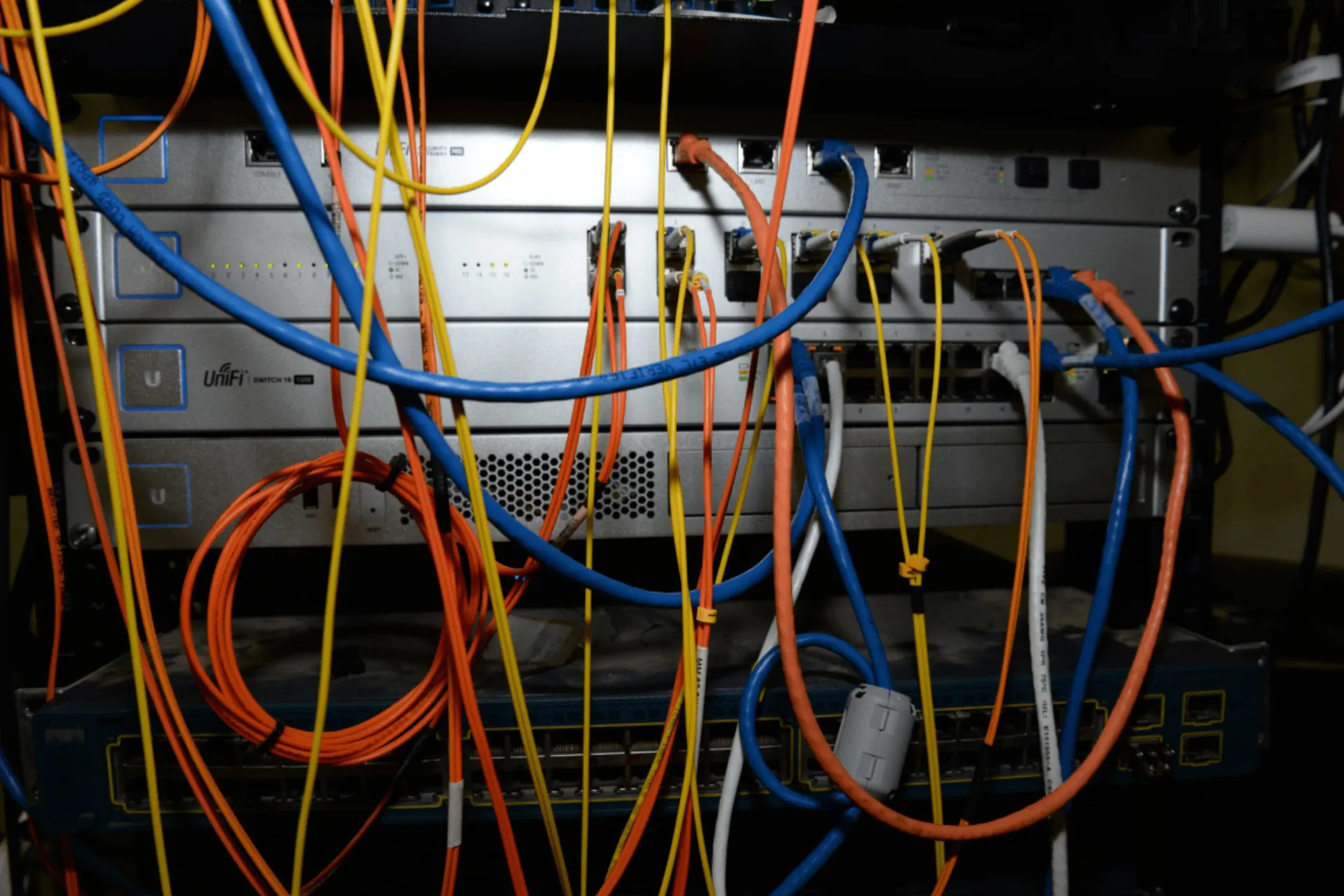
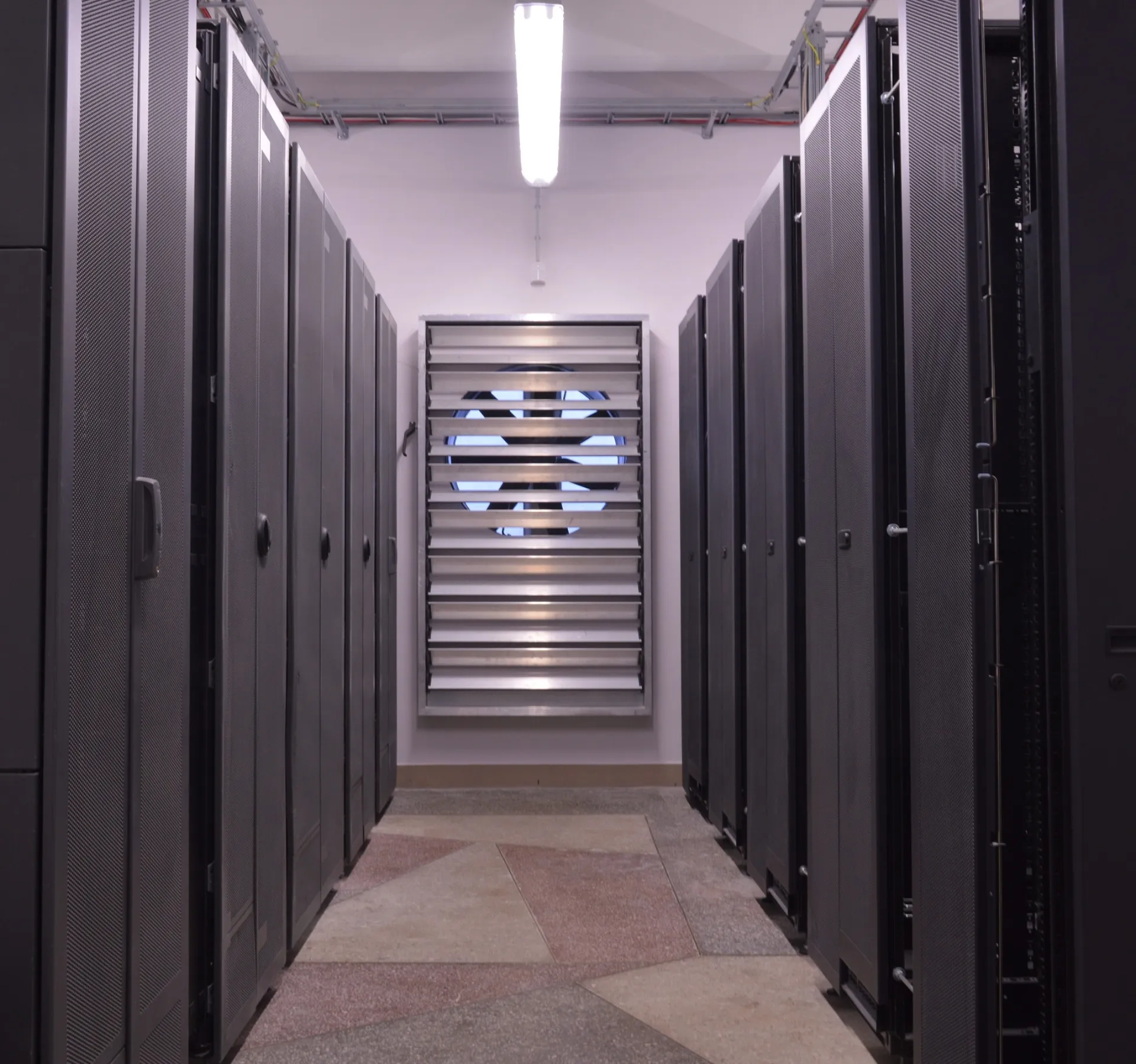
Image: Wikimedia Commons - Pi Data Center.
What Does a vMotion Timeout Error Mean?
This error means the migration session could not be sustained long enough to complete. It often falls into one of these classes:
- delay or packet loss on the vMotion VMkernel path
- IP conflict or bad routing
- MTU inconsistency causing fragmentation or retransmission
- host resource pressure slowing the transfer
- network bandwidth consumed by other traffic
So a timeout does not always mean the path is fully down. It can also mean the path is too unstable or too slow for migration.
What Should Be Checked in the First 10 Minutes?
The early goal is to separate network quality issues from host load issues. A useful sequence is:
- Verify that the vMotion VMkernel interfaces are on the correct subnet and VLAN.
- Check for IP conflicts, duplicate addressing, or routing differences on that path.
- Confirm MTU consistency across source host, destination host, and physical switch.
- Review CPU, memory, and network utilization at the time of migration.
- Determine whether large-memory or high-churn workloads are extending the migration window.
This first split prevents unnecessary storage or cluster-wide changes.
What Are the Most Common Causes?
The most common causes behind VMware vMotion timeout are:
- IP conflict on the vMotion VMkernel path
- MTU mismatch or inconsistent jumbo-frame configuration
- bad NIC teaming or uplink imbalance
- heavy contention on the shared physical network
- high CPU or memory pressure on source or destination hosts
- large-memory VMs taking too long to converge
Broadcom documentation notes that vMotion can fail even when ICMP connectivity is confirmed if an IP conflict exists on the vMotion path. A separate Broadcom article also shows that VMkernel MTU mismatch can create health warnings and transport problems. These two layers are especially important in timeout-class incidents.
Which Interventions Are More Risky?
A safer approach is:
- validating the vMotion VMkernel network as a dedicated layer
- comparing MTU and VLAN settings across hosts and switches
- measuring host load during migration attempts
- identifying shared characteristics of the VMs that time out
A riskier approach is:
- assuming the network is healthy just because ping works
- merging management and vMotion traffic without planning
- changing only the destination host and calling it fixed
- enabling jumbo frames without checking the switch path end to end
The goal is not to hide the timeout symptom, but to make the migration channel reliable.
How Do You Prevent Repeat Timeouts?
Permanent prevention usually requires review of:
- dedicated bandwidth and capacity planning for vMotion traffic
- IP conflict detection
- MTU standardization
- NIC teaming and uplink standards
- migration policy for large VMs
- host load alert thresholds
Repeated timeout errors can indicate that the cluster's migration design is not carrying operational load safely.
Quick Response Checklist
- Validate vMotion VMkernel interfaces and VLAN alignment.
- Check for IP conflicts and duplicate addressing.
- Compare MTU settings across hosts and switches.
- Review host CPU, memory, and network usage at migration time.
- Evaluate the effect of large VMs or high-change workloads.
- Close the incident with capacity and standardization actions.
Related Content
Next Step with Leon-X
The permanent fix for vMotion timeout issues is not just retrying the task. Leon-X helps teams improve cluster stability by reviewing migration networking, host pressure, and standardization together.
Related pages:
Frequently Asked Questions
What does a VMware vMotion timeout error mean?
It means the migration session could not complete in time and the transfer path suffered from delay or bottleneck conditions.
Why can timeout happen if ping works?
Because vMotion is not a short ICMP test. IP conflicts, MTU mismatch, or sustained bandwidth issues can still break the longer migration session.
What is the most common cause?
IP conflicts on the VMkernel path, MTU mismatch, network contention, and host pressure are among the most common causes.
Why is it more common with large VMs?
More memory and higher guest churn increase migration time and raise timeout risk.
What prevents repeat incidents?
Tighter capacity planning for vMotion traffic, MTU standards, IP validation, and host load monitoring.
Conclusion
A VMware vMotion timeout error usually means the migration path is reachable but not stable enough to finish the transfer safely. In the July 7, 2025 context, the strongest approach is to validate the vMotion VMkernel path, MTU and IP consistency, host pressure, and uplink capacity as one troubleshooting chain.