Dell Server Overheating means a PowerEdge server is moving outside its safe thermal behavior because of environment, airflow, fan behavior, component load, or the thermal management layer. The short answer is this: read the temperature event in iDRAC and Lifecycle Log first, confirm inlet temperature and rack airflow, then review fan profile, chassis cover state, cable obstruction, firmware level, and high-load components together. Overheating does not always mean a failed fan; many cases begin with environmental conditions, blocked airflow, or an unsuitable thermal profile.
This guide is written for:
- system administrators operating Dell PowerEdge servers
- data center, rack, power, and cooling teams
- operations teams monitoring hardware alerts through iDRAC, OpenManage Enterprise, and Lifecycle Log
- IT managers trying to prevent thermal shutdowns, high fan noise, and recurring temperature alerts
Quick Summary
- The first evidence for Dell PowerEdge temperature events is iDRAC health, Lifecycle Log, inlet temperature, and fan RPM behavior.
- Dell event references recommend checking the server operating environment, event log data, fan conditions, and possible overheating factors.
- Root causes may include fan failure, open cover, cable obstruction, missing blanking panels, high rack temperature, third-party PCIe cards, incorrect thermal profile, or firmware mismatch.
- Fan speed offset can reduce immediate risk, but the durable fix is correcting airflow, ambient temperature, and component compatibility.
- Leon-X Hardware & Software Services, especially Data Center Setup, Power and Cooling Solutions and Server Maintenance, Warranty and Technical Support Service, help address overheating from both technical and operational angles.
Table of Contents
- What Does Dell Server Overheating Mean?
- What Evidence Should Be Captured in the First 10 Minutes?
- How Should iDRAC Temperature Events Be Interpreted?
- How Should Airflow and Rack Cooling Be Checked?
- When Should Fan and Thermal Profile Settings Be Changed?
- Durable Fix Plan
- Related Content
- Checklist
- Frequently Asked Questions
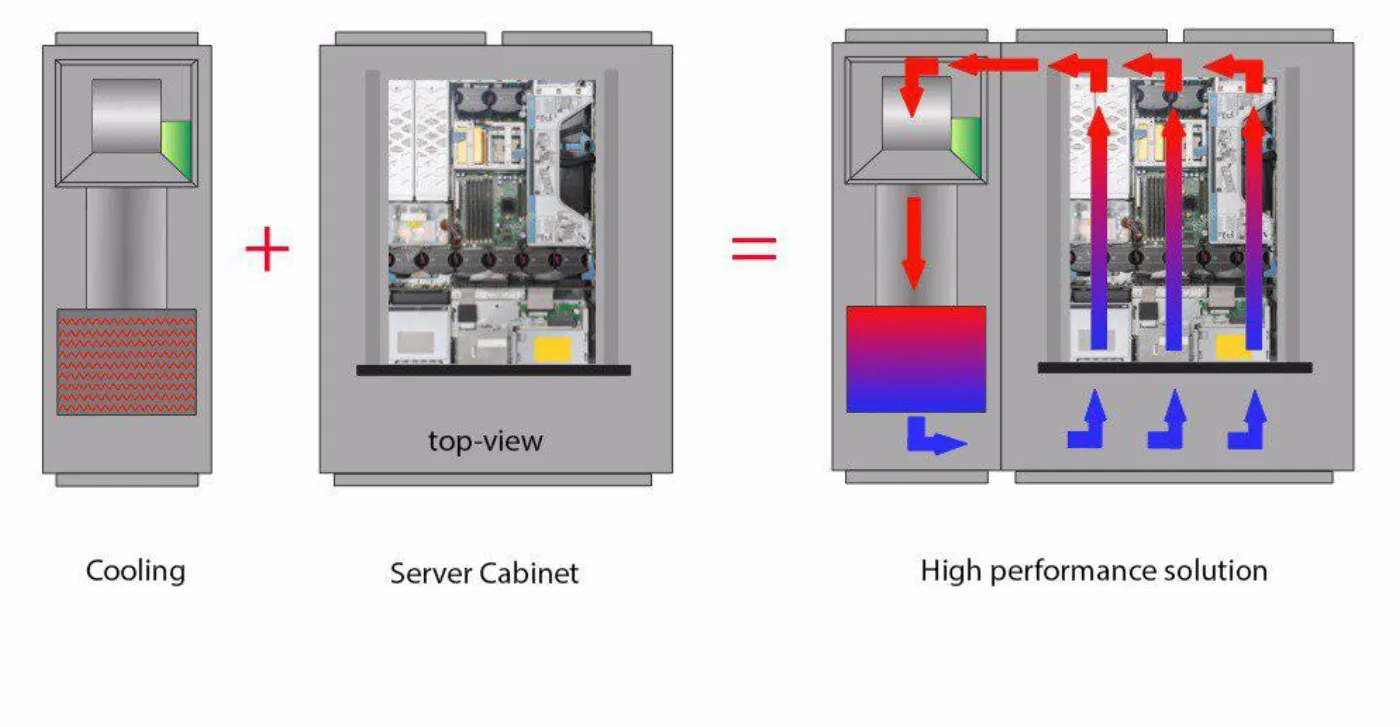
Image: Wikimedia Commons - The proximity of the cooling system with the server cabinet allows a high-performance solution. Optimized to WebP.
What Does Dell Server Overheating Mean?
Dell Server Overheating means at least one monitored temperature value is approaching or exceeding its expected thermal range. The affected sensor may relate to CPU, memory, disk, PSU, board components, or inlet temperature. If the issue continues, the server may throttle performance, increase fan speed aggressively, shut down unexpectedly, or expose hardware to avoidable risk.
The analysis should answer these questions:
- Is the temperature event isolated to one server or visible across the same rack?
- Does it occur at specific times or during specific workloads?
- Is the iDRAC inlet temperature normal?
- Are fan RPM values increasing, or is there also a fan event code?
- Did the cover, blanking panels, cable layout, or airflow path change recently?
- Were firmware, BIOS, iDRAC, or thermal profile settings changed recently?
This approach is better than immediately replacing a fan. If the fan is truly failing, use the workflow in How to Fix Dell Server Fan Failure. Many overheating cases, however, require rack and environmental correction.
What Evidence Should Be Captured in the First 10 Minutes?
When a thermal alert appears, capture evidence before changing the environment. Opening the cover immediately or randomly increasing fan settings can hide the true cause.
Initial workflow:
- Record the system health state from iDRAC Dashboard.
- Find the temperature event code, timestamp, and affected component in Lifecycle Log.
- Compare inlet temperature, exhaust temperature, fan RPM, and CPU/GPU load in the same time window.
- Check whether maintenance, disk or NIC replacement, firmware update, iDRAC reset, or rack cabling work happened in the previous
24 hours. - Determine whether other servers in the same rack show temperature or fan alerts.
- Document cover state, front bezel, air filter, blanking panels, and cable density with photos.
- Capture SupportAssist Collection/TSR if needed.
This evidence separates server-internal components from rack-level airflow and data center environmental issues. For operational follow-up, System Maintenance and Management and Network and System Monitoring Platform Integration can be evaluated together.
How Should iDRAC Temperature Events Be Interpreted?
Dell PowerEdge event references associate temperature events with warning and critical thresholds. Dell's recommended response is to review the server operating environment, inspect event log data, check factors that may cause overheating, and resolve any fan issues if they are present.
Practical interpretation table:
| Symptom | Likely meaning | First action |
|---|---|---|
| High inlet temperature | rack or room cooling is insufficient | check hot/cold aisle and CRAC airflow |
| High fan RPM without fan failure | system is protecting itself | inspect airflow obstruction, thermal profile, and workload |
| Temperature alert with fan event | fan module or detection chain may be involved | check fan slot, cable contact, and swap-test result |
| Event only during heavy workload | CPU/GPU/NVMe load is stressing thermal limits | review workload, PCIe card, and fan profile together |
| Multiple servers alert together | rack or room-level environmental issue | validate cooling capacity and hot air return |
Lifecycle Log gives the timeline. For example, if a chassis intrusion event appears immediately before the temperature alert, cover or airflow issues are more likely. If behavior changed after firmware work, review Dell Server Firmware Update Failed Issue and Dell Firmware Version Mismatch Issue.
How Should Airflow and Rack Cooling Be Checked?
PowerEdge servers are designed to pull cool air from the front and exhaust hot air from the rear. When this path is disrupted, fans ramp up, component temperatures rise, and thermal warnings begin. Dell technical guides treat component placement and chassis airflow as one design intended to provide enough cooling coverage to critical parts.
Physical checks:
- is the front air intake blocked by cables, cover, dust, or filters?
- is dense rear cabling restricting exhaust airflow?
- are blanking panels installed in empty rack units?
- is hot exhaust air returning to the front of the rack?
- is hot-aisle/cold-aisle discipline maintained?
- does rack power and heat density match cooling capacity?
- are high-TDP CPUs, GPUs, NVMe drives, or third-party PCIe cards compatible with the model's thermal guidance?
These checks directly relate to Data Center Setup, Power and Cooling Solutions, Rack Cabling and Physical Infrastructure Planning, and Server Installation, Configuration and Commissioning.
When Should Fan and Thermal Profile Settings Be Changed?
Some Dell PowerEdge systems allow thermal and fan settings to be managed through iDRAC. Fan speed offset or thermal profile adjustments can provide additional airflow in specific cases. They can also mask the root cause if physical airflow and ambient temperature are not corrected.
Before changing settings:
- record the current thermal profile
- check whether fan speed offset was manually changed before
- correlate CPU/GPU/NVMe load with ambient temperature
- confirm firmware and iDRAC versions are in a supported combination
- apply the change through a maintenance window and change record
- monitor fan RPM, inlet temperature, and logs for at least
30-60 minutesafter the change
Raising fan speed may only create more noise and power draw if the real problem is room temperature or hot air recirculation. Dell iDRAC thermal management documentation explains that fan power and airflow are balanced with system reliability, power consumption, and acoustic output. That is why thermal profile changes should be paired with physical cooling validation.
Durable Fix Plan
Days 1-7: Immediate risk reduction
- Export iDRAC and Lifecycle Log events.
- Compare inlet temperature, fan RPM, and workload timing.
- Correct front/rear airflow, blanking panels, cover state, and cable obstruction.
- If fan events exist, perform fan slot and swap testing.
- For critical systems, evaluate temporary fan offset changes during a controlled maintenance window.
Days 8-20: Standardization
- Document model-specific thermal guidance and component compatibility.
- Validate firmware, BIOS, iDRAC, and Lifecycle Controller levels.
- Create rack-level power and heat density reports.
- Formalize data center cabling and airflow standards.
- Review OpenManage Enterprise alert routing and thresholds.
Days 21-30: Prevention and monitoring
- Report recurring temperature events at rack and fleet level.
- Correlate high fan speed, ambient temperature, and workload.
- Add thermal post-check steps to maintenance procedures.
- Define compatible fan and spare-part standards for critical servers.
- Connect periodic cooling review to the IT operations calendar.
Durable prevention is built across the server, rack, power, cooling, monitoring, and maintenance process. To evaluate your current environment or request a proposal, contact Leon-X through the Contact page.
Related Content
Overheating is directly connected to fan health and data center design. If a fan alert is also present, read How to Fix Dell Server Fan Failure. For rack power and cooling planning, see Dell Server Datacenter Design Guide.
If firmware or iDRAC behavior is part of the timeline, review Dell Server Firmware Update Failed Issue, Dell Firmware Version Mismatch Issue, Dell iDRAC Not Responding Issue, and How to Reset Dell iDRAC. For thermal risk in resilient design, Dell Server High Availability Design Guide is also useful.
Checklist
- iDRAC health and Lifecycle Log output was captured
- temperature event code, timestamp, and component name were recorded
- inlet temperature and fan RPM values were reviewed
- other servers in the same rack were checked for similar alerts
- front/rear airflow, blanking panels, and cable density were validated
- cover, bezel, filters, and dust conditions were checked
- fan slot and swap testing was performed if fan events exist
- firmware, BIOS, iDRAC, and Lifecycle Controller levels were reviewed
- thermal profile or fan offset change was applied through a change record
- post-change monitoring ran for at least
30-60 minutes
Leon-X Next Step
Dell Server Overheating is rarely closed by replacing one part. Leon-X evaluates rack airflow, thermal profile settings, iDRAC and Lifecycle Log evidence, firmware compatibility, and spare-part compatibility under Hardware & Software Services. For physical infrastructure, Data Center Setup, Power and Cooling Solutions is the right starting point. For hardware response, use Server Maintenance, Warranty and Technical Support Service.
If you are seeing recurring temperature alerts, increased fan noise, or thermal shutdowns, request an assessment through Contact.
Frequently Asked Questions
Does Dell Server Overheating always mean fan failure?
No. Fan failure is one possible cause, but high inlet temperature, rack airflow problems, missing blanking panels, cable obstruction, incorrect thermal profile, firmware mismatch, and heavy workload can all create overheating behavior.
Does enabling fan speed offset fix the problem?
It can reduce immediate risk in some cases, but it is not a durable fix when the root cause is room cooling, hot air recirculation, or blocked airflow. Changes should be made through change control and monitored through temperature and fan metrics.
Should I shut down the server immediately after an overheating alert?
If the event is critical, performance is degraded, unexpected shutdown risk is visible, or hardware risk is high, evaluate workload impact and take controlled action. Capture iDRAC health and Lifecycle Log evidence first, then decide whether emergency intervention or a maintenance window is appropriate.
What does it mean if multiple servers in the same rack alert together?
That usually points to rack or room-level cooling rather than one server fault. Review hot/cold aisle discipline, hot air return, CRAC capacity, blanking panels, and cable management.
How does Leon-X help with overheating issues?
Leon-X combines iDRAC and Lifecycle Log analysis, rack airflow checks, thermal profile review, firmware compatibility assessment, fan and spare-part validation, and data center cooling recommendations into one action plan.
Sources
- Dell Support - PowerEdge: How to change the Server Thermal and Fan Settings
- Dell Support - PowerEdge Servers Error and Event Messages Reference Guide: Temperature event messages
- Dell Support - PowerEdge R7725xd Technical Guide: Thermal design
- Dell Technologies - Next-Generation PowerEdge Servers: Thoughtful Thermal Design
- Dell Technologies - Dell PowerEdge Server Cooling
- Wikimedia Commons - Data center cooling category