Dell Server Fan Failure means that a PowerEdge fan module is not running within the expected RPM range, is not being detected correctly, or the thermal control chain is increasing fan speeds to protect the server. It does not always mean the fan is definitely broken. A poorly seated fan module, cable contact, iDRAC communication issue, dust, blocked airflow, firmware mismatch, or true fan failure can all appear in the same alert family. The short answer is this: first read the iDRAC FAN event code and Lifecycle Log, then validate fan slot, physical seating, airflow, firmware level, and recurring thermal behavior together.
This guide is especially useful for:
- system administrators operating Dell PowerEdge servers
- teams managing hardware alerts through iDRAC, OpenManage Enterprise, and Lifecycle Log
- data center operations teams that need root cause before fan replacement
- organizations reducing thermal risk and replacement time during maintenance windows
Quick Summary
- Dell PowerEdge Error and Event Messages Guide links
FAN0000andFAN0001to fan RPM values falling below warning or critical thresholds. - For the critical
FAN0001event, Dell recommends iDRAC restart for temporary communication issues, checking fan blades for cable interference, reseating the fan, swapping it with another slot, and replacing it if the issue persists. - When Fan Failure appears, the first goal is not immediate replacement; it is collecting event code, slot, RPM, Lifecycle Log, and physical evidence.
- Increased fan speed may indicate a fan problem, but it can also indicate blocked airflow, incorrect cover state, high inlet temperature, or third-party component behavior.
- OpenManage Enterprise Power Manager provides power and thermal visibility that helps track fan events across a rack or fleet instead of one server at a time.
- A durable fix should manage fan modules, chassis airflow, firmware/iDRAC level, spare-part standards, and alert routing together.
Contents
- What Does Dell Server Fan Failure Mean?
- What Evidence Should Be Collected First?
- How Should Physical Fan Checks Be Done?
- How Should iDRAC and Lifecycle Log Be Interpreted?
- Why Do Airflow and Thermal Design Matter?
- When Is Fan Replacement Required?
- Prevention Plan
- Related Content
- Checklist
- Next Step with Leon-X
- FAQ
- Sources
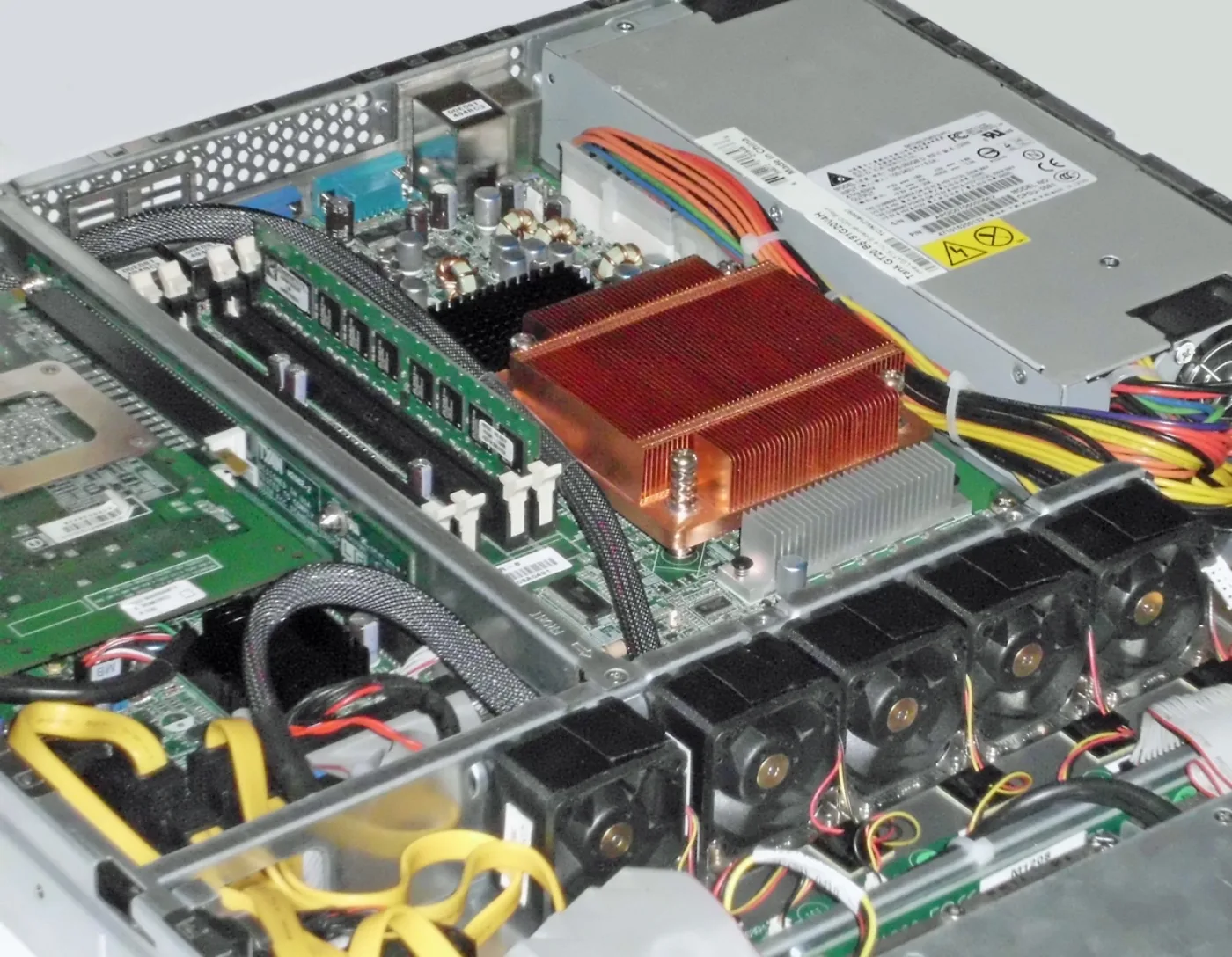
Image: Wikimedia Commons - 1U rack mount server cooling system fan heat-sink, Tobias Maier, CC0. Optimized to WebP.
What Does Dell Server Fan Failure Mean?
Dell Server Fan Failure means that iDRAC or the system management layer sees fan behavior outside the expected range. Dell's PowerEdge Error and Event Messages Guide places fan events in the FAN category and links them to system health.
Important event classes:
| Event code | Typical meaning | Operational risk |
|---|---|---|
FAN0000 | fan RPM below lower warning threshold | follow-up and planned inspection |
FAN0001 | fan RPM below lower critical threshold | fast physical check and risk review |
FAN0002 | fan RPM above upper warning threshold | thermal control or airflow issue may exist |
FAN0003 | fan RPM above upper critical threshold | aggressive cooling, detection, or thermal event should be investigated |
Dell documentation explains that the fan may not be operating optimally, may be improperly installed, or may be failing. The system may also increase fan speeds to protect itself. That means "fans are very loud" and "fan failure" can be two symptoms in the same thermal chain.
This topic should be read together with Dell Server Datacenter Design Guide, Dell Firmware Version Mismatch Issue, and Dell iDRAC Not Responding Issue.
What Evidence Should Be Collected First?
When a fan alert appears, evidence should be collected before opening the chassis in panic. Some failures are physical, but others are detection or communication issues.
First response:
- Record system health and affected fan slot in iDRAC Dashboard.
- Find the
FAN0000,FAN0001,FAN0002, orFAN0003event code in Lifecycle Log. - Check whether inlet temperature, CPU load, PSU status, or chassis intrusion events occurred at the same time.
- Record the fan RPM value and whether it is below or above threshold.
- Check whether firmware update, iDRAC reset, chassis opening, disk/NIC replacement, or maintenance occurred in the last
24 hours. - Use OpenManage Enterprise or central monitoring to separate one-server events from rack-level thermal behavior.
- Collect a SupportAssist Collection/TSR report before intervention when needed.
The goal is not only finding a failed fan. The goal is separating thermal, mechanical, management-plane, and environmental causes.
How Should Physical Fan Checks Be Done?
Dell's FAN0001 response path includes excluding temporary communication issues, checking for cable interference in fan blades, reseating the fan in the same slot, swapping it with another fan location, and replacing the fan if the issue persists.
Safe physical check order:
- clarify maintenance window and workload impact
- apply ESD and hot-part safety
- inspect airflow path and cable contact after opening the chassis
- confirm the fan module is fully seated
- remove and reinstall the fan in the same slot
- swap with a known-good fan of the same model if possible
- if the error moves with the fan, suspect the fan module
- if the error stays in the same slot, inspect connector, riser, board, or detection layer
The critical distinction is slot versus fan. If the fault moves with the fan, replacement is logical. If it stays in the same slot, a new fan may not solve the issue.
How Should iDRAC and Lifecycle Log Be Interpreted?
iDRAC Lifecycle Log lets teams read a fan event as part of a timeline. Dell Info Hub describes Lifecycle Logs as a sequence of events generated by iDRAC and host operations. This matters because a fan alert often only makes sense when the surrounding events are reviewed.
Useful records:
FANevent messages- inlet temperature warnings
- chassis cover open records
- PSU redundancy or power cap events
- firmware update or iDRAC reset records
- thermal profile or fan speed offset changes
- OS shutdown or unexpected power action events
For example, if chassis opening happened just before the alert, physical seating or cable contact becomes more likely. If firmware work happened first, iDRAC/Lifecycle Controller behavior and inventory synchronization should also be reviewed. This connects to Dell Server Firmware Update Failed Issue and How to Reset Dell iDRAC.
Why Do Airflow and Thermal Design Matter?
A fan alert can be caused by increased cooling demand rather than a broken fan. Dell's PowerEdge prefailure alert materials explain that temperature and fan alerts can provide early warning against overheating. That makes thermal design part of fan troubleshooting.
Check these points:
- is cold-air intake blocked at the front of the rack
- is cable density blocking rear exhaust airflow
- are missing blanking panels causing hot-air recirculation
- is inlet temperature inside the supported range for the model
- was fan speed offset or thermal profile changed manually
- do third-party PCIe cards, disks, or fan modules affect thermal behavior
- does high CPU/GPU load keep fan speed elevated
Dell server fan failure therefore relates to Server Installation, Configuration and Commissioning, Data Center Setup, Power and Cooling Solutions, and System Maintenance and Management.
When Is Fan Replacement Required?
Fan replacement becomes clearer after evidence is collected. These situations make replacement more likely:
FAN0001orFAN0003critical events repeat- the alert returns after reseating the fan
- the fault follows the fan to another slot
- the fan does not spin, rubs, or makes abnormal noise
- a known-good fan works in the same slot
- SupportAssist/TSR points to the fan module
Replacement considerations:
- use an original fan module compatible with the PowerEdge model
- confirm fan model and revision compatibility
- verify health status and Lifecycle Log after replacement
- if several fans fail in the same family, review rack temperature and power density
This layer relates directly to Server and Storage Spare Parts Sales Service and Original Hardware Component Sourcing and Compatibility Checks.
Prevention Plan
Days 1-7: Evidence and quick remediation
- Export all fan event codes, slot numbers, and RPM values.
- Record fan reseat and swap-test results.
- Retain iDRAC, Lifecycle Log, and SupportAssist Collection/TSR output.
- Check inlet temperature, rack front/rear airflow, and cable obstructions.
Days 8-20: Standardization
- Document fan module and spare-part compatibility standards.
- Validate iDRAC, BIOS, and Lifecycle Controller firmware levels.
- Review OpenManage Enterprise alert routing and thermal monitoring thresholds.
- Add fan slot testing and post-check steps to maintenance procedures.
Days 21-30: Monitoring and improvement
- Report recurring fan and temperature events at rack or fleet level.
- Separate workload, PCIe card, or environmental causes of high fan speed.
- Complete data center airflow, blanking panel, and cable management improvements.
- Clarify spare fan stock planning and SLA impact for critical servers.
OpenManage Enterprise Power Manager helps move power and thermal visibility from single servers to fleet level, making it easier to separate environmental, model-specific, and rack-specific fan behavior.
Related Content
- Dell Server Datacenter Design Guide
- Dell Server Firmware Update Failed Issue
- Dell Firmware Version Mismatch Issue
- Dell iDRAC Not Responding Issue
- How to Reset Dell iDRAC
- Dell Server High Availability Design Guide
Checklist
- FAN event code and fan slot number were recorded
- Lifecycle Log and iDRAC health were reviewed
- Fan blades were checked for cable contact or physical obstruction
- Fan was reseated in the same slot
- Swap test was performed with a known-good fan
- Fault movement with fan or slot was separated
- Ambient temperature and rack airflow were checked
- iDRAC/BIOS/Lifecycle Controller firmware levels were reviewed
- SupportAssist Collection/TSR report was collected
- Health, logs, and RPM values were verified after replacement
Next Step with Leon-X
Dell Server Fan Failure is not only a fan replacement task. Hardware health, thermal design, iDRAC visibility, spare-part compatibility, and operating procedure should be handled together. Leon-X supports this through Hardware & Software Services, especially Server Maintenance, Warranty and Technical Support Service, Server and Storage Spare Parts Sales Service, and Original Hardware Component Sourcing and Compatibility Checks.
To reduce recurring thermal risks, Data Center Setup, Power and Cooling Solutions and System Maintenance and Management are also relevant. To review your current PowerEdge environment or request a proposal, continue through the Contact page.
Related pages:
- Hardware & Software Services
- Server Maintenance, Warranty and Technical Support Service
- Server and Storage Spare Parts Sales Service
- Data Center Setup, Power and Cooling Solutions
- Contact
FAQ
Does Dell Server Fan Failure always require fan replacement?
No. Poor seating, cable contact, iDRAC communication issues, or airflow problems can appear in the same alert family. Replacement should be confirmed through swap testing and log evidence.
How critical is a FAN0001 event?
FAN0001 means fan RPM is below the lower critical threshold. It requires fast physical inspection, iDRAC/Lifecycle Log review, and replacement planning if needed.
If fans run loudly, is the fan broken?
Not always. The system can increase fan speed when it detects temperature or airflow risk. Check inlet temperature, rack airflow, cable obstruction, and thermal profile first.
Can iDRAC reset fix fan alerts?
For temporary fan communication issues, Dell recommends restarting iDRAC. If the alert repeats, physical fan, slot, firmware, and thermal conditions should also be reviewed.
What should be checked after replacement?
After installing a new fan, verify iDRAC health, Lifecycle Log, RPM value, inlet temperature, and OpenManage alert state.
Sources
- Dell PowerEdge Servers Error and Event Messages Reference Guide - FAN event messages
- Dell Technologies - Prefailure alerts provided by PowerEdge systems management
- Dell Technologies Info Hub - Dell OpenManage Enterprise Power Manager
- Dell Technologies Info Hub - iDRAC Lifecycle Logs
- Wikimedia Commons - 1U rack mount server cooling system fan heat-sink