The "No Boot Device Found" or "No Boot Device Available" error on Dell PowerEdge servers occurs when the motherboard or RAID controller loses communication with the operating system boot files. This error usually appears after the server successfully completes the POST (Power-On Self-Test) phase but cannot locate a bootable disk, RAID virtual disk, or network source. The quick answer is: if no boot device is found on a Dell server, you should first check if the PERC (PowerEdge RAID Controller) sees the physical disks, verify whether disks are in a 'Foreign' state, and check the Boot Mode (UEFI/BIOS) and boot sequence under F2 System BIOS.
This guide is specifically written for:
- Systems administrators managing Dell PowerEdge server infrastructures
- IT specialists responsible for datacenter operations and server hardware continuity
- Infrastructure engineers facing boot errors after installations, migrations, or firmware updates
- IT support teams seeking to systematically troubleshoot disk and RAID failures on Dell servers
Quick Summary
- The most common cause of the "No Boot Device Found" error on Dell servers is a mismatch between the
Boot Modesetting (UEFI or BIOS/Legacy) and the mode in which the OS was originally installed. - Physical disks entering a
Foreignstate or a RAID array dropping toOfflineorFailedstatus makes the boot virtual disk completely invisible to the server. - Dell Lifecycle Controller (
F10) and UEFI Boot Manager (F11) are the most practical tools for performing manual boot tests and rebuilding boot entries. - Loose SAS/SATA data or power cables, physical contact issues on the backplane, and power supply unit (PSU) fluctuations can cause disks to be detected too late during POST.
- In modern PowerEdge architectures (R650, R750, R760), boot operations via NVMe and BOSS-S2 (Boot Optimized Server Storage) cards only support
UEFImode.
Table of Contents
- What is the No Boot Device Found Error?
- Critical Checks in the First 10 Minutes
- RAID Controller and Disk Health Issues
- BIOS/UEFI Boot Mode and Sequence Configuration
- BOSS Cards and NVMe Boot Features
- Physical Hardware Diagnostics
- Most Common Mistakes to Avoid
- Related Articles
- Troubleshooting Checklist
- Next Step with Leon-X
- Frequently Asked Questions
- Sources
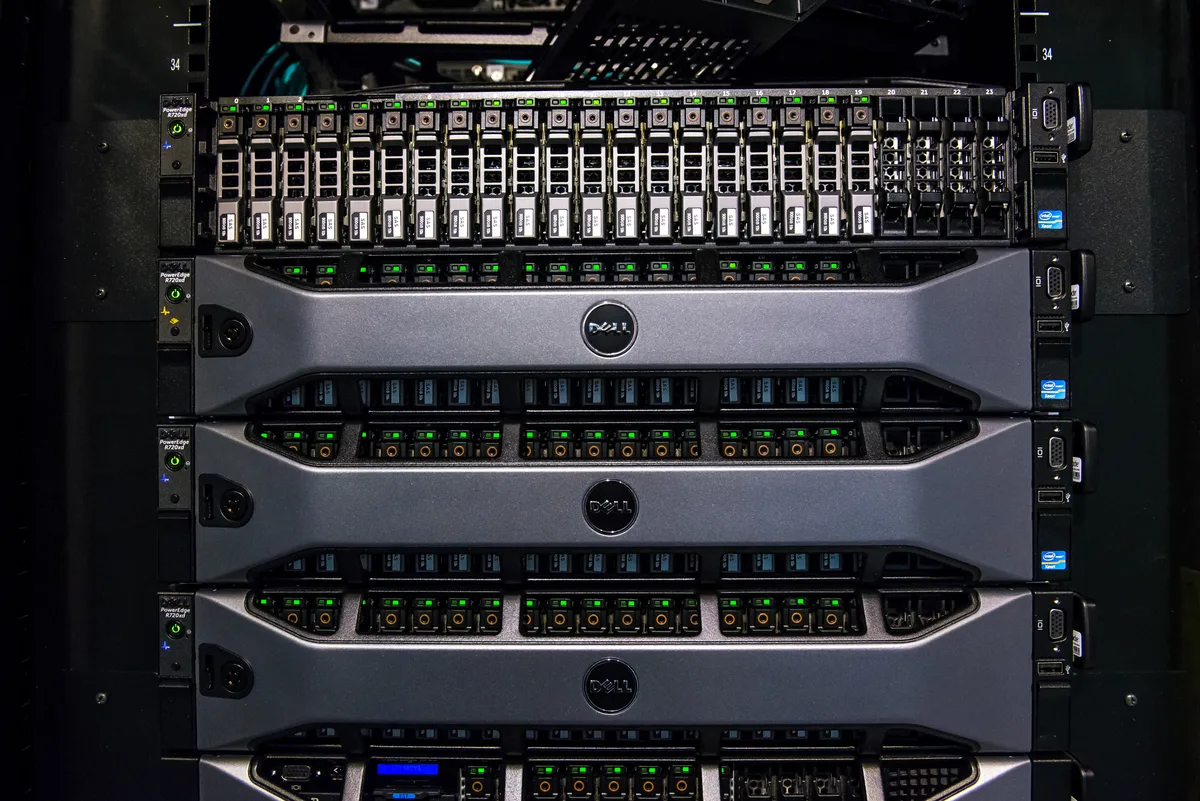
Image: Wikimedia Commons - Dell PowerEdge R720xd.
What is the No Boot Device Found Error?
This error indicates that the motherboard or RAID controller cannot find the sector containing a bootable operating system image (Master Boot Record - MBR or EFI System Partition - ESP). On your PowerEdge server display, you may encounter one of the following error messages:
No Boot Device AvailableNo bootable device foundStrike F1 to retry boot, F2 for system setup, F11 for bios boot managerPXE-E61: Media test failure, check cable(When network boot fails)
In server environments, this issue rarely means the hardware is completely destroyed. Instead, the error can be triggered by logical or software-based causes such as firmware updates, power outages, accidentally changed BIOS parameters, or sync loss on the RAID controller. To resolve it, you must systematically check the logical layer (RAID and BIOS boot entries) followed by the physical layer (cabling, drive insertion, and slot seating).
Critical Checks in the First 10 Minutes
When the boot failure occurs, performing a structured diagnostic sequence saves valuable time compared to shutting down the server and pulling disks immediately.
1. Inspect the iDRAC Web Interface
If you do not have physical access to the server or want to gather insights before entering the server room, the integrated Dell Remote Access Controller (iDRAC) is your most powerful asset:
- Log in to the iDRAC web console.
- Check the overall system health under the Dashboard or System Health tab.
- Go to Storage > Controllers to review the state of your PERC card and defined Virtual Disk configurations.
- Navigate to Maintenance > System Event Log (SEL) to review hardware or power warnings generated during the recent boot cycle.
2. Enter the Boot Manager with F11
Restart the server and press F11 during the POST screen to access the BIOS Boot Manager:
- Under the One-shot Boot Menu, verify if the disk or Virtual Disk containing the OS is visible in the list.
- If the correct boot target is visible, select it to perform a manual boot test.
- If the operating system starts successfully after a manual selection, the physical drive is healthy; the issue is a misconfigured or corrupted permanent
Boot Sequencein the BIOS.
RAID Controller and Disk Health Issues
One of the most common hardware-related causes of boot errors is the loss of Virtual Disk integrity on the RAID controller (PERC).
Foreign Config (Yabancı Yapılandırma) State
During server restarts or power fluctuations, the PERC controller may fail to read the RAID metadata on physical disks. In this scenario, the disks enter a Foreign state. While in this state, the Virtual Disk is not presented for boot, triggering the "No Boot Device" error.
How to Fix:
- Press
F2during POST to enter System Setup. - Go to Device Settings > Dell PERC Configuration Utility.
- Navigate to Controller Management > Foreign Configuration.
- Select Preview Foreign Config to inspect the metadata. If the configuration details match your expectations, click Import to load the metadata into the PERC controller. Once completed, the Virtual Disk will return to
Onlinestatus, allowing the operating system to boot.
RAID Degraded or Offline Status
In fault-tolerant RAID configurations (RAID 1, 5, 6, or 10), when more than the supported number of physical drives fail or the RAID utility locks up, the virtual disk drops to Offline or Failed status.
- In a RAID 5 array, a single drive failure makes the virtual disk
Degraded, but the system remains bootable. However, if a second drive fails, the virtual disk becomes completelyOffline, blocking access to boot files. - Inspect the virtual disk status in the PERC configuration screen. If a disk has failed and a spare is available, insert the replacement disk to initiate the
Rebuildprocess. Rebuild speeds vary depending on drive capacity and current server workloads, taking up to several hours.
BIOS/UEFI Boot Mode and Sequence Configuration
At the logical layer, the most frequent root cause of boot issues is a mismatch between the BIOS configuration and the operating system partition scheme.
Boot Mode Comparison
| Feature | Legacy BIOS Mode | UEFI Mode |
|---|---|---|
| Partition Limit | Supports up to 2 TB partition size | Supports over 2 TB and unlimited partitions |
| Boot Structure | Master Boot Record (MBR) based | .efi executable files in EFI System Partition (ESP) |
| Security Control | No security verification | UEFI Secure Boot blocks unauthorized code execution |
| Boot Speed | Slower hardware initialization | Optimized, much faster initialization times |
| BOSS & NVMe Support | Unsupported or highly restricted | Fully compatible and serves as the operational standard |
If your operating system was installed in UEFI mode but the BIOS Boot Mode was accidentally changed to Legacy/BIOS (or vice versa), the motherboard cannot interpret the boot partition and will generate the error.
How to Fix:
- Navigate to
F2System Setup > System BIOS > Boot Settings. - Ensure the Boot Mode matches your original OS installation type. For modern setups running Windows Server 2022, ESXi 8.0, or recent Linux distributions, this should typically be set to
UEFI. - Save the changes, exit System Setup, and restart the server to verify.
BOSS Cards and NVMe Boot Features
In modern Dell PowerEdge servers, the operating system is frequently decoupled from primary data storage arrays using Dell BOSS (Boot Optimized Server Storage) cards.
- BOSS-S1 or BOSS-S2 PCIe cards accommodate two M.2 SATA SSDs configured in hardware RAID 1.
- If both SSDs on the BOSS card fail, or if the BOSS controller locks up due to a firmware error, the operating system drive becomes completely inaccessible.
- To boot from BOSS cards and NVMe storage devices, both UEFI and Secure Boot must be configured in System BIOS. Legacy BIOS mode does not support NVMe önyükleme out of the box.
Physical Hardware Diagnostics
If software and logical checks do not resolve the error, the physical server components must be examined:
- SAS/SATA and Power Cables: Ensure all SAS/SATA data cables are firmly connected to both the PERC controller and the backplane. Loose cables can cause disks to initialize too slowly during POST or fail to detect entirely.
- Drive Seating: Check that physical disk carriers (caddies) on the front panel are fully locked in place and that activity LEDs show a solid green light. A blinking orange LED indicates disk failure.
- Slot and Controller Seating: If necessary, power off the server, pull the PERC controller from its PCIe slot, clear any dust, and reseat it firmly. Thermal strain or oxide layers can trigger intermittent controller connection drops.
Most Common Mistakes to Avoid
- Replacing Disks Without Checking F11 Boot Manager: Pulling drives or breaking a RAID array immediately without a manual boot test can lead to preventable data loss. Always perform manual boot checks first.
- Clearing a Foreign Config Directly: Clicking
Clearinstead ofImporton a foreign configuration disc wipes the RAID metadata, which can make virtual disk recovery extremely difficult. - Neglecting Boot Mode Post-Firmware Updates: BIOS updates can reset motherboard options to factory defaults. A UEFI-based installation will fail to boot if the motherboard silently falls back to Legacy BIOS.
- Prioritizing PXE Boot over Local Disks: When Network Boot (PXE) is placed at the top of the boot sequence, the server hangs trying to load images from the network before checking local controllers.
Related Articles
- How to Fix Dell Server UEFI Boot Issues
- How to Fix Dell RAID Degraded Status
- Dell PowerEdge Raid Configuration Best Practices
- How to Resolve Dell Server Disk Failure Errors
Troubleshooting Checklist
- Connected to the iDRAC interface to review SEL hardware events and drive health.
- Restarted the server and pressed
F11to perform a manual boot override test. - Opened
F2 > System Setup > Device Settingsto verify virtual disk online status on the PERC utility. - If a foreign drive was detected, performed a secure
Importsequence. - Verified that the BIOS
Boot Modematches the partition structure of the OS (UEFI or Legacy). - Verified physical connections including backplane data cables, power feeds, and drive carrier seating.
Next Step with Leon-X
A "No Boot Device Found" error on a Dell PowerEdge server can disrupt critical business operations and risk data loss if handled incorrectly. Delivering enterprise infrastructure support across Ankara, Leon-X provides professional Hardware & Software Solutions spanning procurement, deployment, and ongoing technical support. Our specialized Server Installation, Configuration, and Commissioning and Original Hardware Sourcing & Compatibility Checks services establish robust server builds that keep operational risks to a minimum. To review your infrastructure, source certified hardware, or request expert support, contact us through our Contact Us page today.
Frequently Asked Questions
Does the No Boot Device error indicate complete data loss?
In most cases, no. This error is typically a logical mismatch in the boot path, a corrupted boot configuration, or a foreign configuration on the RAID card. The actual user and database files on the disks are usually intact.
Will importing a Foreign Configuration delete my data?
No. Selecting Import reads the existing RAID metadata on the disks and registers it back into the PERC controller, preserving your logical drives. Conversely, choosing Clear can wipe this information.
What boot mode is required to boot from NVMe drives?
According to official Dell technical documentation, booting from NVMe drives requires the motherboard to run in UEFI mode with Secure Boot enabled.
Why do I get a boot error if there are no disk failures in the iDRAC logs?
This indicates that the physical and logical storage layers are healthy, but the operating system bootloader (MBR/GPT) is missing or corrupted, or the BIOS is attempting to boot in the wrong mode.