A Dell server UEFI boot issue does not always mean the disk has failed. In practice, the most common causes are a mismatch between the installed operating system boot mode and the current BIOS setting, the wrong boot entry being selected, a missing target inside the UEFI Boot Manager, or modern devices such as NVMe being expected to boot in the wrong mode. The short answer is this: if a Dell PowerEdge server completes POST but does not start the operating system, teams should validate boot-mode alignment, F11 Boot Manager visibility, boot-sequence order, and the health of the actual boot source together.
This guide is especially for:
- Dell PowerEdge administrators
- data center and systems operations teams
- IT managers seeing
No Boot Device Availableor similar errors after deployment - infrastructure teams that want a more operational understanding of BIOS versus UEFI
Key Takeaways
- Dell’s PowerEdge boot-settings documentation explains that
UEFIprovides support for partitions larger than2 TB,UEFI Secure Boot, and faster boot times. - The same documentation explicitly states that booting from
NVMerequiresUEFImode. - Dell’s PowerEdge no-boot troubleshooting article clearly states that an operating system installed in
UEFImode cannot boot inBIOSmode, and the reverse is also true. - Dell’s Lifecycle Controller guide confirms that
F11is the key path into the UEFI Boot Manager. - Dell’s Boot Settings page shows
Boot Sequence Retrycan retry the boot sequence after30 secondswhen enabled. 64-bitUEFI-compatible operating systems can be installed in UEFI mode, while32-bitoperating systems are limited to BIOS mode.
Table of Contents
- What Is a Dell Server UEFI Boot Issue, Exactly?
- What Should You Check in the First 10 Minutes?
- Why Is Boot-Mode Mismatch One of the Most Common Root Causes?
- How Should You Validate UEFI Boot Manager and Boot Sequence?
- What Should Teams Know About NVMe, Secure Boot, and Modern PowerEdge Design?
- What Are the Most Common Mistakes?
- Related Articles
- Checklist
- Next Step with Leon-X
- Frequently Asked Questions
- Sources
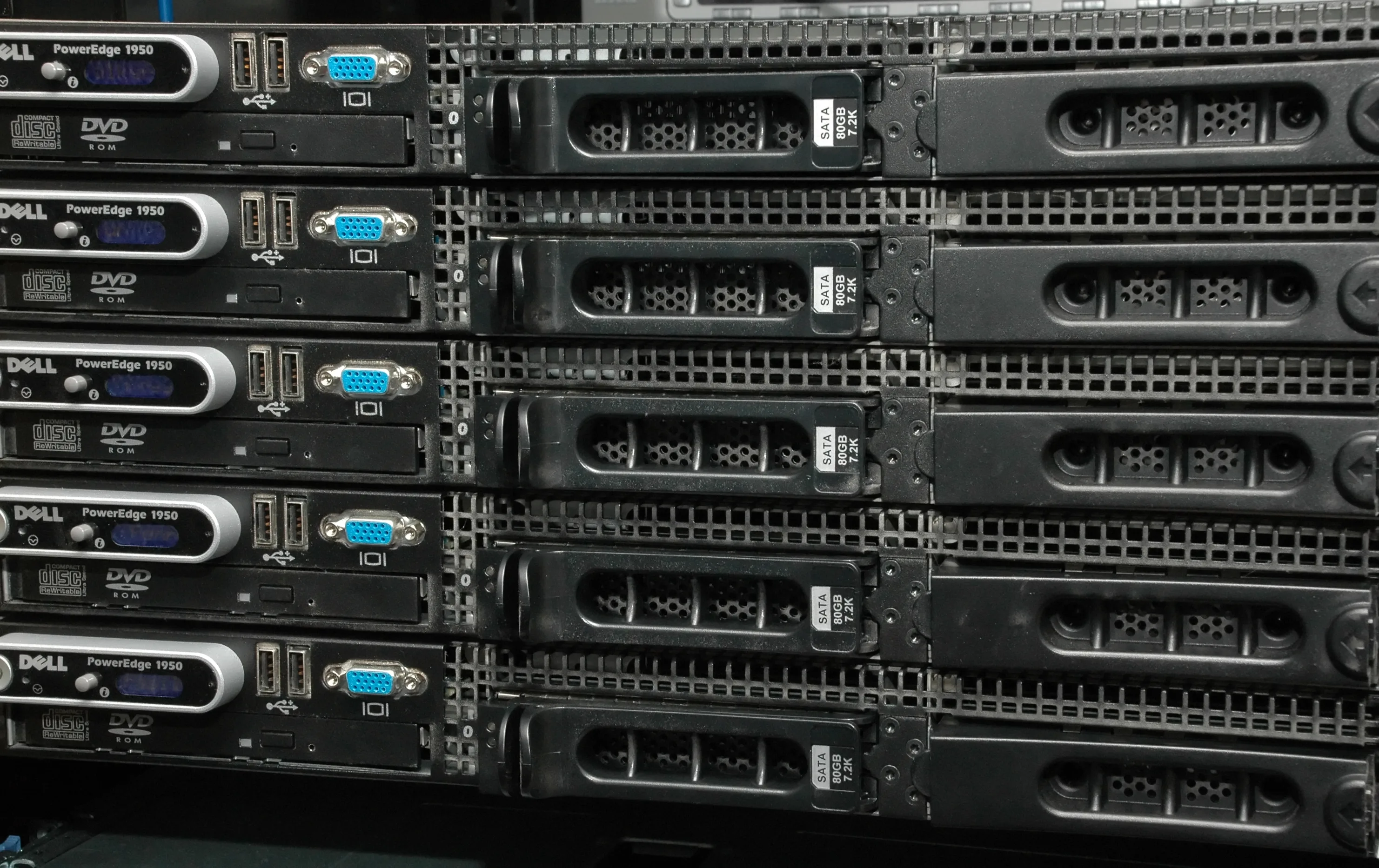
Image: Wikimedia Commons - Five Dell PowerEdge 1950s Front.
What Is a Dell Server UEFI Boot Issue, Exactly?
This is not a single error string. In the field, it usually appears as one of these symptoms:
No Boot Device AvailableNo bootable device found- the server completes POST but the OS never starts
- the expected disk or boot entry does not appear in Boot Manager
- the disk seems visible, but the system still cannot boot because the mode is wrong
Dell’s PowerEdge troubleshooting guidance draws a useful line here: if the server powers on, completes POST, and then fails before the operating system loads, the issue belongs in the “no boot” category. That means teams should validate boot configuration before assuming direct hardware failure.
The first classification question should be:
- does the server fail before POST
- does POST complete but the server miss the correct boot source
- is the boot source present, but the OS installed in the wrong mode
- is this really a missing UEFI entry, RAID view issue, or NVMe-visibility problem
What Should You Check in the First 10 Minutes?
1. Test a manual boot with F11
Dell’s no-boot troubleshooting flow is direct:
- restart the system
- press
F11during POST - select the required boot device manually
If the system boots that way, the likely root cause is often BIOS or UEFI boot configuration rather than an outright disk failure.
2. Open Boot Settings with F2
Dell’s boot-settings documentation gives the path as:
F2intoSystem Setup- then
System BIOS > Boot Settings
This is where teams can review Boot Mode, Boot Sequence Retry, placeholder options, and related boot controls.
3. Separate the failure correctly
Use this initial matrix:
| Symptom | First area to inspect | Likely cause |
|---|---|---|
| Boot device missing in Boot Manager | UEFI entries, controller visibility | wrong boot entry or missing device visibility |
| Disk visible but still not booting | boot mode | UEFI/BIOS mismatch |
| NVMe boot expected but not working | boot mode | UEFI requirement |
| Boot fails intermittently | boot order / retry | wrong sequence or delayed device discovery |
| Manual boot works, automatic boot fails | boot sequence | persistent boot-order issue |
Why Is Boot-Mode Mismatch One of the Most Common Root Causes?
Dell’s PowerEdge no-boot article and boot-settings documentation reinforce the same point: the boot mode used by the installed operating system must match the active server boot mode.
In practice:
- if the OS was installed in
UEFI, the server cannot boot it inBIOS - if the OS was installed in
BIOS, the server cannot boot it inUEFI
Dell does not present this as a theoretical edge case. The PowerEdge troubleshooting content explicitly ties boot-mode mismatch to No Boot Device Available style failures.
This matters even more on modern PowerEdge platforms because Dell lists these UEFI advantages directly:
- support for drives larger than
2 TB - enhanced security, including
UEFI Secure Boot - faster boot times
So in many current deployments, UEFI is not just an option. It is the correct operational baseline.
How Should You Validate UEFI Boot Manager and Boot Sequence?
Dell’s Lifecycle Controller guide confirms that F11 opens the UEFI Boot Manager, where administrators can:
- add boot options
- delete boot options
- arrange boot options
- access BIOS-level boot choices without another restart
Why does this matter? Because in UEFI mode, a disk is not treated like a single MBR boot target. Dell’s PowerEdge boot-options white paper explains the technical difference clearly:
- in
UEFI, the boot loader is stored as an executable file on a.FATfile system - one storage device can hold multiple boot options
- in legacy
BIOS, the boot loader is stored in theMBR, which is a more limited boot model
That means:
- the physical disk may be healthy
- but the expected
UEFIboot entry may be missing, broken, or ordered incorrectly
Dell’s Boot Settings details also matter here. The same page states that when Boot Sequence Retry is enabled, the server can retry booting after 30 seconds if the first attempt fails. That setting can affect real-world behavior when boot devices are discovered slowly.
What Should Teams Know About NVMe, Secure Boot, and Modern PowerEdge Design?
One of Dell’s most important notes in the boot-settings documentation is that NVMe booting requires UEFI mode only.
That becomes critical in modern PowerEdge environments such as:
- fresh NVMe-based OS deployments
- hypervisor boot designs
- environments enforcing Secure Boot
- larger storage and newer boot-media standards
Dell’s Lifecycle Controller guide also states that 64-bit UEFI-compatible operating systems can be installed in UEFI mode, while DOS and 32-bit operating systems are limited to BIOS mode. That means old image standards and new server platforms may not align automatically.
This is why the service-path logic for this topic is built around:
- the broad delivery layer, Hardware and Software Solutions
- server commissioning, Server Setup, Configuration, and Go-Live
- hardware design context, Enterprise Server Hardware Procurement Service
- planning and proposal intake through Contact
What Are the Most Common Mistakes?
Assuming disk visibility means bootability
Seeing the disk in hardware inventory does not mean the boot mode and boot entry are correct.
Skipping the F11 Boot Manager test
Manual boot testing is one of the fastest ways to separate a configuration issue from a hardware failure.
Leaving BIOS mode active for NVMe boot plans
Dell’s documentation is explicit here: NVMe boot requires UEFI.
Reusing an old imaging standard on new PowerEdge hardware
Older BIOS-based deployment patterns can break on newer hardware and storage designs.
Fixing boot once manually but not correcting the permanent sequence
If the system boots once through manual selection but Boot Sequence is not fixed, the issue usually returns.
Related Articles
- Dell Server Firmware Update Failed Issue
- Dell Firmware Version Mismatch Issue
- How to Configure a Dell PowerEdge Server for ISO 27001 Alignment
Checklist
- The operating system’s installed boot mode was verified
- The correct boot entry was visible in
F11UEFI Boot Manager -
F2 > System BIOS > Boot Settingswas reviewed for boot sequence - If NVMe is used,
UEFImode was confirmed - The image standard and OS compatibility were checked for
64-bitUEFI support - Manual boot success was separated from the permanent boot-sequence problem
Next Step with Leon-X
Dell server UEFI boot issues are rarely just about disks or firmware. They usually sit at the intersection of deployment standard, boot-mode policy, image method, and server generation. Leon-X helps organizations align those layers through Hardware and Software Solutions, especially Server Setup, Configuration, and Go-Live and Enterprise Server Hardware Procurement Service. To review your environment or request a scoped proposal, continue through Contact.
Frequently Asked Questions
What is the most common cause of a Dell server UEFI boot issue?
The most common cause is a mismatch between the OS installation boot mode and the active BIOS boot mode.
Why is F11 so important?
Because it opens the UEFI Boot Manager and lets teams test the correct boot source directly.
Can BIOS mode be used when booting from NVMe?
No. Dell’s boot-settings documentation explicitly says that NVMe booting requires UEFI mode.
If manual boot works, does that usually mean hardware is healthy?
In many cases, yes. It strongly suggests the problem is closer to boot configuration or boot-order logic.
Can a 32-bit operating system be installed in UEFI mode?
No. Dell’s Lifecycle Controller guidance states that 32-bit operating systems are limited to BIOS mode.
Sources
- Dell PowerEdge: Troubleshooting a Server that Does Not Start - No Power, POST, Boot, or Video
- Dell PowerEdge XE9680L Installation and Service Manual - Boot Settings
- Dell Lifecycle Controller GUI User's Guide - Entering the UEFI Boot Manager
- Configuring Server Boot Options on 14th Generation Dell EMC PowerEdge Servers
- Wikimedia Commons - Five Dell PowerEdge 1950s Front