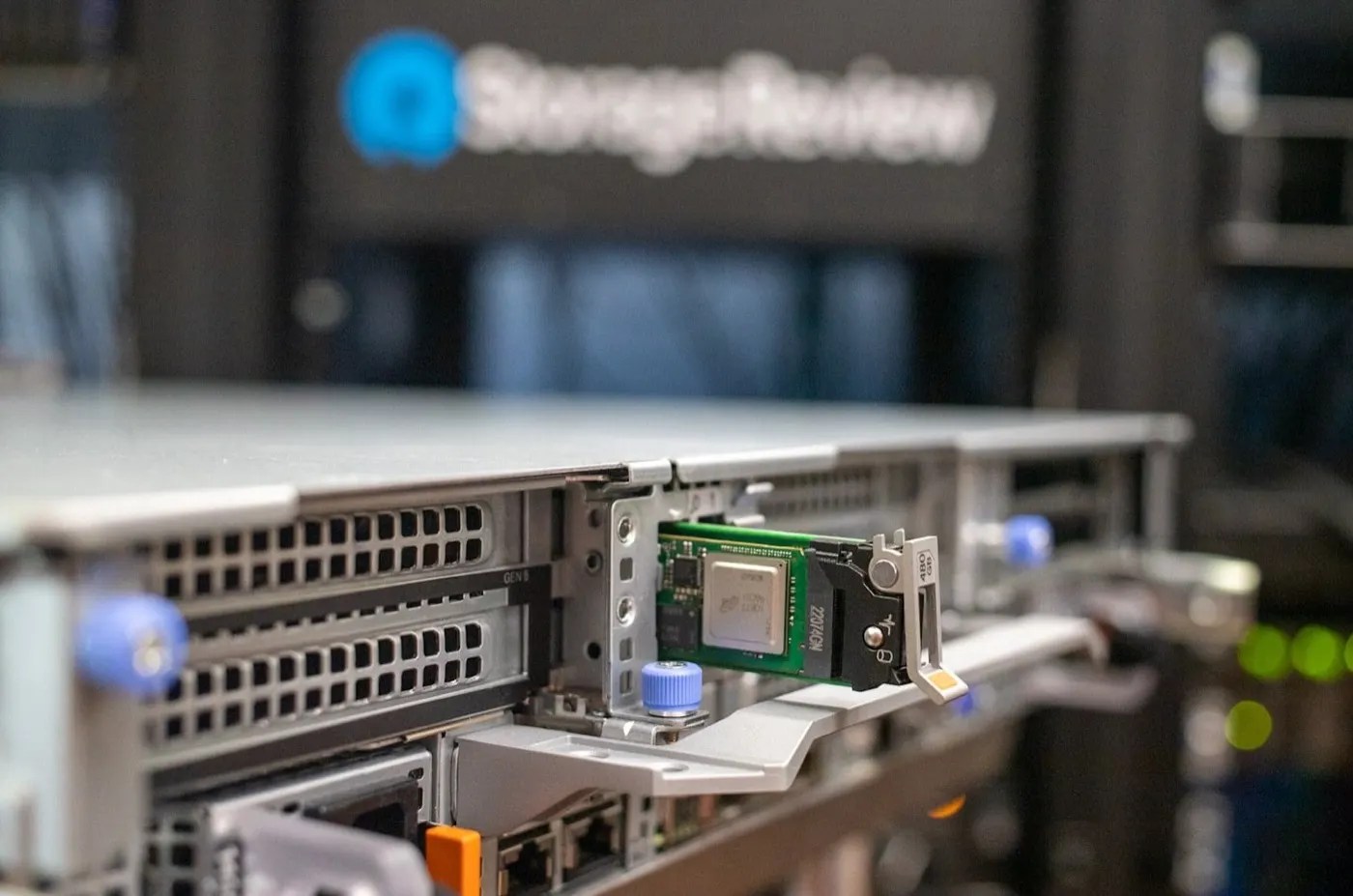
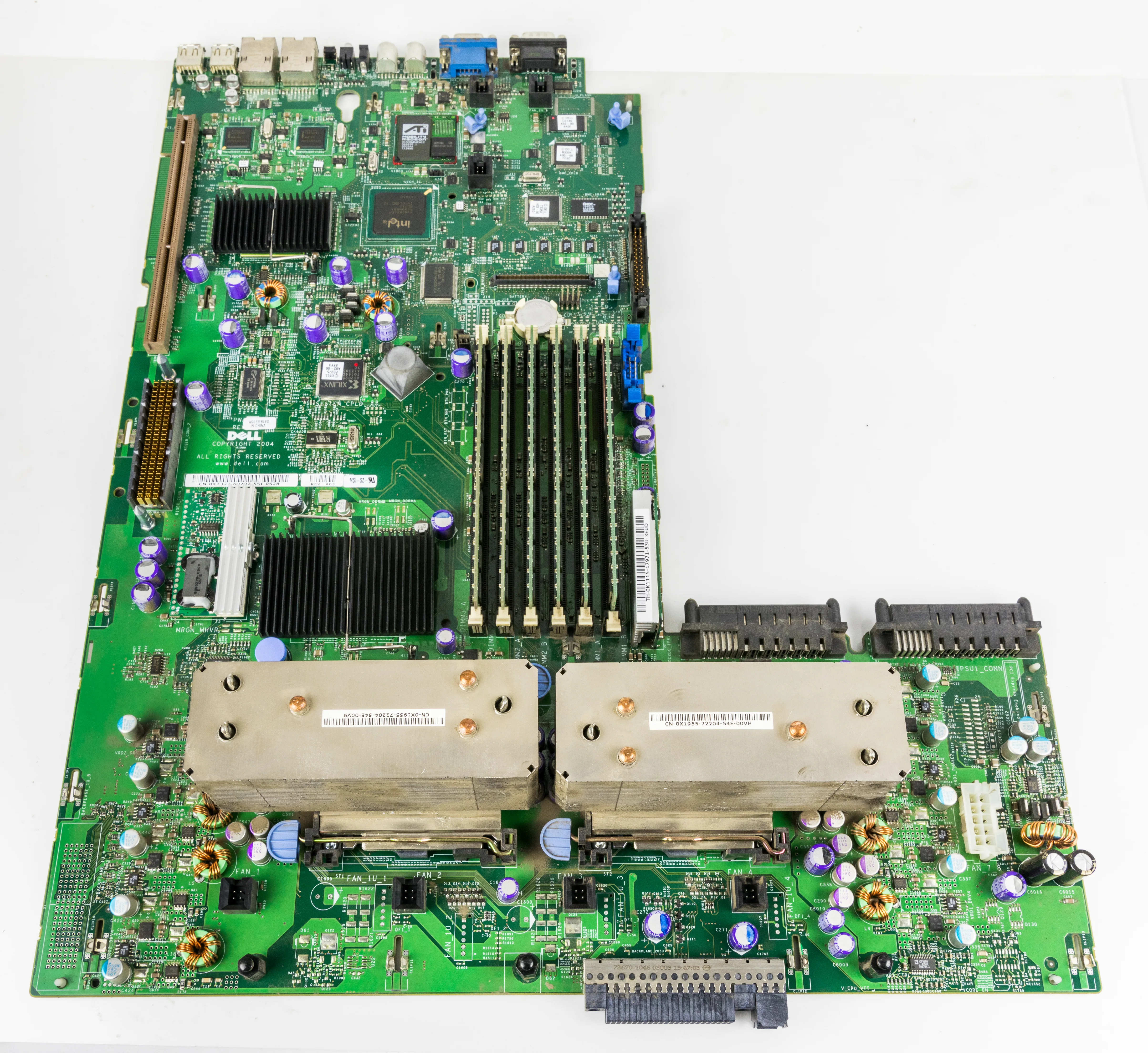
A boot hang at the "Stuck at Initializing Firmware" or "Initializing Firmware" screen on Dell PowerEdge servers occurs when the handshake between the system board hardware and embedded controllers is interrupted. This issue typically manifests immediately after the server receives power and the video signal is initialized, preventing the system from progressing to the önyükleme (boot) stage. The quick answer is: a hang on the initializing firmware screen is usually caused by an integrated Dell Remote Access Controller (iDRAC) lockup, a conflicting or failed PCIe expansion card (such as a RAID controller or NIC), corrupted NVRAM parameters, or outdated Lifecycle Controller firmware. To resolve it, perform an iDRAC soft reset, drain residual statik elektrik (flea power), isolate PCIe expansion cards, and reset the NVRAM jumper on the motherboard if necessary.
This guide is specifically designed for:
- Systems administrators responsible for the physical and logical management of Dell PowerEdge servers
- IT operations teams running high-availability infrastructure in datacenters and hosting facilities
- Systems engineers troubleshooting POST hangs by diagnosing and isolating hardware components
- Technical specialists seeking to optimize the reliability of Dell server iDRAC and BIOS firmware
Quick Summary
- The "Stuck at Initializing Firmware" error is primarily caused by a failure of the iDRAC controller to communicate with the motherboard during POST.
- Performing a "flea power drain" by disconnecting power cords and holding the power button for
30 secondsclears residual static electricity and resolves many transient firmware lockups. - PCIe expansion cards such as PERC RAID controllers, host bus adapters (HBAs), or GPUs can freeze the server during initialization due to firmware conflicts.
- Initiating an iDRAC soft reset by holding the physical blue i (Identification) button on the front panel for
15-20 secondscan restore communications without interrupting host power. - Persistent BIOS parameter corruption can be fixed by altering the
NVRAM_CLRjumper on the system board to force a hardware-level BIOS reset.
Table of Contents
- What is the Initializing Firmware Error?
- Critical Troubleshooting Steps in the First 10 Minutes
- iDRAC Lockups and System Board Communications
- PCIe Expansion Card Isolation and Conflicts
- Motherboard NVRAM Clear (Hardware Jumper Reset)
- Minimum-to-POST Troubleshooting (Min-to-POST Test)
- Most Common Mistakes to Avoid
- Related Articles
- Troubleshooting Checklist
- Next Step with Leon-X
- Frequently Asked Questions
- Sources
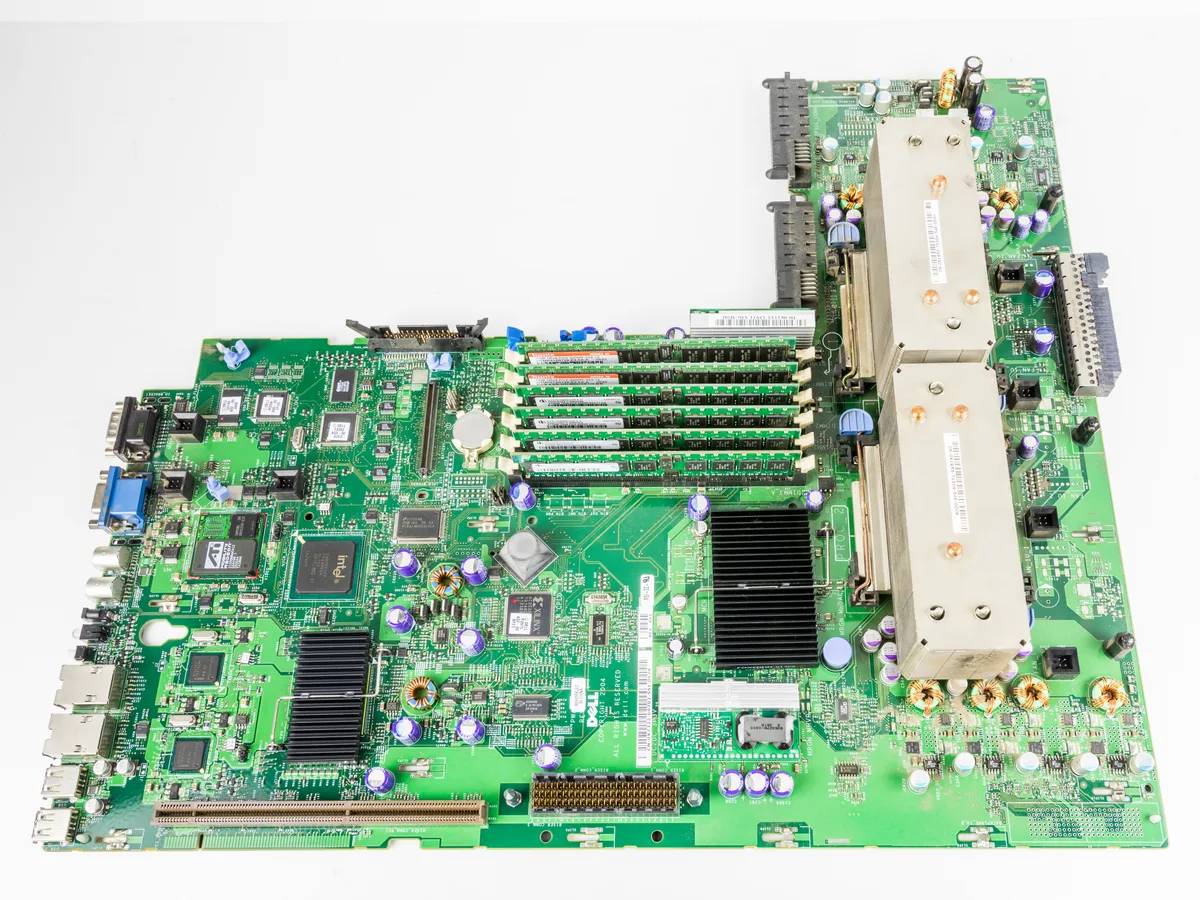
Image: Wikimedia Commons - Dell PowerEdge Motherboard System Board.
What is the Initializing Firmware Error?
This error occurs during the earliest stages of the server's hardware boot cycle. As the motherboard chipset, central processing unit (CPU), and system memory (RAM) initiate POST (Power-On Self-Test), the system BIOS and Lifecycle Controller query the firmware versions of all connected internal and external devices. During this polling cycle:
- If the iDRAC or Lifecycle Controller fails to respond,
- If a PCIe device (e.g., the PERC RAID controller) fails to complete its firmware handshake,
- If the parameters stored in the BIOS NVRAM become corrupted,
the motherboard dounces the POST sequence for safety, hanging indefinitely at the "Initializing Firmware" screen. Because this occurs before the server can hand over control to the operating system (Hypervisor, Windows Server, or Linux), it cannot be corrected using software-based utilities. Troubleshooting must be performed directly at the embedded controller and hardware layer.
Critical Troubleshooting Steps in the First 10 Minutes
When a firmware initialization hang occurs, following a structured physical and logical checklist is far more efficient than repeatedly power-cycling the server.
1. Perform an iDRAC Soft Reset
If the iDRAC controller is running in the background but has lost its communication path with the motherboard, you can reset it without interrupting the main server power:
- Physical Access: Press and hold the physical blue i (Identification) button on the server's front panel for
15 to 20 seconds. The server fans will momentarily spin up to full speed, indicating that the iDRAC has received the reboot command. - iDRAC Web Console: If the iDRAC web interface is pingable and responsive over the network, navigate to the Quick Links menu in the top-right corner and select Reset iDRAC.
Once the iDRAC completes its initialization, the server's POST screen will usually proceed automatically.
2. Execute a Flea Power Drain
Transient electrical surges or residual static charges on capacitors can cause system controllers to experience unpredictable firmware loops. Draining this residual charge clears the system board's state:
- Turn off the server.
- Physically disconnect all power cables (PSUs) and all external peripherals.
- Press and hold the server's front power button for at least
30 secondscontinuously. This decharges all capacitors on the motherboard. - Reconnect the power cords and wait approximately
2 minutesfor the iDRAC to fully boot up (the server fans will stabilize and slow down once ready). - Turn on the server and check if the hang is resolved.
PCIe Expansion Card Isolation and Conflicts
If the flea power drain does not bypass the hang, you must investigate the server's expansion cards. A corrupted firmware layer or revision conflict on any device connected to the PCIe bus can block the motherboard's POST scan.
Step-by-Step Isolation Process:
- Document all connected PCIe devices including PERC RAID controllers, network cards (NICs), Fiber Channel host bus adapters (HBAs), or GPUs.
- Shut down the server, disconnect the power, and remove the chassis cover.
- Disconnect all expansion cards except the primary PERC RAID controller required to see the boot drives.
- Reconnect the power cords and start the server. If the server successfully passes the "Initializing Firmware" screen, one of the removed cards is either physically defective or running firmware that conflicts with your motherboard/BIOS version.
Motherboard NVRAM Clear (Hardware Jumper Reset)
The NVRAM (Non-Volatile Random Access Memory) on the system board stores BIOS settings, hardware inventory registries, and boot configurations. If NVRAM data becomes corrupted—often due to an interrupted firmware update or power failure—the server can remain stuck at the initializing firmware screen.
To perform a physical NVRAM clear:
- Power down the server and disconnect all power cables.
- Locate the jumpers on the system board. On Dell PowerEdge motherboards, an NVRAM_CLR jumper is typically situated near the CPU sockets or DIMM slots.
- Move the jumper plastic cap from its default position (pins 1-2) to the clear position (pins 2-3).
- Plug in the power cords and turn on the server. The screen will display a message indicating that the NVRAM has been cleared.
- Turn off the server, disconnect the power cords, and return the jumper cap to its default position (pins 1-2).
- Power on the server. The BIOS settings will have reset to factory defaults, resolving any parameter-level boot loops.
Minimum-to-POST Troubleshooting (Min-to-POST Test)
If the server continues to freeze at the firmware screen, you must strip the server down to the bare minimum components required to complete POST. This isolates the error to the core motherboard, CPU, or memory channel.
Retain only the following components on the system board:
- Processor 1 (CPU 1)
- A single memory module in slot A1 (associated with CPU 1)
- Power Supply 1 (PSU 1)
- The Control Panel bezel and the System Board (Motherboard)
Remove all hard drives, backplane cabling, fans (beyond the single required cooling bank), PCIe controllers, and secondary RAM DIMMs. If the system completes POST in this minimal configuration, reinstall components one by one until you identify the failing hardware block.
Most Common Mistakes to Avoid
- Powering on the Server Immediately: Turning on the server immediately after plugging in the power cables doesn't give the iDRAC time to initialize its embedded OS, which can trigger handshake failures during early POST. Always wait
2 minutesbefore hitting the power button. - Assuming Motherboard Failure Instantly: Replacing an expensive system board before isolating physical cards is a costly mistake. Most POST freezes are caused by simple HBA or third-party ethernet card firmware locks.
- Leaving the NVRAM_CLR Jumper in the Clear Position: Forgetting to return the jumper cap to pins 1-2 after clearing the BIOS will cause the motherboard to wipe its configuration on every single boot cycle.
- Executing Disparate Upgrades simultaneously: Upgrading the BIOS, iDRAC, and PERC cards simultaneously across several major versions without utilizing intermediate stepping blocks often triggers severe firmware mismatches.
Related Articles
- How to Fix Dell Server UEFI Boot Issues
- How to Resolve Dell Server No Boot Device Found Errors
- How to Resolve Dell Server Disk Failure Errors
- How to Fix Dell PERC RAID Controller Disk Foreign State Errors
Troubleshooting Checklist
- Attempted an iDRAC soft reset using the front panel identification button.
- Drained residual motherboard static charge via a 30-second power button press.
- Isolated all non-essential PCIe expansion cards (NICs, HBAs, GPUs) from the system.
- Reset the BIOS settings to factory defaults using the
NVRAM_CLRmotherboard jumper. - Verified that iDRAC and Lifecycle Controller firmware revisions are fully compatible.
- Stripped the server down to "Minimum to POST" components to isolate core hardware faults.
Next Step with Leon-X
Dell PowerEdge firmware initialization freezes are complex hardware-to-software lockups that directly impact your datacenter's service continuity. Unstructured interventions or rushed component swaps can easily cause permanent system failures. Based in Ankara, Leon-X provides professional, end-to-end Hardware & Software Solutions that manage server procurement, lifecycle management, and emergency technical support. Our specialized Server Installation, Configuration, and Commissioning and Server Maintenance & Technical Support teams ensure your enterprise server assets run on stable, compatible firmware combinations. To troubleshoot server hangs, acquire original parts, or request expert on-site engineers, reach out to us immediately on our Contact Us page.
Frequently Asked Questions
How long should I wait at the "Initializing Firmware" screen?
During a normal boot cycle, this screen should display for no more than 1 to 2 minutes. If the server remains frozen at this screen for more than 5 minutes, a firmware lockup has occurred, and intervention is required.
Does resetting the iDRAC affect or delete my host operating system data?
No. The iDRAC is an independent management processor that operates entirely separate from the host CPU, memory, and hard drive storage volumes. Performing a soft reset or factory restore on the iDRAC will not alter or damage your virtual disk arrays or files.
Why does a BIOS update sometimes cause the server to hang at this stage?
This is typically caused by a version mismatch between the newly flashed BIOS and the existing iDRAC/Lifecycle Controller firmware. If the firmware gaps are too large, the POST communication handshake fails, locking up the server.
Will clearing the motherboard NVRAM erase my RAID array configurations?
No. The jumper-based NVRAM reset only restores default BIOS configurations. Because your RAID virtual disk metadatas are saved directly on the physical disks, clearing NVRAM will not delete your RAID layouts or storage volumes.
Sources
- Dell PowerEdge: Troubleshooting a Server that Does Not Start - Stuck at Initializing Firmware
- How to Reset the Integrated Dell Remote Access Controller (iDRAC) via Front Panel Button
- Dell PowerEdge: How to clear NVRAM using Jumper on System Board
- Wikimedia Commons - Dell PowerEdge Motherboard System Board