In the March 29, 2026 context, a VMware Network Not Working issue does not only mean that one virtual machine cannot reach the network. In many cases it points to a wider break in the network chain across the VM, port group, VMkernel, VLAN, or physical uplink layers. The short answer is this: the safest way to solve it is to first define the scope at VM, host, cluster, or VLAN level, then validate the guest and port group layer, and only after that move into VMkernel and physical switch behavior. This guide is written for teams that want to reduce a vague “VMware network is broken” complaint into a defendable root cause.
This guide is especially for:
- VMware administrators
- network and systems teams
- datacenter operations engineers
- IT teams facing post-vMotion, post-VLAN, or uplink-related connectivity failures
Quick Summary
VMware network not workingis not one error. It is a family of symptoms across multiple network layers.- The first critical split is whether the issue affects one VM, one host, one VLAN, or the whole cluster.
- Broadcom documentation shows that host-to-host port group inconsistency and wrong uplink attachment are common root causes.
- In-guest VLAN tagging designs can lose connectivity after vMotion.
- Multiple VMkernel ports on the same network or VLAN can create unexpected behavior in some scenarios.
- The safest flow is: isolate the scope, validate the guest and VM layer, confirm port group and VLAN alignment, then compare VMkernel and physical network behavior.
Table of Contents
- What Does VMware Network Not Working Mean?
- How Do You Narrow the Scope in the First 10 Minutes?
- What Are the Most Common Root Causes?
- Why Is Host-to-Host Network Inconsistency So Important?
- How Should You Check the Physical Uplink and VMkernel Layer?
- How Do You Prevent It Permanently?
- Quick Response Checklist
- Frequently Asked Questions
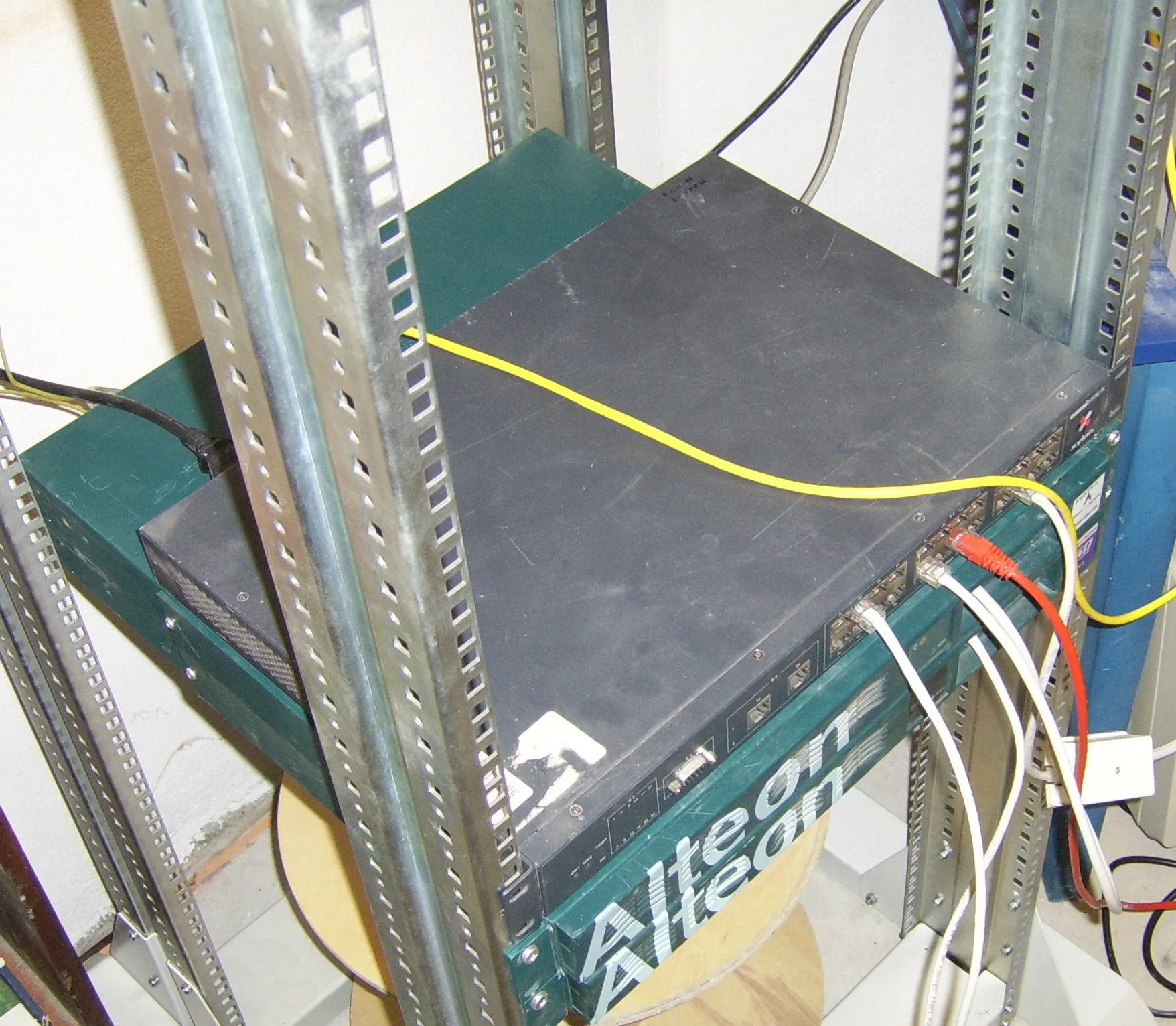
Image: Wikimedia Commons - Rack system2.
What Does VMware Network Not Working Mean?
This phrase usually shows up through one of these symptoms:
- a VM powers on but has no connectivity
- networking breaks after vMotion
- host management access disappears
- only one VLAN or port group is affected
- packets stop returning after an uplink change
- networking works on one host but fails on another
In other words, the real problem is usually not “there is no network.” It is that one part of the chain has broken and nobody has isolated which one. Broadcom's vSphere Networking documentation treats standard switches, distributed switches, VMkernel networking, and physical uplinks as one connected model. Troubleshooting has to follow the same layered logic.
How Do You Narrow the Scope in the First 10 Minutes?
The first goal is fast scope isolation:
- Does the issue affect one VM or every VM on the same port group?
- Is it limited to one host or visible across the cluster?
- Does it affect management, vMotion, storage, or general VM traffic?
- Was the last change related to VLAN, uplink, distributed switch, port group, or migration?
If you answer those questions first, you avoid unnecessary host restarts and risky production changes.
The safest opening sequence is:
- validate guest IP, gateway, and DNS
- confirm vNIC connection state
- verify the correct port group and VLAN
- compare behavior with other VMs on the same port group
- inspect the affected host's uplink and switch-port mapping
- move into VMkernel interface and routing validation only when needed
What Are the Most Common Root Causes?
The most common causes behind VMware Network Not Working are:
- wrong port group selection
- same port group name but different VLAN across hosts
- a newly attached NIC connected to the wrong physical network
- security or switch-policy differences between standard or distributed switch objects
- in-guest VLAN tagging after host migration
- poor VMkernel design for management or vMotion
- trunk or access mismatch on the physical switch
Broadcom KB 431907 shows that port group mismatch across ESXi hosts can make network backing invalid and break VM connectivity. KB 421337 shows how newly connected NICs can still fail because the physical switch side is not attached to the expected network.
Why Is Host-to-Host Network Inconsistency So Important?
Many VMware networking incidents come from the “same name, different behavior” problem. In standard-switch environments especially:
- the port group name may match
- but the VLAN ID is different
- the security policy is different
- or the uplink behavior is different
That creates the illusion that the network fails randomly, when the real issue is configuration drift across hosts.
Broadcom also documents that policy mismatches during upgrade and migration workflows can affect network behavior. So network health is not only about link status. It is also about configuration parity across the estate.
Related content:
- How to Fix VMware VM No Network Access
- How to Fix VMware Management Network Down
- How to Fix VMware vSwitch Misconfiguration
- How to Configure VLANs in VMware
How Should You Check the Physical Uplink and VMkernel Layer?
This layer is often discovered too late, but it can create the widest production impact.
Physical uplink validation
You should verify:
- whether the vmnic is connected to the correct switch port
- whether the port is access or trunk
- whether the required VLAN is actually carried
- whether LACP or port-channel expectations match the VMware side
As Broadcom KB 421337 explains, a newly connected NIC may still show no useful connectivity if the physical switch side is attached to the wrong network or wrong VLAN model.
VMkernel validation
If the management, vMotion, or storage path is designed badly, the issue will not stay limited to the VM layer. Broadcom's relevant KB shows that having multiple VMkernel ports configured for the same network or VLAN can create vMotion and connectivity problems in some environments. That means:
- do not create unnecessary multiple VMkernel ports for the same purpose
- document the routing and gateway design clearly
- retest management and vMotion connectivity after changes
The special case of in-guest VLAN tagging
If the guest OS uses 802.1Q tagging internally, Broadcom KB 317476 shows that connectivity can be lost after vMotion. This is easy to misread as a normal port group issue even though the design behavior is different.
How Do You Prevent It Permanently?
Permanent prevention depends on making these areas standard:
- host-to-host port group and VLAN standards
- uplink and switch-port documentation
- VMkernel design rules
- post-change smoke tests
- pre- and post-vMotion network validation
- regular parity checks in standard-switch environments
If teams keep saying “VMware networking broke again,” the problem is usually not one event. It is a missing operating standard.
Quick Response Checklist
- The scope was isolated at VM, host, VLAN, or cluster level.
- Guest IP, gateway, and route were validated.
- vNIC state and port group selection were confirmed.
- Behavior was compared with other VMs on the same port group.
- Host-to-host VLAN and policy drift was reviewed.
- Physical uplink and switch-port behavior were checked.
- VMkernel design and routing were reviewed.
- The last change was mapped into a rollback or correction plan.
Next Step with Leon-X
When VMware networking stops working, the root cause is rarely just one broken device. It is usually an operating problem that spans port group standards, VMkernel design, VLAN management, and physical network coordination. Leon-X helps teams review VMware networking end to end so that recurring outages are reduced and changes become safer to operate.
Related pages:
- Business Management Services
- Network Monitoring and Management Service
- VLAN Design and Configuration Service
- Contact
Frequently Asked Questions
What does VMware network not working mean?
It means one or more expected network paths inside the VMware environment are no longer behaving correctly, including VM, management, or VLAN-specific traffic.
Should I check the guest or the host first?
Start by defining the scope, then validate the guest and vNIC layer before moving into port group, uplink, and VMkernel analysis.
If port groups have the same name, are they always equivalent?
No. Especially in standard-switch environments, the same port group name can still hide different VLAN or policy settings.
Why can networking fail after adding a new uplink?
Because the physical switch side may be connected with the wrong VLAN or wrong switch-port profile. Broadcom documents this as a common cause.
Is VMkernel design really that important?
Yes. Management and vMotion paths depend heavily on correct VMkernel layout, and unnecessary multi-VMkernel design on the same network can create unstable behavior.
Conclusion
A VMware Network Not Working issue is not one simple alarm. It is a broken chain that can sit anywhere between the guest OS, port group, VMkernel path, VLAN design, and physical uplink. In the March 29, 2026 context, the best approach is to isolate scope first, then validate port group and VLAN parity, and finally inspect VMkernel and physical switch behavior in a controlled order.
Sources
- Broadcom Tech Docs - vSphere Networking
- Broadcom Knowledge Base - Port Group Mismatch Across ESXi Hosts Results in Network Unavailability
- Broadcom Knowledge Base - No connectivity on the newly connected NICs
- Broadcom Knowledge Base - Network connectivity is lost for VMs with In-Guest VLAN Tagging after vMotion
- Broadcom Knowledge Base - vMotion is not working, vMotion switch losing connection
- Wikimedia Commons - Rack system2