Installing NVMe disks in Dell PowerEdge servers is not just a matter of replacing an existing drive with a faster one. A stronger approach requires reading the server’s supported NVMe topology, slot and backplane layout, boot requirements, and workload goals together. The short answer is this: when the right platform and the right layout are used, NVMe disks can deliver lower latency, higher IOPS, and faster data flow on PowerEdge systems, but if slot support, backplane type, and UEFI boot compatibility are not validated first, the rollout will not behave as expected.
This guide is especially useful for:
- system and infrastructure teams managing Dell PowerEdge
- IT leaders improving virtualization or database performance
- architecture teams planning new server purchases or disk upgrades
- data center teams that want to align NVMe adoption with installation and operations standards
Quick Summary
- Dell’s
Express Flash NVMe PCIe SSD User’s Guideexplicitly recommends prioritizing front-facing hot-plug backplanes for NVMe slot placement because of thermal behavior. - Dell documentation states that booting from NVMe on selected PowerEdge platforms requires the system to be configured in
UEFI BIOS boot mode. - The R640 spec sheet documents configurations with
up to 10 NVMe drivesorup to 8x NVMe SSD, showing that NVMe design varies by PowerEdge model. - Dell’s Express Flash data sheet shares example NVMe performance figures such as
up to 3.0 GB/ssequential read,700,000+ IOPSrandom read, and85usread latency. - The R760 Installation and Service Manual documents physical NVMe backplane options such as an
8 x 2.5-inch NVMe backplane. - A correct NVMe rollout is not just drive insertion. It requires validating backplane type, adapter path, drive population, BIOS boot mode, and operating-system support together.
Table of Contents
- What Does NVMe Disk Installation Mean for PowerEdge?
- Which Compatibility Checks Should Be Done First?
- How Should NVMe Disks Be Positioned Physically?
- What Must Be Checked for Boot and OS Support?
- What Are the Advantages of NVMe in Dell PowerEdge?
- What Are the Most Common Mistakes?
- Related Content
- Checklist
- Next Step with Leon-X
- Frequently Asked Questions
- Sources
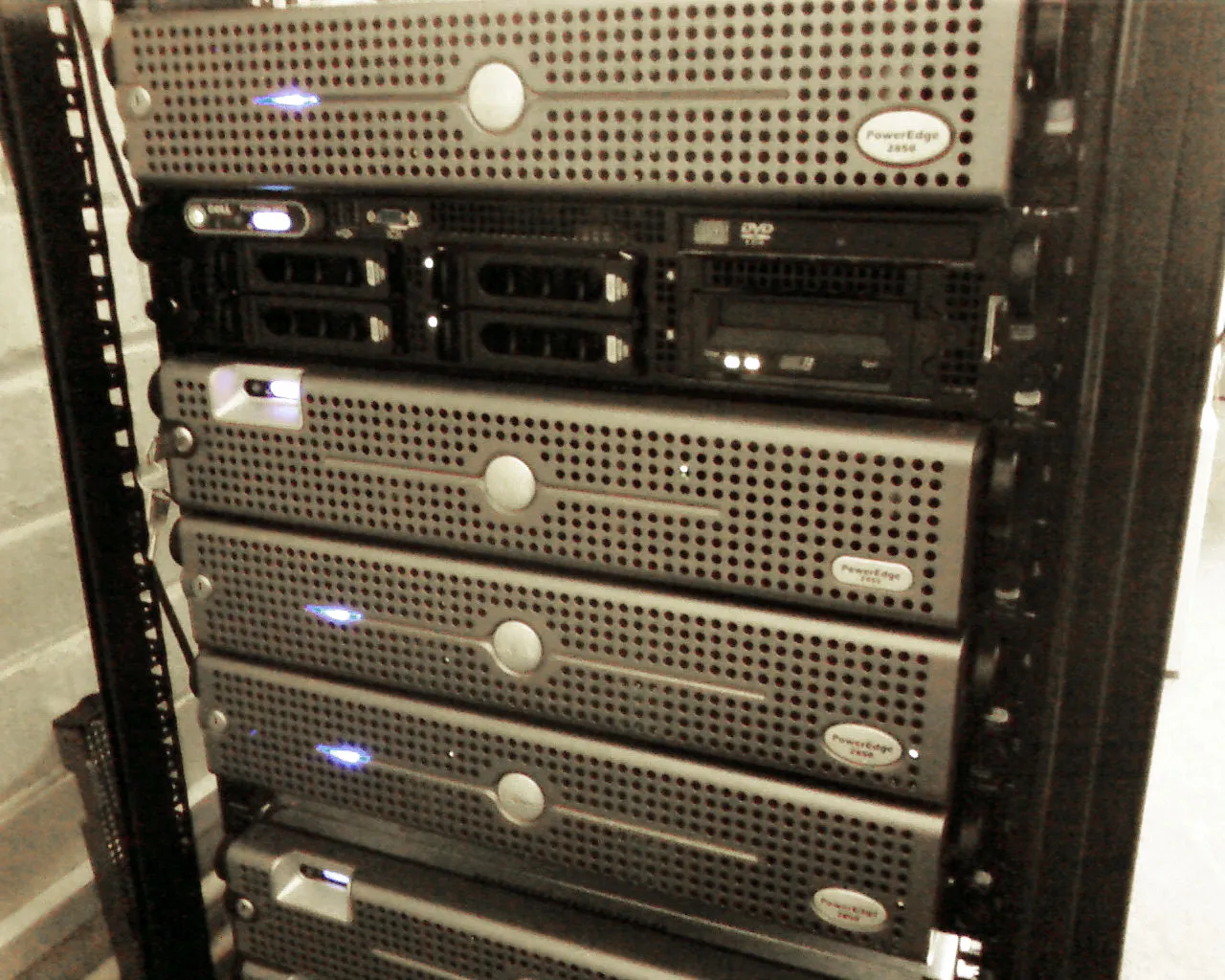
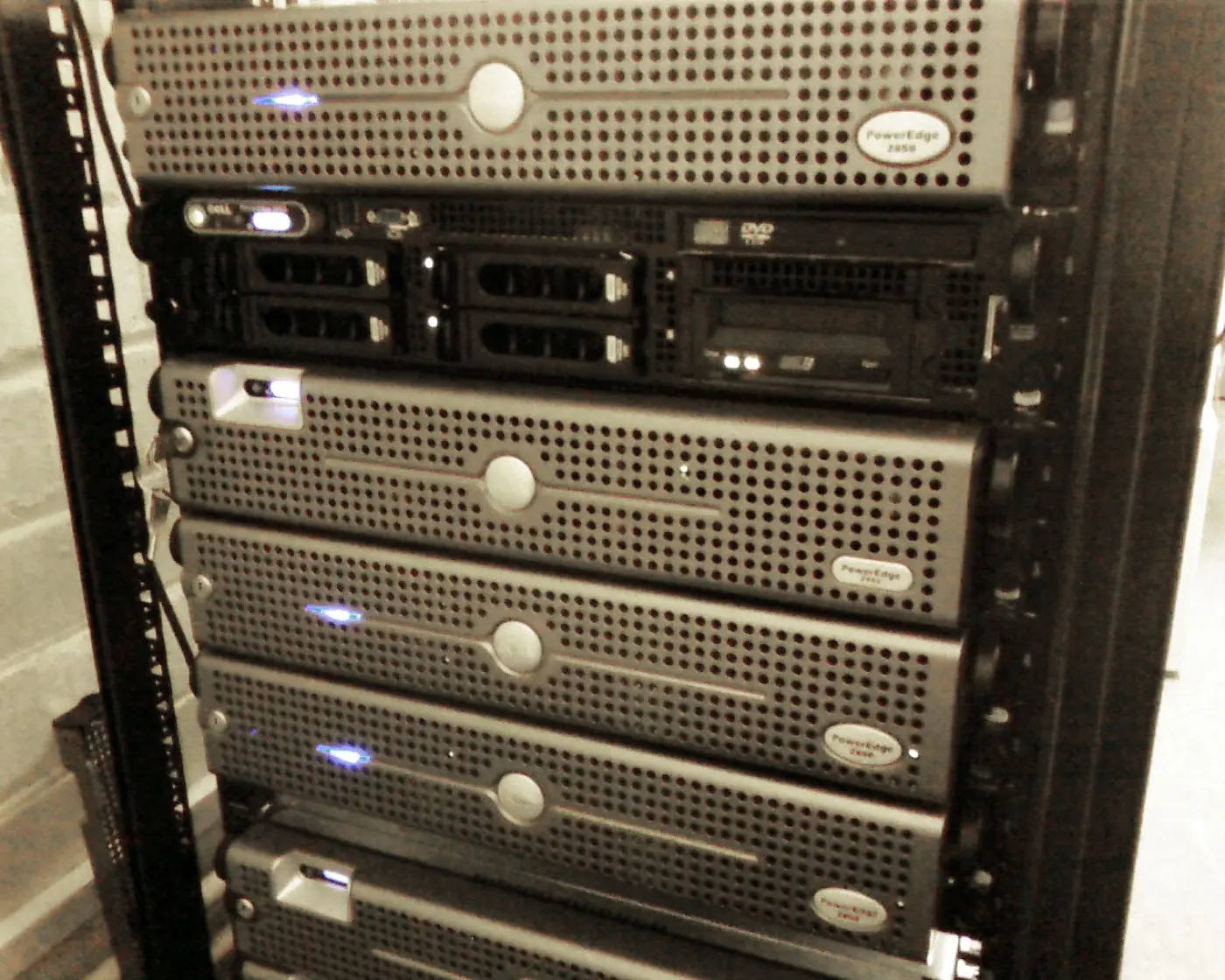
Image: Wikimedia Commons - Dell PowerEdge 2950.
What Does NVMe Disk Installation Mean for PowerEdge?
NVMe installation on PowerEdge should not be read as simply “adding a new SSD.” Unlike SAS or SATA, NVMe introduces PCIe-based access patterns, slot dependencies, backplane decisions, and, on some platforms, more direct data paths. That means the following questions need to be clear before installation:
- how many NVMe drives the server model supports
- whether the disks use the front backplane, rear backplane, or an adapter card
- whether the system is expected to boot from NVMe
- whether the target OS or hypervisor supports the planned design
- whether the workload truly benefits from NVMe
When planned correctly, NVMe can make PowerEdge storage not only faster, but also more consistent under lower latency. But for NVMe, “the server has an empty drive slot” is not enough planning.
Which Compatibility Checks Should Be Done First?
1. Model and slot support must be verified
Dell documentation is very clear here: NVMe support varies by model. The R640 documentation shows configurations with up to 10 NVMe drives or up to 8x NVMe SSD, while other PowerEdge systems support different counts and topologies.
That means the first checklist should include:
- total supported NVMe drive count by model
- front and rear backplane combinations
- hot-plug NVMe support
- how the planned NVMe layout interacts with the existing storage architecture
2. Backplane and cabling topology must be understood
The R760 Installation and Service Manual explicitly documents options such as an 8 x 2.5-inch NVMe backplane. This matters because NVMe support is often not just about “whether the drive fits,” but whether the platform has the right backplane and cabling path.
3. Adapter card or drive bay?
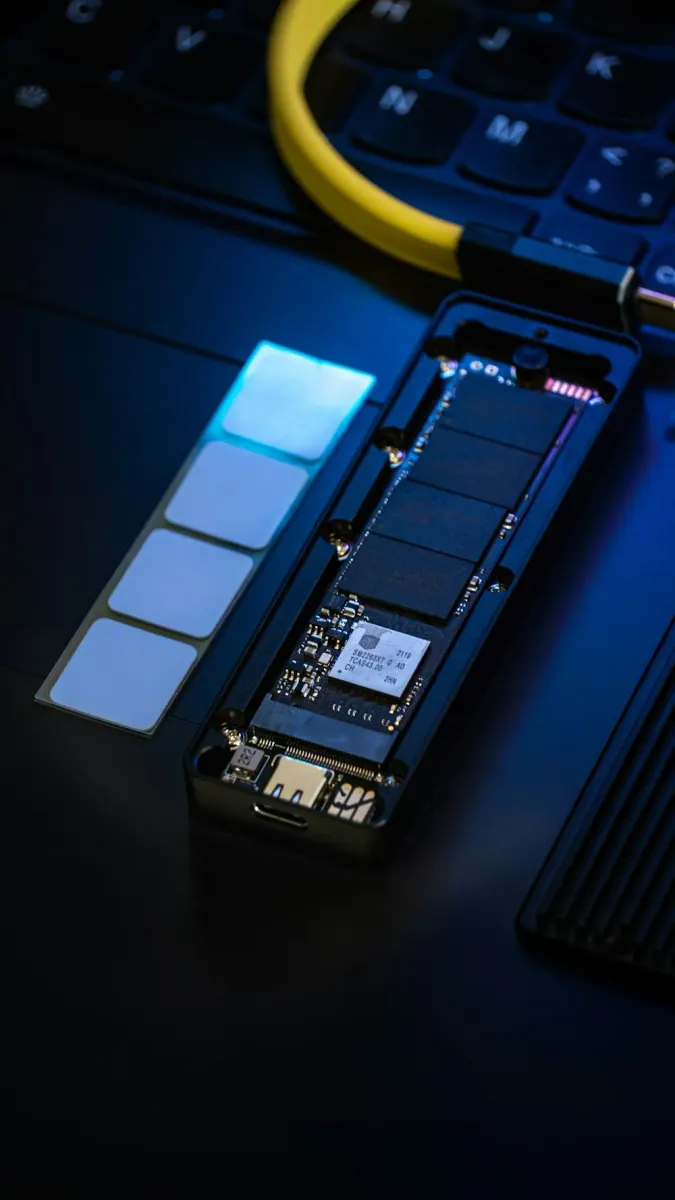
Dell’s Express Flash NVMe PCIe SSD Adapter User’s Guide explains how an NVMe SSD adapter is installed into the system and aligned with the correct system-board connector. In other words, some NVMe deployments do not use a classic drive bay at all. They depend on a PCIe adapter path.
That tells us:
- the NVMe installation path changes by platform
- not every NVMe design uses a front hot-swap bay
- adapter-based layouts require separate thinking about slot use and airflow
How Should NVMe Disks Be Positioned Physically?
Dell’s slot population guidelines section gives an important thermal recommendation: hot-pluggable NVMe devices should be installed in front-facing backplanes before other backplane orientations when possible. The same guidance recommends placing higher-capacity NVMe devices in the front-facing backplanes first because those devices can run hotter and benefit from stronger front airflow.
Why does that matter in practice?
- NVMe performance can be affected by temperature
- dense disk population can create throttling if planned poorly
- installation is partly a cooling and airflow exercise, not just a capacity exercise
In dense rack environments, the safer approach is:
- populate supported front NVMe slots first
- read drive capacity and thermal behavior together
- treat rear or alternate backplanes as second-stage planning choices
This is where Hardware & Software Services, especially Server Installation, Configuration, and Commissioning, become directly relevant. For hardware selection and procurement, Enterprise Server Hardware Sales and Procurement Service is the adjacent service layer.
What Must Be Checked for Boot and OS Support?
UEFI boot is the first condition
Dell’s NVMe user guidance states that on selected PowerEdge platforms, booting from an NVMe PCIe SSD requires the system to be configured for UEFI BIOS boot mode. That is one of the most common planning failures. Teams often think about boot design too late.
The correct sequence is:
- verify whether the platform supports NVMe boot
- confirm the BIOS mode is
UEFI - validate the target operating system support
- test media, drivers, and deployment path where necessary
Operating-system support still matters
Dell’s NVMe and adapter user guides list supported operating systems such as Windows Server, Red Hat Enterprise Linux, SUSE Linux Enterprise Server, and VMware ESXi. This is especially important in environments still using older images or older hypervisor versions. A physically visible NVMe drive does not automatically mean the full OS and boot flow will work cleanly.
What Are the Advantages of NVMe in Dell PowerEdge?
1. Lower latency
Dell’s Express Flash data sheet shares example NVMe class figures such as 85us read latency and 20us write latency. In transaction-heavy or random-I/O-heavy workloads, that creates a very real difference.
2. Higher IOPS
The same data sheet includes 700,000+ IOPS random-read figures. That matters directly for virtualization clusters, high-transaction databases, and dense production workloads.
3. Higher sequential throughput
Dell’s published example figures also include up to 3.0 GB/s sequential read throughput. So the advantage is not only in small-block I/O. It also matters for high-flow data movement.
4. More flexible modern topologies
Platform documents for systems such as the R640 and R760 show that front and rear NVMe options plus different backplane combinations allow more precise performance design inside the same server family.
Those benefits should be read as part of the overall server architecture, not as an isolated disk swap. That is why High-Availability Server Infrastructure Solutions and the broader Hardware & Software Services path should be considered together. For project scoping or a proposal, the required next step is the Contact page.
What Are the Most Common Mistakes?
Assuming every PowerEdge handles NVMe the same way
Support model, generation, and backplane topology all affect the NVMe path.
Thinking about boot too late
If the UEFI requirement is not checked early, the operating-system deployment path can fail even after the drives are installed physically.
Ignoring thermal layout in slot population
Dell explicitly recommends prioritizing front-facing backplanes. Drive placement should not be random.
Treating adapter-based NVMe and drive-bay NVMe as identical
PCIe adapter-based NVMe and hot-plug backplane NVMe do not follow the same installation and maintenance model.
Buying “the fastest disk” without workload context
The value of NVMe comes from the combination of workload type, boot model, thermal plan, and platform support.
Related Content
- What Is Dell PowerEdge? Detailed Architecture Guide
- How to Reduce Dell PowerEdge Server Power Consumption
- Dell Server Firmware Update Failed Error
- Dell Storage Disk Types and Performance Comparison
Checklist
- the PowerEdge model’s supported NVMe slot and backplane layout was verified
- front and rear population order was reviewed from a thermal perspective
- it was clarified whether the NVMe path uses drive bays or an adapter card
- the
UEFI BIOS boot moderequirement was checked - target OS or hypervisor support for the planned NVMe path was validated
- performance goals were defined in IOPS, throughput, and latency terms
- procurement, installation, and maintenance were combined under one project plan
Next Step with Leon-X
Dell PowerEdge NVMe installation is not just about buying faster media. It is about model compatibility, boot design, thermal placement, and operational standardization. Leon-X helps make NVMe transition projects more predictable through Hardware & Software Services, especially Server Installation, Configuration, and Commissioning and Enterprise Server Hardware Sales and Procurement Service. To review your current PowerEdge architecture or request a proposal, continue through the Contact page.
Relevant pages:
- Hardware & Software Services
- Server Installation, Configuration, and Commissioning
- Enterprise Server Hardware Sales and Procurement Service
- Contact
Frequently Asked Questions
Does every Dell PowerEdge server support NVMe disks?
No. Supported drive count and topology vary by model. Not every platform offers the same NVMe path.
What is the most critical condition for booting from NVMe?
On supported platforms, the most critical requirement is configuring UEFI BIOS boot mode.
Why should NVMe drives be placed in the front backplane first?
Dell recommends prioritizing front-facing hot-plug backplanes because of better cooling and thermal behavior.
Is adapter-card NVMe the same as hot-plug drive-bay NVMe?
No. Adapter-based NVMe has a different physical and maintenance model than hot-plug front-bay NVMe.
Is the main benefit of NVMe only raw speed?
No. Lower latency, higher IOPS, better throughput, and more modern storage topology all contribute to the real value.
Conclusion
Dell PowerEdge NVMe disk installation and benefits cannot be reduced to a simple disk swap. Model support, slot population, boot compatibility, OS support, and workload goals all need to be evaluated together. The stronger approach is to treat NVMe not as a standalone component upgrade, but as an opportunity to rebalance the server architecture around lower latency and higher performance.
Sources
- Dell Express Flash NVMe PCIe SSD User’s Guide - Slot population guidelines
- Dell PowerEdge Express Flash NVMe PCIe SSD Adapter User’s Guide - Installing NVMe PCIe SSD adapter in system
- Dell PowerEdge Express Flash NVMe PCIe SSD User’s Guide - Booting from NVMe PCIe SSD
- Dell PowerEdge R760 Installation and Service Manual - Drive backplane
- Dell PowerEdge R640 Spec Sheet
- Dell PowerEdge Express Flash NVMe Performance PCIe SSD Spec Sheet
- Wikimedia Commons - Dell PowerEdge 2950