The short answer to how to reset Dell iDRAC is this: if iDRAC is frozen but the operating system is still running, start with the lowest-impact method. In most cases, you can recover access by holding the physical i button for at least 16 seconds, using Reset iDRAC in the web interface, or running racadm racreset. In other words, you usually restart only the management controller, not the whole server. Options such as racresetcfg or “reset to default settings” should be reserved for configuration corruption, not routine unresponsiveness.
This guide is especially for:
- system teams managing Dell PowerEdge and iDRAC
- infrastructure administrators who cannot reach the iDRAC web interface
- datacenter teams standardizing RACADM and remote maintenance workflows
- IT leads who want a clear distinction between soft reset and default reset
Quick Summary
- Dell KB
000126703documents4main reset methods: System Identification button, web interface, iDRAC Service Module, and RACADM. - According to that KB, holding the physical
ibutton for at least16 secondsrestarts iDRAC without rebooting the operating system. - Dell clearly states that an iDRAC reboot affects only the management controller, not the server workload or running OS.
- On iDRAC9,
racadm racresetcfgcan return the controller to defaults while preserving user and network settings; on iDRAC7 and iDRAC8, the same action can remove user and network settings. - iDRAC Service Module version
2.3and newer can support remote hard reset when the operating system is still reachable.
Table of Contents
- What Does a Dell iDRAC Reset Actually Do?
- Which Reset Type Should You Choose First?
- How Do You Reset iDRAC with the Physical i Button?
- How Do You Reset iDRAC from the Web Interface?
- How Do You Reset iDRAC with RACADM?
- When Does iDRAC Service Module Make Sense?
- What Are the Most Common Mistakes?
- Related Articles
- Checklist
- Next Step with Leon-X
- Frequently Asked Questions
- Sources
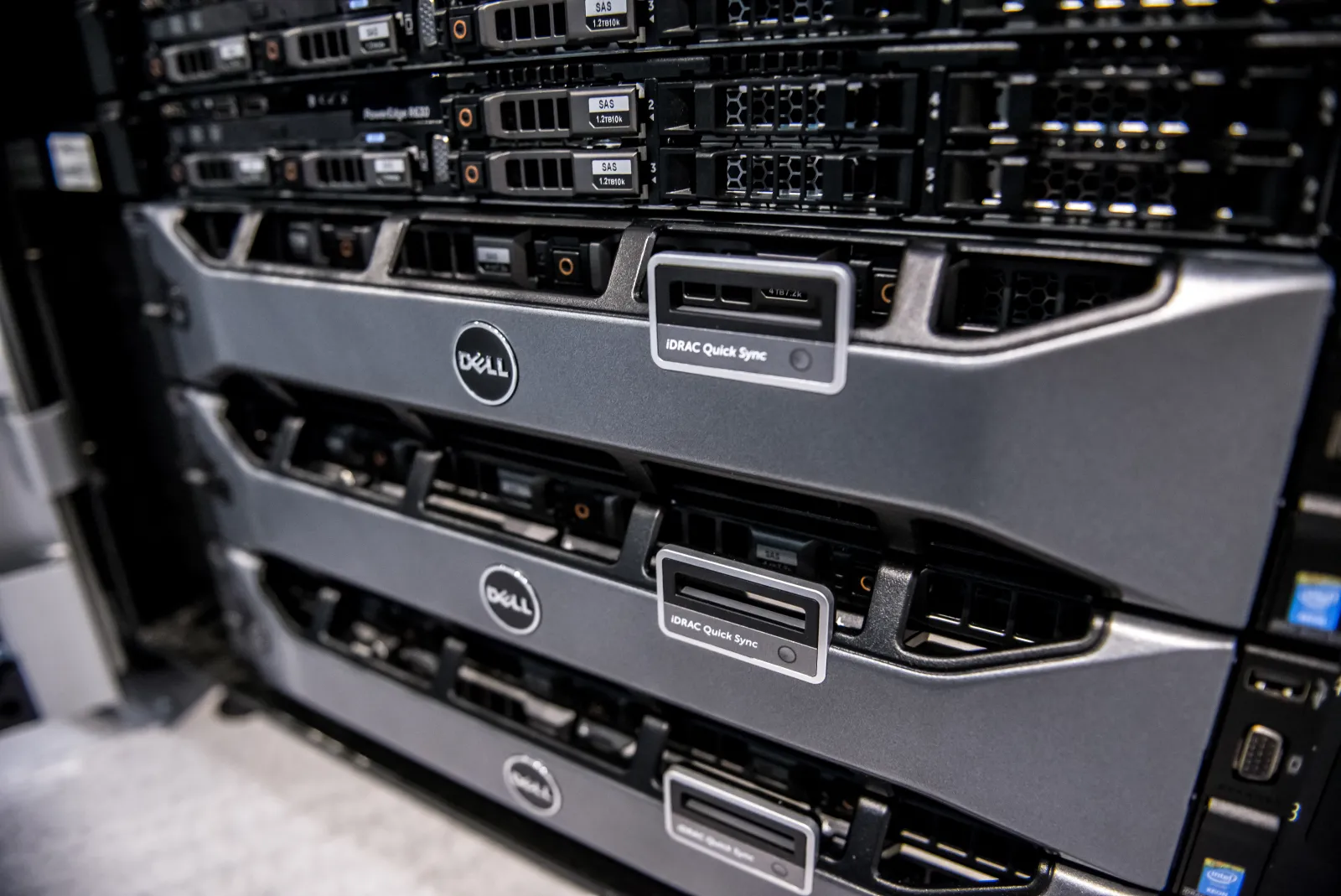
Image: Wikimedia Commons - Dell PowerEdge servers.
What Does a Dell iDRAC Reset Actually Do?
An iDRAC reset usually means restarting the management controller, not power cycling the server. Dell’s KB makes the distinction explicit:
- only iDRAC reboots
- the running operating system is not rebooted
- remote management access is interrupted, but host workloads typically continue
That is why the first response to an iDRAC web timeout, failed ping, no browser access, or racadm returning ERROR: Unable to perform requested operation should usually be an iDRAC reset workflow, not an immediate full server reboot.
Which Reset Type Should You Choose First?
The correct approach is to begin with the smallest possible impact:
1. Soft reset
The goal is only to restart the management plane. The physical i button, the web interface Reset iDRAC action, and racadm racreset all belong here.
2. Forced soft reset
If a command should run without confirmation or inside a script, racadm racreset -f or the iSM -f option can be appropriate.
3. Reset to defaults
This returns configuration toward factory or default state. It is useful when configuration is corrupted, but it should not be the first response to a temporary controller hang.
In practice, the safer sequence is:
- confirm the problem is really iDRAC access failure
- attempt a soft reset first
- if access returns, review logs and health status
- only evaluate default reset if configuration is actually broken
These operations become more predictable under Hardware & Software Services, especially Server Installation, Configuration and Commissioning. If the issue is tied to lifecycle replacement or platform standardization, Enterprise Server Hardware Procurement Service belongs in the same operating model.
How Do You Reset iDRAC with the Physical i Button?
Dell states that many PowerEdge systems include an i-marked System Identification button on the front or rear panel. The workflow is:
- verify that iDRAC is actually unresponsive
- press and hold the
ibutton for at least16 seconds - release when the cooling fans ramp to full speed and the front LCD, if present, turns off
- wait
1 minuteor longer for iDRAC to restart
This method is practical when:
- the iDRAC web interface is unavailable
- SSH or Telnet access is unavailable
- RACADM is not responding
- the operating system is still running but the management plane is stuck
How Do You Reset iDRAC from the Web Interface?
If you can still sign in to iDRAC, the web interface is usually the most controlled method.
Basic path for iDRAC9
- connect to the iDRAC web interface
- sign in with your credentials
- go to
Maintenance - open
Diagnostics - use
Reset iDRACor, depending on firmware,Reboot iDRAC
Dell also exposes Reset iDRAC to Default Settings in this area. That screen can offer 4 paths:
- preserve user and network settings
- discard all settings and reset users to shipping value
- discard all settings and reset username and password
- discard all settings and return to a custom default configuration
The operational rule is simple: if the problem is only temporary unresponsiveness, Reset iDRAC is usually enough. Resetting user or network configuration unnecessarily can create a second outage.
How Do You Reset iDRAC with RACADM?
When command-line administration is preferred, RACADM is the fastest route. Dell’s KB highlights these core commands:
Reboot iDRAC
racadm racreset
This restarts iDRAC without changing existing iDRAC settings.
Forced reboot
racadm racreset -f
This is helpful for script-based or non-interactive use.
Return iDRAC9 toward defaults
racadm racresetcfg
racadm racresetcfg -all
racadm racresetcfg -rc
The generation difference matters here:
- on iDRAC9,
racresetcfgcan restore defaults while preserving user and network settings - on iDRAC7 and iDRAC8,
racresetcfgcan remove user and network settings
That difference is operationally important. A wrong assumption can restore controller access while simultaneously removing the management IP or expected account model.
When Does iDRAC Service Module Make Sense?
If the operating system is reachable but iDRAC is stuck, Dell iDRAC Service Module provides a useful alternative path. Dell’s KB states that iSM version 2.3 and later supports this workflow.
Windows PowerShell example
Invoke-iDRACHardReset
Linux example
/opt/dell/srvadmin/iSM/bin/Invoke-iDRACHardReset
/opt/dell/srvadmin/iSM/bin/Invoke-iDRACHardReset -f
This is especially useful when:
- there is no physical datacenter access
- the iDRAC UI is down but the host OS is still alive
- automation or maintenance scripts must trigger the reset
However, it requires a reachable operating system and a deployed Service Module, so it is not the universal first option.
What Are the Most Common Mistakes?
Mixing up soft reset and default reset
Using a factory-style reset for a temporary hang is usually unnecessary and risky.
Rebooting the whole server immediately
Dell explicitly states that iDRAC can be restarted without rebooting the host OS. A host reboot should not be the default first move.
Ignoring iDRAC generation differences
The racresetcfg behavior is not identical across iDRAC9 and iDRAC7/8. Running the wrong command can cause preventable access loss.
Pressing the physical button too briefly
Dell gives a clear 16-second requirement. Short presses may not trigger the expected reset behavior.
Skipping root cause review after recovery
Resetting iDRAC may remove the symptom, but it does not automatically resolve firmware drift, management network issues, certificate problems, or controller stability problems. Logs and health should still be reviewed afterward.
Related Articles
- How to Configure Dell iDRAC Security for ISO 27001? Guide
- How to Fix Dell Server UEFI Boot Problem?
- Dell Server Firmware Update Failed Problem
- Dell Firmware Version Mismatch Problem
Checklist
- it was confirmed that the issue is really in the iDRAC access layer
- soft reset was attempted before default reset options
- the physical
ibutton was held for at least16 secondsif used - iDRAC generation was identified before selecting RACADM reset commands
- iDRAC network access, logs, and health were verified after reset
- scope notes were prepared for deeper assessment or proposal work
Next Step with Leon-X
Dell iDRAC reset is not only a one-line command topic. It sits inside operational standards, firmware hygiene, access design, and rollback safety. Leon-X supports PowerEdge operations through Hardware & Software Services, especially Server Installation, Configuration and Commissioning and Enterprise Server Hardware Procurement Service. To review your environment or request a proposal, continue through the Contact page.
Frequently Asked Questions
Does an iDRAC reset reboot the server?
No. Dell states that only iDRAC reboots; the running operating system is not restarted.
How long should the physical i button be held?
Dell recommends holding the System Identification button for at least 16 seconds.
What is the difference between racadm racreset and racresetcfg?
racreset restarts only iDRAC. racresetcfg can reset iDRAC configuration toward default settings.
What if the iDRAC web interface is down but Windows or Linux is still running?
If iSM is installed, Invoke-iDRACHardReset can be used as an alternative path.
Do default reset options preserve user and network settings on every generation?
No. Dell documents different behavior between iDRAC9 and iDRAC7/8, so the generation should be confirmed before running reset-to-default commands.