A "Boot Failure" error on Dell PowerEdge servers means the system receives power but cannot hand off to the operating system or hypervisor. It commonly appears after POST when the boot device is missing, UEFI/BIOS boot modes do not match the installed OS, a RAID virtual disk is offline, or the boot record is damaged. The short answer is: capture the LCD/iDRAC fault code first, verify boot mode and boot order, confirm Virtual Disk health, then repair the boot entry with Lifecycle Controller or OS recovery media. Avoid random BIOS resets or disk clears, because those actions can turn a boot issue into permanent data loss.
This guide is written for:
- Systems administrators managing Dell PowerEdge rack and tower servers
- Infrastructure teams running VMware ESXi, Hyper-V, or Linux hosts
- Operations engineers who need fast isolation of startup outages
- IT specialists who manage boot, RAID, and firmware layers together
Quick Summary
- Boot Failure means the server powered on but could not load a valid boot target; it is different from "No Boot Device Found" and "Initializing Firmware" hangs.
- Start with the front-panel LCD or iDRAC Lifecycle Log; changing BIOS settings without a code increases risk.
- Switching a UEFI-installed OS to Legacy BIOS mode (or the reverse) can hide boot entries and trigger Boot Failure.
- If the PERC Virtual Disk is
OfflineorForeign, the OS disk will not boot until storage is restored. - Recovery requires checking boot order, boot mode, RAID status, and if needed Windows/Linux/ESXi repair media.
Table of Contents
- What Is a Boot Failure Error?
- First 10 Minutes of Diagnostics
- Boot Mode and Boot Order Checks
- RAID and Boot Disk Status
- Recovery and Restoring Bootability
- Most Common Mistakes
- Related Articles
- Troubleshooting Checklist
- Next Step with Leon-X
- Frequently Asked Questions
- Sources
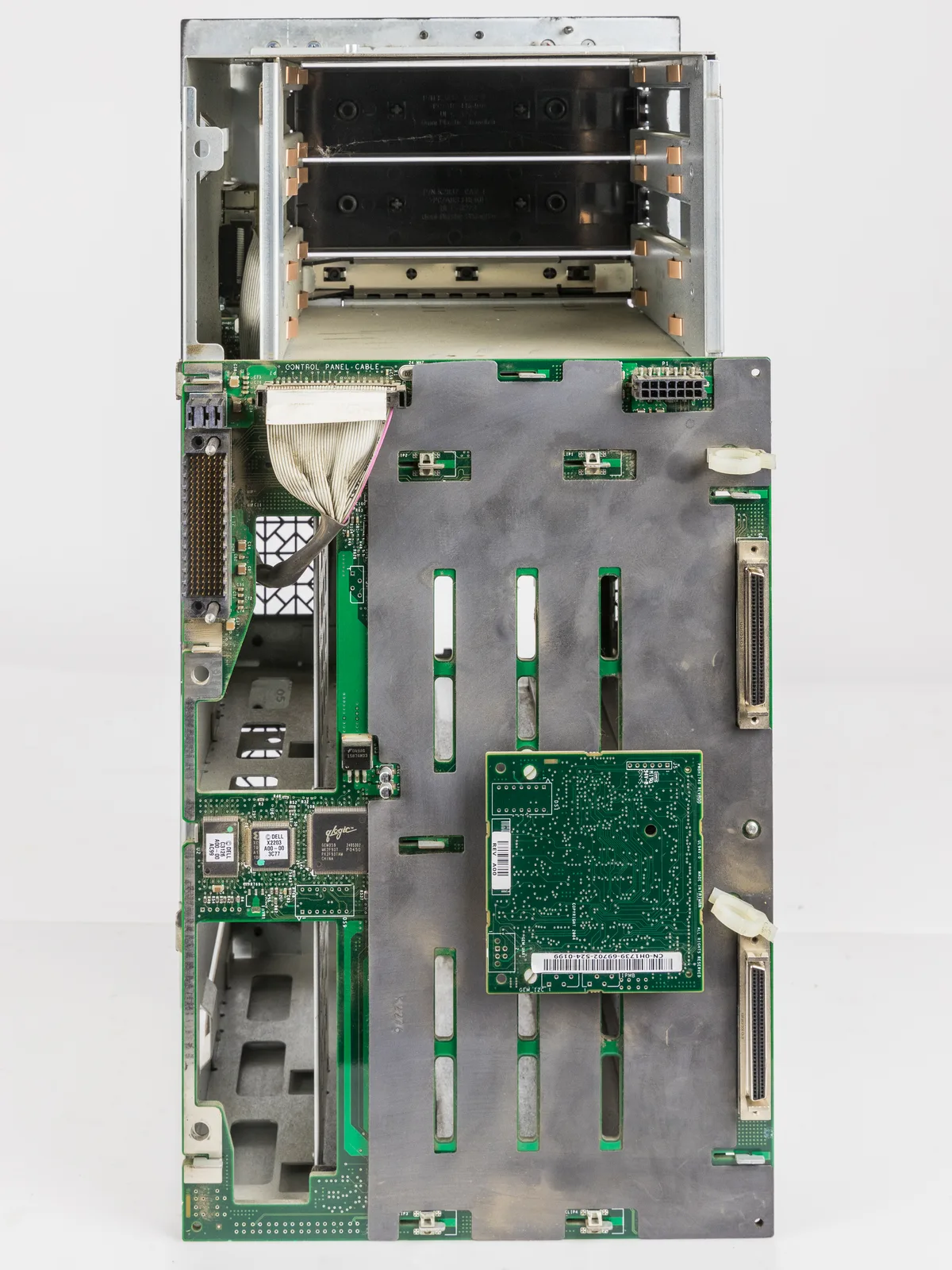
Image: Wikimedia Commons - Dell PowerEdge front panel and drive bays.
What Is a Boot Failure Error?
Boot Failure describes the state where a Dell PowerEdge largely completes hardware POST but cannot find a valid boot device, boot loader, or UEFI boot entry. Fans spin, video may appear, and iDRAC can remain reachable, yet the operating system never loads. Typical root causes include:
- A missing or removed boot target in the boot sequence
- UEFI / Legacy BIOS mode mismatch
- RAID Virtual Disk in
Degraded,Offline, orForeignstate - Damaged MBR/GPT or broken boot loader (GRUB, Windows Boot Manager, ESXi bootbank)
- Boot entries cleared after a firmware update
Use this table to separate similar symptoms:
| Symptom | Typical stage | First check |
|---|---|---|
| Stuck at Initializing Firmware | Early POST | iDRAC reset, PCIe, NVRAM |
| No Boot Device Found | Boot device scan | RAID VD, cabling, boot order |
| Boot Failure / Boot Error | Boot loader load | Boot mode, BCD/GRUB, recovery |
| OS hang after logo | OS kernel | Drivers, disk I/O, memory |
First 10 Minutes of Diagnostics
- Record the LCD or fault code. Note any
PDR,STOR,BIOS, or boot-related messages. - Open the iDRAC Lifecycle Log. Review disk, PSU, memory, and boot events from the last
24-48 hours. - Enter System Setup with
F2. Check Boot Settings for boot mode and boot order. - Open PERC BIOS with
Ctrl+R(or UEFI Device Settings) and verify Virtual Disk status. - Recall the last change. Did the issue start after firmware updates, disk replacement, BIOS reset, or a hypervisor upgrade?
Pro Tip: Export Lifecycle Logs and capture screenshots in iDRAC before changing settings. You need a rollback reference if a step makes the outage worse.
Boot Mode and Boot Order Checks
In System Setup (F2):
- Boot Mode: UEFI or BIOS (Legacy). Keep the mode used during OS installation.
- Boot Sequence: The Virtual Disk, RAID controller, or UEFI OS entry that holds the OS must be first.
- Secure Boot: Some ESXi or Linux boot loaders fail when Secure Boot is enabled; temporarily disable it for testing.
- One-Time Boot Menu (
F11): Test a recovery USB or ISO without permanently changing boot order.
Moving a UEFI installation to Legacy mode drops boot entries from the list and often produces Boot Failure. The reverse mismatch causes the same outcome.
RAID and Boot Disk Status
Many Boot Failure cases originate in storage, not BIOS:
- A Virtual Disk that is not
Ready/Optimalcannot boot reliably. - After a single disk failure, RAID 1/5/6/10 may be
Degraded; the OS may or may not start. - Disks marked
Foreignmust be imported before the Virtual Disk reappears. - Loose backplane or SAS cabling can show amber slot LEDs and drop the boot target.
Check in this order:
- Read Physical Disk and Virtual Disk status in PERC or iDRAC Storage.
- If Foreign Configuration exists, evaluate Import before any Clear action.
- Start rebuild with a spare when needed; avoid aggressive firmware work during rebuild.
Recovery and Restoring Bootability
Choose the recovery path based on the diagnosis:
1. Boot mode correction is enough
Return to the correct mode, put the Virtual Disk first in boot order, save, and reboot.
2. Boot entry is missing
Recreate the boot record with Lifecycle Controller or OS recovery media. Use bootrec / bcdboot for Windows, grub-install for Linux, or ESXi bootbank recovery procedures.
3. RAID is offline
Bring the Virtual Disk online/optimal first. OS repair attempts fail while the disk group is unavailable.
4. No boot target remains
Attempt repair with installation media. Perform a full reinstall only after backup validity is confirmed.
Most Common Mistakes
- Factory-resetting BIOS and changing boot mode: OS entries disappear.
- Clearing Foreign disks: RAID metadata is destroyed and recovery becomes harder.
- Treating Boot Failure as identical to No Boot Device Found: The recovery path differs.
- Skipping a boot test after firmware updates: Combined BIOS + iDRAC + PERC updates can break boot order.
- Repairing the OS without a verified backup: Selecting the wrong disk can cause permanent data loss.
Related Articles
- How to Fix Dell Server No Boot Device Found
- How to Fix Dell Server Stuck at Initializing Firmware
- How to Fix Dell Server UEFI Boot Issues
- How to Resolve Dell Server Disk Failure Errors
Troubleshooting Checklist
- Captured the LCD / iDRAC Lifecycle Log boot or storage fault code.
- Verified Boot Mode (UEFI/Legacy) matches the OS installation.
- Confirmed the correct Virtual Disk / OS entry is first in Boot Sequence.
- Confirmed PERC Virtual Disk status is
Optimalor at least accessible. - Tested recovery media with One-Time Boot (
F11). - Validated successful boot after firmware or disk changes.
Next Step with Leon-X
Dell PowerEdge Boot Failure incidents stop business services immediately, and incorrect boot-mode or RAID actions can escalate into data loss. Leon-X diagnoses startup failures end to end under Hardware & Software Solutions. Through Server Installation, Configuration and Commissioning, we standardize boot, RAID, and firmware layers correctly. For emergency Boot Failure response or rebuild support, request a proposal on the Contact page.
Frequently Asked Questions
Are Boot Failure and No Boot Device Found the same issue?
No. No Boot Device Found usually means no boot target is visible. Boot Failure more often means a target exists but the boot loader or OS record cannot load. Diagnostics start similarly, then diverge.
Will switching from UEFI to Legacy fix Boot Failure?
Usually it makes things worse. Keep the mode used during OS installation. The wrong mode hides boot entries.
Why can a degraded RAID array prevent boot?
Some controllers still expose a degraded Virtual Disk as bootable; others invalidate it. Always check VD status and boot order together.
Boot Failure started after a firmware update. What should I do first?
Verify boot mode and boot order. Try the known OS entry from One-Time Boot. If needed, recreate the OS boot record through Lifecycle Controller.