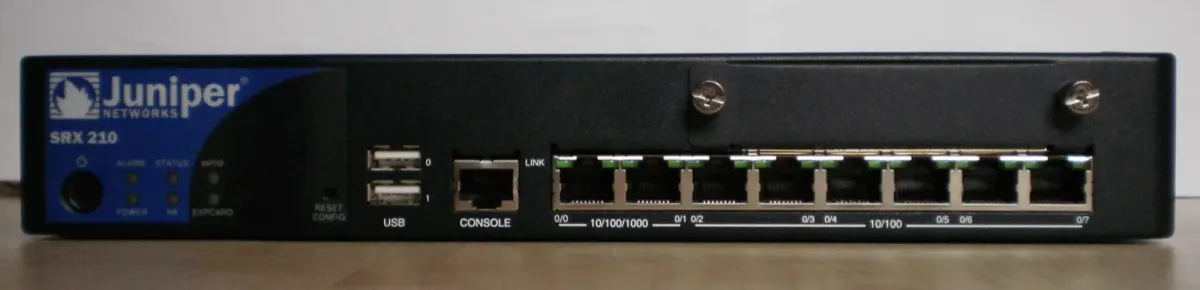
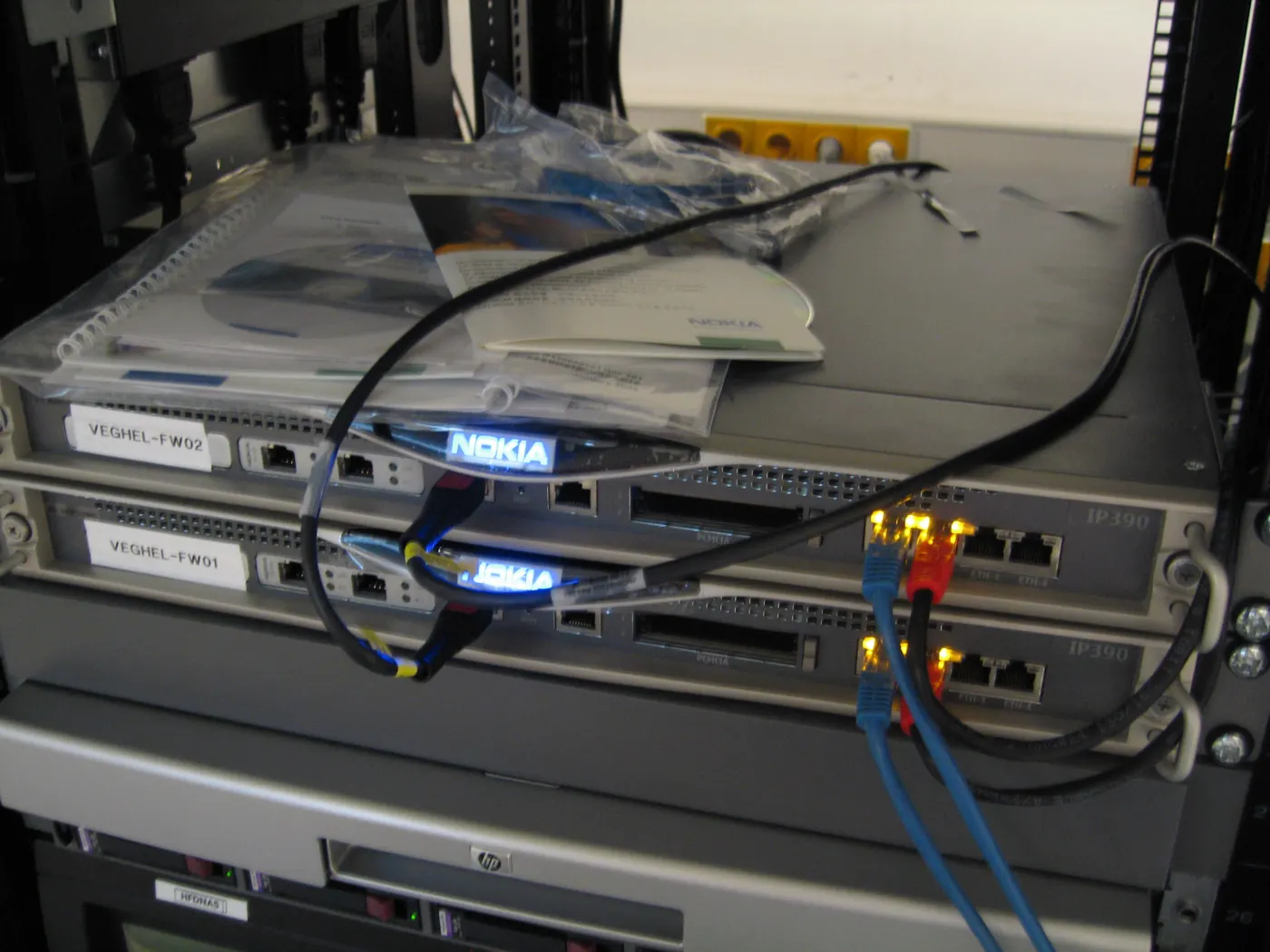
One of the most common issues encountered after a new FortiGate firewall deployment or configuration change is that clients or servers on the internal network cannot access the internet. This issue is typically caused by a missing route, an incorrectly configured Network Address Translation (NAT) option, or DNS resolution failures. When a device behind a FortiGate firewall loses external connectivity, the primary system components to inspect are the physical cabling and WAN interface status, the Static Route (default gateway) configuration, the Firewall Policy rulebase, NAT enablement, and DNS server accessibility. If any of these layers is misconfigured, internal devices may communicate with each other locally but remain completely isolated from the outside world.
This technical guide is designed to help:
- Network and systems administrators responsible for securing and maintaining corporate networks
- Technical specialists deploying new FortiGate firewalls or updating existing policy rulebases
- Network engineers seeking fast command-line diagnostics to resolve connectivity drops
- IT managers designing secure, compliant, and highly performant firewall architectures
Quick Summary
- Ensure that NAT is explicitly enabled on your outgoing internet rule (Firewall Policy). Without NAT, private internal IP addresses cannot be translated to the public WAN IP, and external routers will drop the packets.
- Verify that your default route (
0.0.0.0/0) under Static Routes correctly points to your public WAN interface and the internet service provider's (ISP) gateway IP address. - Confirm that internal clients receive valid DNS server addresses (
8.8.8.8,1.1.1.1, etc.) and that UDP port53traffic is permitted through the FortiGate firewall. - Connect to the FortiGate CLI and execute
ping 8.8.8.8andexecute traceroute 8.8.8.8to verify whether the firewall itself has external network reachability. - Inspect the physical WAN interface status and verify whether the ISP modem is in bridge or routing mode to rule out upstream carrier issues or IP address conflicts.
Table of Contents
- How FortiGate Internet Egress Architecture Works
- Step-by-Step Internet Connectivity Troubleshooting Flow
- FortiGate CLI Commands for Rapid Diagnosis
- Most Common Configuration Mistakes
- Related Articles
- Troubleshooting Checklist
- Next Step with Leon-X
- Frequently Asked Questions
- Sources
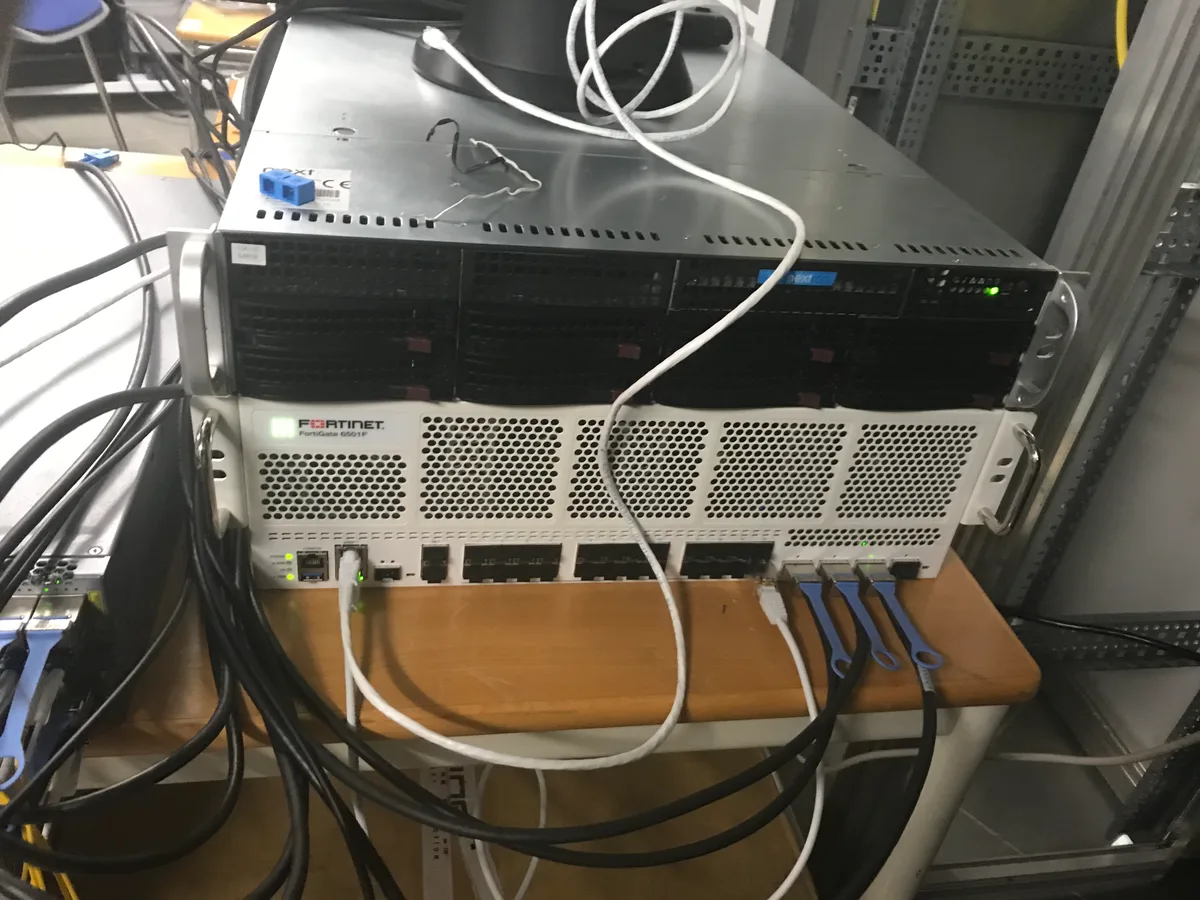
Image: Wikimedia Commons - FortiGate Server Rack Integration.
How FortiGate Internet Egress Architecture Works
For a client machine to securely access the internet through a FortiGate firewall, its packets must pass three core checkpoints. First, when a packet reaches the FortiGate internal interface (LAN port), the routing table is queried. If a valid route to the destination exists, the packet is matched against active security rules in the Firewall Policy. Once the rule approves the connection, the private source IP (such as 192.168.1.100) is translated to the public WAN IP (NAT). A failure at any stage of this pipeline will drop the packet and terminate internet access.
The table below summarizes the key protocols and standard port values involved in internet egress:
| Protocol / Service | Port | Function | Critical Control Point |
|---|---|---|---|
| DNS (UDP) | 53 | Resolves domain names (e.g., google.com) | Access to external or internal DNS hosts |
| HTTP (TCP) | 80 | Unencrypted web traffic | Included in Firewall Policy "Service" scope |
| HTTPS (TCP) | 443 | Encrypted web traffic | SSL/TLS Inspection and certificate validity |
| ICMP | N/A | Ping and traceroute diagnostics | Route verification and gateway polling |
Step-by-Step Internet Connectivity Troubleshooting Flow
When users report "No internet access," isolate the failure by systematically working through these technical checkpoints.
1. Physical and Interface Status Verification
Log in to the FortiGate web console and navigate to Network > Interfaces:
- Check the physical status of your WAN port (typically named
wan1orport1). It should display a green up-arrow. - Verify the IP address assigned to the WAN port. If using a static IP, cross-check the IP, subnet mask, and gateway with your ISP. If using DHCP, confirm that the interface is successfully leasing a public IP.
2. Static Route (Default Gateway) Configuration
The firewall must know where to send packets destined for external networks. Without a default route, egress traffic has no path:
- Go to Network > Static Routes.
- Create a new route or confirm the existing default route has these parameters:
- Destination:
0.0.0.0/0(representing all internet destinations) - Gateway IP: The upstream IP address of your ISP router or bridge device
- Interface: The outgoing WAN port (e.g.,
wan1)
- Destination:
- If the default route is missing, internal clients will only be able to communicate with devices inside their own local subnets.
3. IPv4 Policy (Security Rule) and NAT Activation
Even with correct routing, FortiGate firewalls deny all traffic by default (Implicit Deny). To allow internet access:
- Navigate to Policy & Objects > Firewall Policy.
- Locate the rule allowing internal-to-external traffic and verify its fields:
- Incoming Interface: Your local LAN interface (e.g.,
InternalorLAN) - Outgoing Interface: Your outgoing WAN interface (e.g.,
wan1) - Source: Allowed internal subnets (e.g.,
LAN_Subnetorall) - Destination: Allowed destinations (Typically
all) - Service: Allowed egress protocols (e.g.,
ALLorWeb Access) - Action:
ACCEPT
- Incoming Interface: Your local LAN interface (e.g.,
- The Most Critical Step: Under the rule settings, ensure that NAT is toggled to Enabled and Use Destination Interface IP is selected. If NAT is disabled, private IP packets are sent directly to the public internet, where they are discarded instantly by upstream providers.
4. DNS Configuration and Client Verification
If clients can ping public IP addresses (such as 8.8.8.8) but web browsers fail to load websites, the issue is DNS-related:
- Open a command prompt (CMD) on a client machine and execute
nslookup google.com. If you receive a timeout, the client cannot communicate with its configured DNS server. - Check the system DNS settings on the FortiGate under Network > DNS to ensure they are online.
- Verify that your local DHCP server distributes valid and reachable DNS server IPs to your end-user subnets.
FortiGate CLI Commands for Rapid Diagnosis
When the web UI does not reveal the cause of the drop, connect to the FortiGate CLI (Command Line Interface). You can trace packets and find the root cause within milliseconds.
Execute these commands in sequence to isolate the issue:
# 1. Test if the FortiGate itself can reach the internet
execute ping 8.8.8.8

# 2. Test DNS resolution from the firewall
execute ping google.com

# 3. Trace the route of packets toward the provider gateway
execute traceroute 8.8.8.8

# 4. Perform real-time packet flow debugging (to identify which policy drops the traffic)
diagnose debug flow filter saddr 192.168.1.100
diagnose debug flow filter daddr 8.8.8.8
diagnose debug flow show function-name enable
diagnose debug flow trace start 100
diagnose debug enable
Once the diagnose debug flow trace is running, send a test ping from the client machine. The CLI will output exactly which Policy ID is dropping the packet, or whether the packet is discarded due to a "no route to host" error. Once finished, run diagnose debug disable to turn off the debug mode.
Most Common Configuration Mistakes
- Incorrect Policy Order: FortiGate rules are evaluated sequentially from top to bottom. If a restrictive or blocking rule is placed above your internet access rule, the packet will be dropped before reaching the correct policy.
- Speed and Duplex Mismatch on WAN Ports: Setting the WAN port to auto-negotiation can sometimes cause duplex mismatches with older ISP modems, leading to severe packet loss or complete interface drops.
- Overly Restrictive Security Profiles: An active Web Filter, Application Control, or SSL Inspection profile might block internet traffic due to expired licenses, incorrect categories, or strict certificate verification. Temporarily disable security profiles on the policy to test this.
- IP Pool Exhaustion: If your rule utilizes a dynamic IP pool for NAT instead of the interface IP, and all addresses in that pool become fully utilized, new sessions will be dropped immediately.
Related Articles
- How Fortinet Firewalls Work: Complete Security Architecture Guide
- Step-by-Step FortiGate Site-to-Site VPN Installation Guide
- Fortinet vs. Palo Alto vs. Cisco: Enterprise Firewall Comparison
- How to Resolve Dell Server UEFI Boot Issues
Troubleshooting Checklist
- Inspected physical WAN cabling and verified that the interface has successfully bound an IP address.
- Confirmed that a default static route pointing to
0.0.0.0/0is configured with the correct ISP gateway IP. - Verified that NAT is enabled on the outgoing internet rule within the Firewall Policy.
- Checked firewall policy ordering to ensure that a blocking rule does not override the internet access rule.
- Confirmed that clients receive valid DNS configurations and can resolve public domain names.
- Utilized FortiGate CLI
pinganddiagnose debug flowtraces to follow packets in real time.
Next Step with Leon-X
Internet connectivity disruptions behind enterprise FortiGate firewalls can bring your business operations to an immediate standstill. Unstructured rule additions or blind routing modifications can create major security holes in your perimeter. Supporting organizations to align their network infrastructures with industry-standard cybersecurity frameworks, Leon-X provides professional Hardware & Software Solutions. Through our specialized Router, Switch and Firewall Installation Service, we design networks from the ground up, optimize complex policy rulebases, and guarantee uninterrupted, secure internet access. To quickly troubleshoot your FortiGate environments, request a comprehensive policy audit, or collaborate with our expert network engineers, reach out to us on our Contact Us page.
Frequently Asked Questions
Why can I access some web pages but others fail to load?
This behavior is typically caused by active Web Filter or SSL Inspection profiles. The Web Filter might block specific website categories (such as social media or streaming) based on corporate policies. Alternatively, a Maximum Transmission Unit (MTU) size mismatch can cause partial loading issues. Lowering the WAN MTU to 1420 or 1460 often resolves this.
Why can I ping public IP addresses but web pages fail to load?
If you can ping external IPs (like 8.8.8.8) but browsers cannot open web pages, you are facing two possibilities: first, your DNS server is failing to resolve domain names (DNS failure); second, TCP ports 80 (HTTP) and 443 (HTTPS) are blocked in your firewall policy. Check your client's DNS configurations and verify that HTTP/HTTPS services are permitted in the firewall policy.
How can I test security profiles without disabling the entire policy rule?
Open your active internet firewall policy, go to the security profiles section, and temporarily toggle Web Filter, Application Control, and SSL Inspection to Disabled. Save the settings. If internet access is immediately restored, one of those security profiles is blocking your traffic. You can then inspect the profile logs and add exclusions.
I enabled NAT but still have no internet. Do I need an IP Pool?
No, most standard internet connections do not require an IP Pool. The default Use Destination Interface IP NAT option is highly efficient, translating all internal client IP addresses to the single public IP assigned to your WAN interface. Unless you own a block of multiple public IP addresses that you need to distribute, do not configure an IP Pool.