When a Dell PowerEdge PERC RAID controller fails to detect installed disks, data access and server boot stop immediately, making it a critical storage issue. This usually happens due to loose physical connections, backplane or SAS cable faults, an incorrect controller mode (HBA/RAID), foreign configuration, or outdated firmware. The short answer is: verify whether the physical disks appear in iDRAC and PERC BIOS, check backplane/SAS cabling and reseat the drives, confirm the controller mode (RAID vs HBA) matches your setup, and if needed import the foreign configuration and update firmware. Because a wrong "Clear" action erases RAID metadata, follow the steps in order.
This guide is written for:
- Systems administrators managing Dell PowerEdge rack and tower servers
- Datacenter teams responsible for RAID and storage layers
- Systems engineers hitting controller issues after disk swaps or maintenance
- IT specialists managing PERC firmware and backplane health
Quick Summary
- If the controller does not see disks, the first checkpoint is iDRAC Storage > Physical Disks; if disks are missing there too, the fault is physical.
- Disks that do not appear at all usually point to backplane, SAS cabling, or power; disks shown as
Foreignindicate a metadata issue. - In
HBA/Non-RAIDmode disks appear individually but no Virtual Disk forms; confirmRAIDmode matches the installation. - Reseating drives for
5-10 secondsand checking SAS cables often resolves contact-related invisibility. - PERC firmware mismatches can break disk detection; a Lifecycle Controller firmware update is a valid remediation step.
Table of Contents
- What Is the Problem Exactly?
- First 10 Minutes of Diagnostics
- Physical Layer: Backplane, Cabling, and Reseat
- Controller Mode: RAID vs HBA / Non-RAID
- Foreign Configuration and Firmware
- Most Common Mistakes
- Related Articles
- Troubleshooting Checklist
- Next Step with Leon-X
- Frequently Asked Questions
- Sources
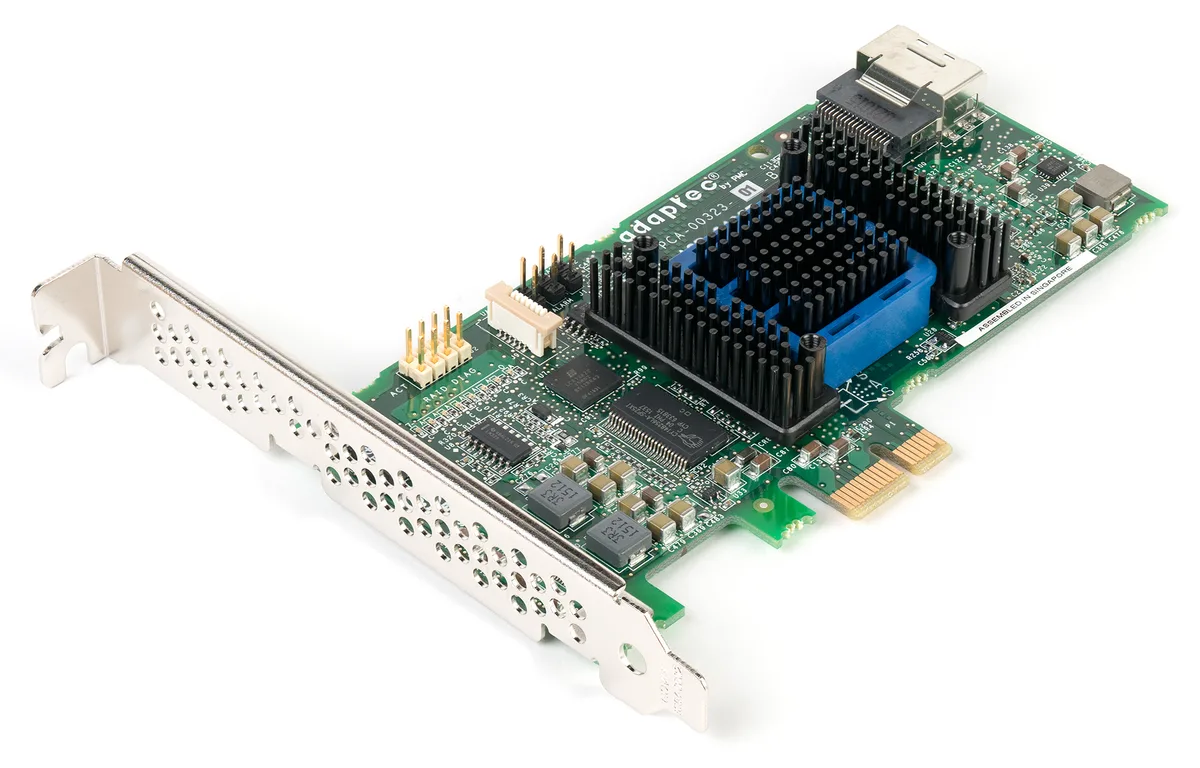
Image: Wikimedia Commons - SAS RAID Controller Card.
What Is the Problem Exactly?
"RAID Controller Not Detecting Disks" describes the state where the PERC (PowerEdge RAID Controller) cannot list some or all of the physically installed drives in its inventory. The server may still power on and iDRAC may be reachable, yet the Virtual Disk needed for boot or the data drives are invisible. Typical root causes include:
- Backplane failure or a loose SAS/power cable
- A drive not fully seated in its caddy (poor contact)
- Wrong controller mode (HBA/Non-RAID when RAID is expected)
- Disks left in a
Foreignstate (metadata from another controller) - Firmware mismatch between the PERC and the drives
- A failed or end-of-life drive
Use this table to route your diagnosis by visibility state:
| State | Typical cause | First step |
|---|---|---|
| Disk not visible at all | Backplane / cable / power | Reseat, cable check |
Disk shown Foreign | Foreign RAID metadata | Import Foreign Config |
| Disk single, no VD | HBA/Non-RAID mode | Check controller mode |
Disk Failed | Physical fault | Replace disk + rebuild |
First 10 Minutes of Diagnostics
- Open the iDRAC Storage view. Count how many disks appear under Storage > Physical Disks.
- Enter PERC BIOS. Use
Ctrl+Rat boot or UEFI Device Settings > RAID Controller to review the disk inventory. - Review the Lifecycle Log. Search for disk, backplane, or controller events in the last
24-48 hours. - Recall the last change. Did it start after a disk swap, cable maintenance, firmware update, or a physical move?
- Determine how many disks are missing. One disk versus the whole group separates cabling/backplane from a single drive failure.
Pro Tip: Export the configuration and Lifecycle Log from iDRAC before making changes. A wrong "Clear Configuration" step needs a rollback reference.
Physical Layer: Backplane, Cabling, and Reseat
Losing all disks at once usually indicates a physical-layer fault:
- Shut the server down safely and follow anti-static precautions.
- Remove the drive caddies for
5-10 secondsand reseat them firmly. - Inspect and reconnect the SAS data cables and power connectors to the backplane.
- If possible, swap the SAS cable with a known-good cable to test.
- Observe backplane LEDs; if no slot has any light, suspect the backplane or its power feed.
If a single disk is missing, insert it into a different empty slot to isolate whether the drive or the slot is faulty.
Controller Mode: RAID vs HBA / Non-RAID
PERC controllers support different operating modes, and a mode mismatch makes disks appear unexpectedly:
- RAID Mode: Disks are used to build Virtual Disks; the OS sees the VD.
- HBA / Non-RAID Mode: Disks pass through individually to the OS; RAID metadata may not be in the expected layout.
- eHBA Mode: Mixed scenarios can provide both passthrough and limited RAID.
If the system was installed in RAID mode but the controller is set to HBA, the Virtual Disk becomes invisible. Align the controller mode with the installation configuration via PERC BIOS or iDRAC. Because mode changes can affect data access, verify backup status before changing anything.
Foreign Configuration and Firmware
If disks appear as Foreign, they carry RAID metadata from another controller:
- Go to the Foreign Configuration menu in PERC BIOS or iDRAC.
- Use Import to preserve data; Clear erases metadata and causes data loss.
- After import, the Virtual Disk should list as
Ready/Optimal.
On the firmware side:
- Check PERC and backplane firmware versions through Lifecycle Controller.
- Incompatible or very old firmware can break disk detection; update to the Dell-recommended compatible version.
- Do not skip version steps when updating BIOS + iDRAC + PERC together.
Most Common Mistakes
- Clearing instead of importing a foreign config: RAID metadata is destroyed and recovery gets harder.
- Replacing disks without checking controller mode: HBA/RAID mismatch may be the real cause.
- Treating a single disk fault as a whole-group issue: The count of missing disks drives correct diagnosis.
- Swapping the controller before checking backplane/cabling: Costly and often unnecessary.
- Ignoring firmware mismatch: Old PERC firmware may not recognize newer drives.
Related Articles
- How to Fix a Very Slow Dell Server Disk Rebuild
- How to Fix Dell PERC RAID Controller Disk Foreign State Errors
- How to Resolve Dell Server Disk Failure Errors
- Dell PowerEdge RAID Configuration Best Practices
- How to Fix Dell Server No Boot Device Found
Troubleshooting Checklist
- Verified the disk count shown in iDRAC Storage > Physical Disks.
- Reseated drive caddies and checked backplane/SAS cable connections.
- Confirmed controller mode (RAID vs HBA/Non-RAID) matches the installation.
- Evaluated Import instead of Clear for
Foreigndisks. - Checked PERC and backplane firmware currency via Lifecycle Controller.
- Isolated a single-disk fault from a backplane/slot fault using an empty-slot test.
Next Step with Leon-X
A Dell PowerEdge RAID controller that fails to detect disks can escalate into permanent data loss with the wrong intervention. An incorrect "Clear" or an unplanned mode change can break your RAID layout. Leon-X diagnoses storage and RAID issues end to end under Hardware & Software Solutions. Through Server Installation, Configuration and Commissioning, we configure the PERC controller, backplane, and firmware layers to the right standard. For emergency RAID response, spare parts, or expert support, request a proposal on the Contact page.
Frequently Asked Questions
The RAID controller does not see disks, but the disks are healthy. Why?
The most common cause is physical connectivity: a loose SAS cable, a backplane fault, or drives not fully seated in their caddies. Also, if the controller is in HBA mode, no Virtual Disk appears. Reseat and check cabling first, then verify the controller mode.
Can I Clear disks that show as Foreign?
No, try Import first. Clear permanently erases RAID metadata and causes data loss. Only consider Clear as a last resort after Import fails and the backup is verified.
Will a firmware update fix disk detection?
Sometimes yes. Old or incompatible PERC firmware may not recognize newer drive models or capacities. Update to the Dell-recommended compatible firmware via Lifecycle Controller.
Why does it matter whether one disk or the whole group is missing?
If one disk is missing, that drive or slot is likely faulty. If the whole group is missing at once, suspect the backplane, SAS cabling, or controller mode. This distinction is the first step toward correct diagnosis.