When a Dell PowerEdge RAID rebuild after a failed-disk swap crawls for hours or days, the unprotected window grows and a second drive failure becomes far more dangerous. This usually comes from a low rebuild rate, heavy Virtual Disk I/O, a slower replacement drive (SATA/7200 RPM), concurrent Patrol Read/Consistency Check, or outdated PERC firmware. The short answer for a very slow Dell server disk rebuild is: confirm progress and ETA in iDRAC, raise the PERC rebuild rate carefully, reduce heavy disk I/O, verify the replacement disk matches capacity and interface class, then review firmware and disk health. Because a degraded array is fragile, validated backups are mandatory before and during the rebuild.
This guide is written for:
- Systems administrators managing Dell PowerEdge RAID and storage
- Datacenter teams monitoring rebuilds after hot-swap replacements
- Engineers tuning PERC H730/H740/H750 performance settings
- IT operations teams tracking hot spare and rebuild SLAs
Quick Summary
- For a slow Dell server disk rebuild, start in iDRAC Storage > Virtual Disks and record percentage and remaining time.
- Many environments leave PERC Rebuild Rate near
30%; raising it carefully to50-70%often shortens duration. - Heavy VM/DB I/O during rebuild starves background rebuild bandwidth; defer critical batch jobs for
2-4 hourswhen possible. - A same-capacity but slower interface (SATA instead of SAS) or a
7200 RPMdrive can stretch rebuild by2-5x. - Concurrent Patrol Read / Consistency Check competes with rebuild; pause one during the maintenance window.
Table of Contents
- What Is the Problem Exactly?
- First 15 Minutes of Diagnostics
- Rebuild Rate and I/O Priority
- Disk Type, Capacity, and Hot Spare
- Firmware, Patrol Read, and Inconsistencies
- Most Common Mistakes
- Related Articles
- Troubleshooting Checklist
- Next Step with Leon-X
- Frequently Asked Questions
- Sources
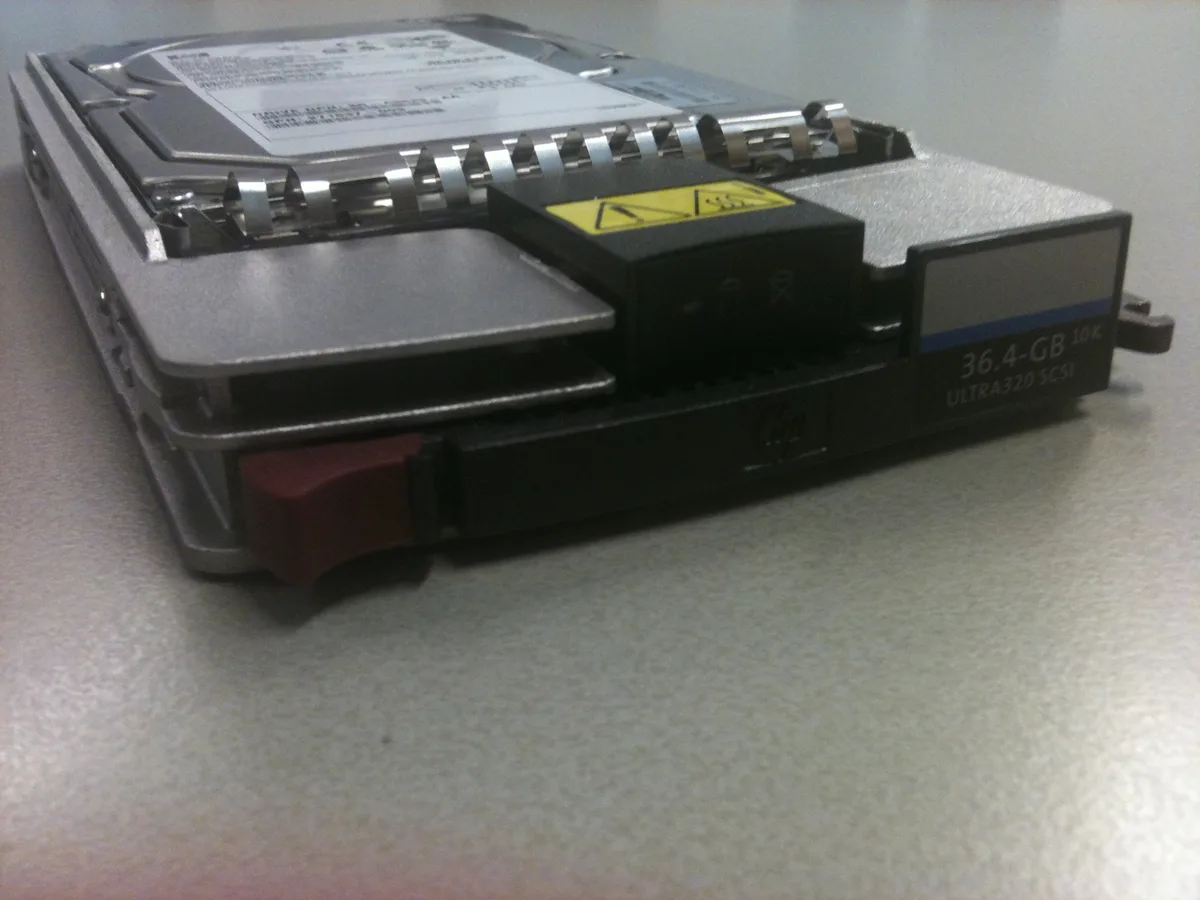
Image: Wikimedia Commons - HP Hot Swappable Harddisk.
What Is the Problem Exactly?
A "very slow disk rebuild" means the Dell PERC controller is recreating redundancy onto a replacement drive far slower than expected. The Virtual Disk stays Degraded or Rebuilding, and the percentage may rise only 1-2 points for hours. Typical root causes include:
- Rebuild Rate set too low (
10-30%) - Production I/O consuming rebuild bandwidth
- A slower replacement disk class (SATA vs SAS, HDD vs SSD)
- Patrol Read, Consistency Check, or Background Initialization running at the same time
- Media errors causing retries
- Outdated PERC firmware or disk firmware mismatch
Rough duration expectations:
| Scenario | Typical rebuild duration | Notes |
|---|---|---|
600 GB SAS SSD, low I/O, rate 60% | 1-3 hours | Fastest common case |
1.2 TB SAS 10K, medium I/O, rate 30% | 6-12 hours | Common production default |
4-8 TB NL-SAS/7200, heavy I/O, rate 30% | 24-72+ hours | High slow-rebuild risk |
| RAID 6 + concurrent Consistency Check | +30-100% duration | Maintenance collision |
First 15 Minutes of Diagnostics
- Open iDRAC Storage. Under Storage > Virtual Disks, record rebuild percentage, start time, and ETA.
- Check Physical Disk state. Is the new drive
Online/Rebuilding, orForeign/Failed? - Read Rebuild Rate. Note the value in PERC BIOS (
Ctrl+R) or iDRAC controller settings. - Look for concurrent maintenance. Is Patrol Read, Consistency Check, or BGI active?
- Measure production load. Are backups, reports, or migrations hitting the same Virtual Disk?
- Validate disk match. Capacity, interface (SAS/SATA/NVMe), and speed class must align with the failed drive.
Pro Tip: Log rebuild percentage every
15-30 minutes. If hourly progress is<2%, prioritize rate and I/O first; if it is>5%, keep monitoring rather than forcing aggressive changes.
Rebuild Rate and I/O Priority
PERC runs rebuild in the background and prioritizes host I/O. That design protects production, but a low rate can stretch rebuild across days.
Raise Rebuild Rate carefully:
- Confirm Virtual Disk health context and backup validity before changing settings.
- Locate Rebuild Rate in iDRAC or PERC BIOS (usually
0-100). - Avoid jumping straight to
100%in production; move30%→50%, then60-70%if needed. - Watch application latency for
15-30 minutesafter each increase. - After rebuild completes, return the rate to your policy baseline (for example
30-40%).
Reduce I/O contention:
- Defer large backups and ETL jobs on the same LUN/VD until rebuild finishes.
- Pause dense snapshot or storage migration activity.
- Temporarily move critical VMs to another datastore when feasible.
- Do not randomly flip Write-Back vs Write-Through; verify battery/cache health first.
Disk Type, Capacity, and Hot Spare
Slow rebuilds often start with a mismatched spare:
- Capacity: The spare cannot be smaller than the failed drive.
- Interface: Mixing SATA into a SAS group can slow rebuild and create firmware friction.
- Speed class: Replacing
15K/10Kwith7200 RPMNL-SAS stretches parity RAID rebuilds heavily. - SSD vs HDD: SSD rebuilds are usually much faster; in mixed tiers the slowest member becomes the bottleneck.
- Hot Spare: If global/dedicated hot spare is wrong, rebuild may not start or may target the wrong drive.
If rebuild never starts after a swap, follow the hot-swap and Ready/Assign steps in Dell Server Disk Failure. If disks are invisible to the controller, use RAID Controller Not Detecting Disks.
Firmware, Patrol Read, and Inconsistencies
Concurrent maintenance shares the same disk bandwidth:
- Patrol Read: Pause weekly/monthly scans while rebuild is active.
- Consistency Check: Parity validation alongside rebuild can add
+30%or more. - Media errors: High retries stall progress; search Lifecycle Log for
predicted failure/media error. - Firmware: Use Lifecycle Controller to confirm PERC, backplane, and disk firmware compatibility.
- Foreign metadata: If the new disk is Foreign, analyze before Clear; see PERC Disk Foreign State.
Pro Tip: Expectations differ by RAID level. RAID 10 is usually more predictable than RAID 5/6; on large parity arrays,
24-72 hourscan be normal under load.
Most Common Mistakes
- Setting Rebuild Rate to
100%and starving host I/O until apps time out - Raising rate during heavy backup windows
- Blaming the controller after installing a slower disk class
- Ignoring Patrol Read collisions
- Waiting through a degraded rebuild without validated backups
- Clearing Foreign configuration too quickly and erasing metadata
Related Articles
- How to Fix Dell Server Disk Failure
- How to Fix Dell RAID Controller Not Detecting Disks
- Dell PERC RAID Controller Disk Foreign State
- Dell PowerEdge RAID Configuration Best Practices
Troubleshooting Checklist
- Rebuild percentage, start time, and ETA recorded in iDRAC
- New disk Online/Rebuilding; Foreign/Failed ruled out
- Current PERC Rebuild Rate noted; controlled increase planned
- Patrol Read / Consistency Check collision checked
- Production I/O (backup, ETL, migration) reduced during rebuild
- Spare matches capacity, interface, and speed class
- Current backup validated before rebuild completes
- PERC/backplane/disk firmware compatibility checked in Lifecycle Controller
Next Step with Leon-X
A very slow Dell server disk rebuild extends the degraded RAID window and raises the odds of a second drive failure. Wrong rate settings or mismatched spares can hurt both performance and data safety. Leon-X diagnoses PowerEdge storage and RAID issues end to end under Hardware & Software Solutions. Through Server Maintenance, Warranty and Technical Support we manage rebuild rate, hot spare, and firmware safely. For urgent disk/RAID help, original spare parts, or expert support, request a quote via Contact.
Frequently Asked Questions
Why is my Dell server disk rebuild so slow?
The most common causes are a low Rebuild Rate (30% or below), heavy Virtual Disk I/O, and a slower spare disk class. Concurrent Patrol Read or Consistency Check makes it worse. Check rate and I/O first, then disk class.
What Rebuild Rate should I use?
Avoid jumping to 100% in production. 50-70% is a balanced range for many environments. After increasing, watch application latency for 15-30 minutes and step down if delays are unacceptable.
Do I need to power off the server during rebuild?
No. Hot-swap and online rebuild are standard on Dell PowerEdge. Power off only when physical backplane/cable work or vendor procedure requires it. Interrupting rebuild can restart progress from scratch.
Is a multi-day rebuild on an 8 TB drive abnormal?
With heavy I/O and a low rate on NL-SAS/7200 drives, 48-72+ hours can occur. If hourly progress is near zero, investigate media errors, Foreign state, or firmware separately—and validate backups immediately.
What if a second disk fails before rebuild finishes?
On RAID 5 this often means data-loss risk; RAID 6 and RAID 10 tolerate more. That is why backups, hot spare, and monitoring matter during degraded rebuilds. Seek expert help at the first sign of a second failure.