A Dell iDRAC connection problem differs from iDRAC not responding; it is usually in the network path, wrong NIC selection, or shared LOM + VLAN setup. Short answer: verify link lights and the correct port; check IP/NIC under F2 or the LCD; separate dedicated vs shared LOM; test switch VLAN/trunk and gateway ping. This article is the connectivity playbook; if iDRAC runs but does not respond, see Not Responding.
This playbook is written for:
- Systems admins trying to reach iDRAC on a newly deployed PowerEdge
- Infrastructure teams that cannot ping iDRAC from the host OS on shared LOM
- Data center ops with management VLAN / dedicated port confusion
- NOC teams isolating remote-access outages at the network layer
Quick Summary
- A connection issue does not always mean iDRAC service crashed; most cases are Layer-2/3 configuration.
- Dedicated iDRAC port vs shared LOM needs different cable, switch, and VLAN design.
- On shared LOM, pinging iDRAC from the host OS on the same VLAN usually fails (Dell KB 000139059).
- First access: F2 → iDRAC Settings or front LCD IP; dedicated may be disabled by default.
racadm getniccfg: check Link Detected, Active NIC, VLAN enable.- No ping → physical/switch; ping OK but no web → Not Responding.
- Basics: What Is iDRAC?.
Table of Contents
- What Is a Connection Problem?
- Dedicated vs Shared LOM
- First 15 Minutes Diagnosis
- Symptom → Fix Decision Tree
- VLAN and Switch Checks
- iDRAC Direct and Local Access
- Common Mistakes
- Checklist
- Next Step with Leon-X
- Frequently Asked Questions
- Sources
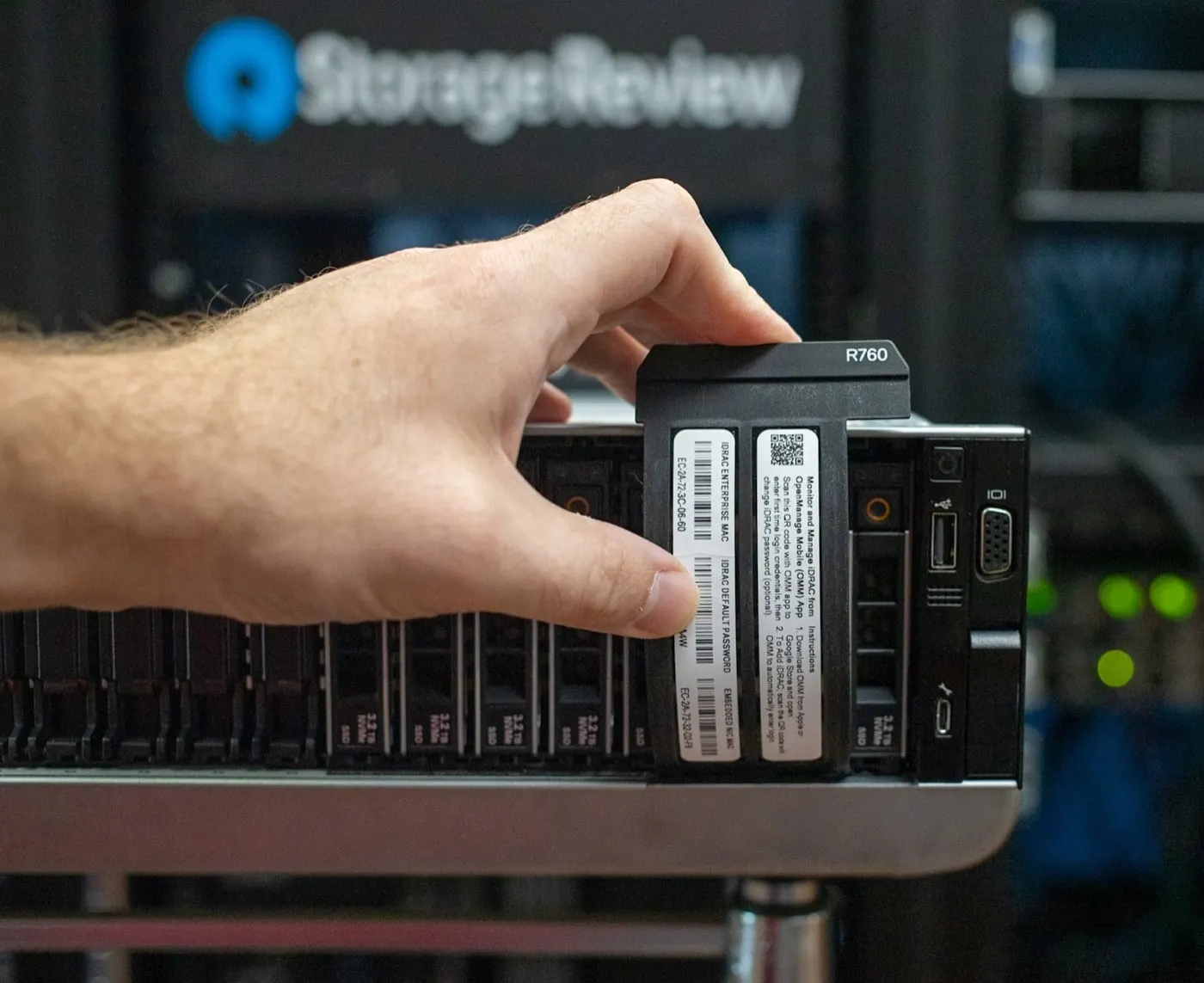
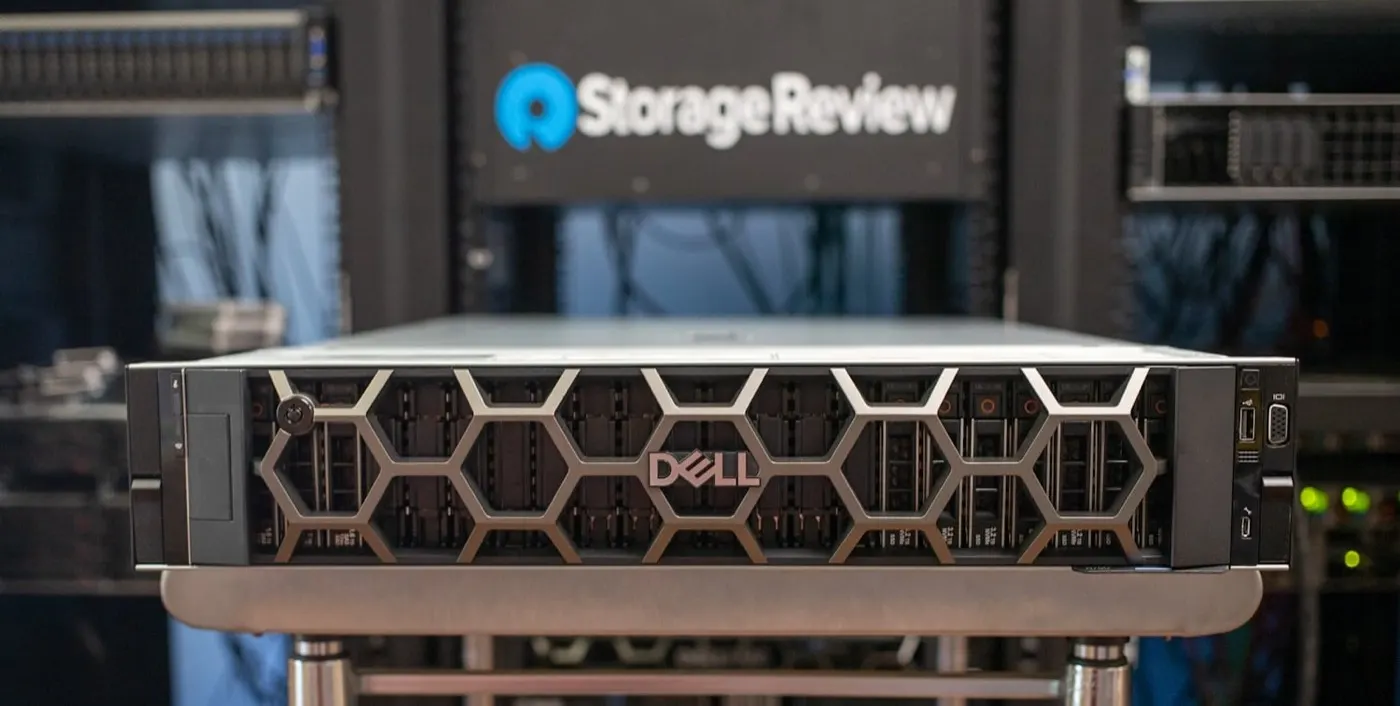
Image: StorageReview - Dell PowerEdge R760 Review (rear panel / network ports).
What Is a Connection Problem?
An iDRAC connection problem means you cannot reach the management interface (HTTPS), SSH, or ping over the network. The server may have power and complete POST; only the out-of-band path is broken.
Short definition: A connection problem is inability to reach the iDRAC IP or management port at Layers 1–3; rule out the network path before assuming firmware or service failure.
| Layer | Sign | First check |
|---|---|---|
| L1 physical | No link LED | Cable, port, dedicated vs LOM |
| L2 VLAN | Wrong segment | Trunk/access, VLAN ID, MAC learning |
| L3 IP | No ping (remote) | IP, subnet, gateway, routing |
| Application | Ping OK, no HTTPS | Webserver, TLS, firewall → Not Responding |
Dedicated vs Shared LOM
Dell PowerEdge iDRAC runs in two main modes:
| Mode | Description | Typical use |
|---|---|---|
| Dedicated NIC | Separate iDRAC RJ45 | Management VLAN, isolated OOB |
| Shared LOM | Motherboard NIC (LOM 1–4) sharing | Port savings, LOM redundancy |
Dell KB 000124653: By default the dedicated NIC may be disabled; iDRAC shares LOM 1. With shared LOM, reach iDRAC from another system on the network.
Dell KB 000139059: If host OS and iDRAC use the same shared LOM and same VLAN, ping/access from inside the OS to its own iDRAC IP fails due to a Layer-2 limitation. Fix: put iDRAC and host OS on separate VLANs; trunk the LOM port; enable VLAN under F2 → iDRAC Settings.
First 15 Minutes Diagnosis
- Is the cable on the correct physical port? (Dedicated ≠ LOM1)
- Is the link LED on? Is the switch port up?
- LCD panel or F2 → iDRAC Settings: IP, NIC Selection, Enable NIC
- Remote ping (from another server/PC) — not from host OS (if shared LOM)
racadm getniccfg(SSH or local): Link Detected, Active NIC, IP/gatewayracadm get iDRAC.NIC.VLANEnable— accidental VLAN assigned?- Gateway ping:
racadm ping <gateway>(if iDRAC is reachable) - Firewall: are 443/22 open from the management subnet?
- Still no access → iDRAC Direct or crash cart
Pro Tip: For new servers using a dedicated port, enable NIC + Dedicated in F2; plan a separate switch port and management VLAN — Server Installation Guide.
Symptom → Fix Decision Tree
| Symptom | Go to |
|---|---|
| No ping from OS on shared LOM, remote ping works | Expected (KB 000139059) — split VLANs |
| No ping at all, no link LED | Cable, port, dedicated/LOM selection, switch |
| Ping OK, web/SSH timeout | iDRAC Not Responding |
| Forgot IP / wrong subnet | F2 network reset, LCD, iDRAC Direct |
| Network loss after firmware | Firmware Update + config export |
| Security / access policy | iDRAC ISO 27001 |
| Factory reset needed | iDRAC Reset |
VLAN and Switch Checks
For shared LOM + separate VLANs, Dell recommends:
- LOM port → switch trunk (host VLAN + iDRAC VLAN members)
- Host OS: NIC VLAN tagging (ESXi port group, Linux vlan, Windows NIC team)
- iDRAC: F2 → Network → VLAN Settings → enable VLAN ID
- Switch: verify gateway and routing per VLAN
- MAC table should show iDRAC and host MACs on the correct port
Dedicated port is simpler: access port, single management VLAN, static IP or DHCP reservation.
| Check | Dedicated | Shared LOM |
|---|---|---|
| Switch port mode | Access (most cases) | Trunk (multi-VLAN) |
| Ping iDRAC from OS | N/A (different port) | Fails on same VLAN |
| Cable | iDRAC RJ45 | Selected LOM port |
| Failover | N/A or NIC redundancy | Plan Active LOM changes |
Network design: Router, Switch and Firewall Installation.
iDRAC Direct and Local Access
When the network path is unknown:
- iDRAC Direct (micro-USB, by model): direct laptop connection
- F2 System Setup → iDRAC Settings: assign IP (DHCP or static)
- Front LCD: display iDRAC IP / basic network (if bezel present)
- Local racadm (if OS and iDRAC module reachable):
racadm getniccfg
Dell Connectivity Troubleshooting (KB 000185547) order: initialization → configuration (getniccfg) → network (gateway ping, link lights, dedicated vs LOM) → enable webserver → factory reset if needed.
Common Mistakes
- Plugging cable into LOM1 instead of dedicated port
- Testing ping from the OS on shared LOM and assuming "iDRAC is dead"
- Mixing management VLAN with production
- Static IP conflict without DHCP reservation
- VLAN enabled on iDRAC but missing on switch
- Firewall allows SSH only, not HTTPS (or the reverse)
Checklist
- Correct physical port (dedicated vs LOM) verified.
- Link LED and switch port status checked.
- Enable NIC, NIC Selection, IP/gateway read from F2/LCD.
- Remote ping tested (not from host OS on shared LOM).
- VLAN ID matches on iDRAC and switch.
- Shared LOM: host and iDRAC on separate VLANs.
- Gateway ping (
racadm ping) successful. - Firewall 443/22 open from management subnet.
- Routed to Not Responding guide if web fails.
- Config exported after fix.
Next Step with Leon-X
Leon-X designs OOB network layout, VLAN plans, and access policy for iDRAC connection issues through Server Installation, Configuration and Commissioning and Server Maintenance, Warranty and Technical Support. For discovery, contact us.
Frequently Asked Questions
Is a connection problem the same as not responding?
No. A connection problem means the network path cannot be reached. Not responding means iDRAC does not answer ping or web; reset or service layer may be needed.
Why can't I ping iDRAC from the host OS?
On shared LOM with the same VLAN, this is documented Layer-2 behavior (KB 000139059). Test remotely or from a separate VLAN.
What is the default iDRAC IP?
Many models document 192.168.0.120 as an example; dedicated may be disabled with LOM sharing active. Use F2 or the LCD for the current IP.
Dedicated port or shared LOM?
Production usually favors a dedicated management port + separate VLAN. Shared LOM saves ports but requires VLAN/trunk planning.
Ping works but the web UI does not open?
The network path is largely fine. Move to webserver, TLS, certificate, or iDRAC service issues — Not Responding guide.