VMware vCenter Cannot Connect to Host means that vCenter cannot establish or maintain management communication with an ESXi host. It does not always mean that the host is powered off; VMs can continue running while only the management plane is broken. The short answer is this: first separate real host outage from lost vCenter communication, then check management networking, DNS/FQDN resolution, TCP/UDP port reachability, hostd/vpxa services, storage impact, and reconnect attempts in a controlled order.
This guide is written for:
- system teams operating vCenter and ESXi hosts
- virtualization teams responsible for VMware clusters, HA, DRS, and maintenance workflows
- network teams managing management networks, DNS, firewalls, and switch access
- organizations that want to close repeated host disconnected or not responding events at root-cause level
Quick Summary
Cannot connect to host,Cannot synchronize host,Disconnected, andNot Respondingcan come from different root causes; separate real host loss from management communication loss first.- Broadcom KB
344682recommends following ESXi disconnected or not responding troubleshooting steps in sequence and trying reconnect after each step. - Wrong or duplicate DNS A records can cause vCenter to contact the host through the wrong management IP.
- Broadcom KB
320280warns against broadservices.sh restartor DCUI management agent restarts in environments using vSAN, LACP, NSX, or shared graphics. - If multiple hosts disconnect at the same time, investigate DNS, firewall, physical network, vCenter, or storage layers before focusing on one host service.
- Long-term prevention requires monitoring, alarm correlation, management network standards, DNS hygiene, agent log analysis, and change records.
Table of Contents
- What Does Cannot Connect to Host Mean?
- Which Checks Matter in the First 10 Minutes?
- How Should Management Network and DNS Be Verified?
- When Should hostd and vpxa Services Be Checked?
- How Should Storage, HA, and VM Impact Be Separated?
- Prevention Plan
- Related Content
- Checklist
- Next Step with Leon-X
- Frequently Asked Questions
- Sources
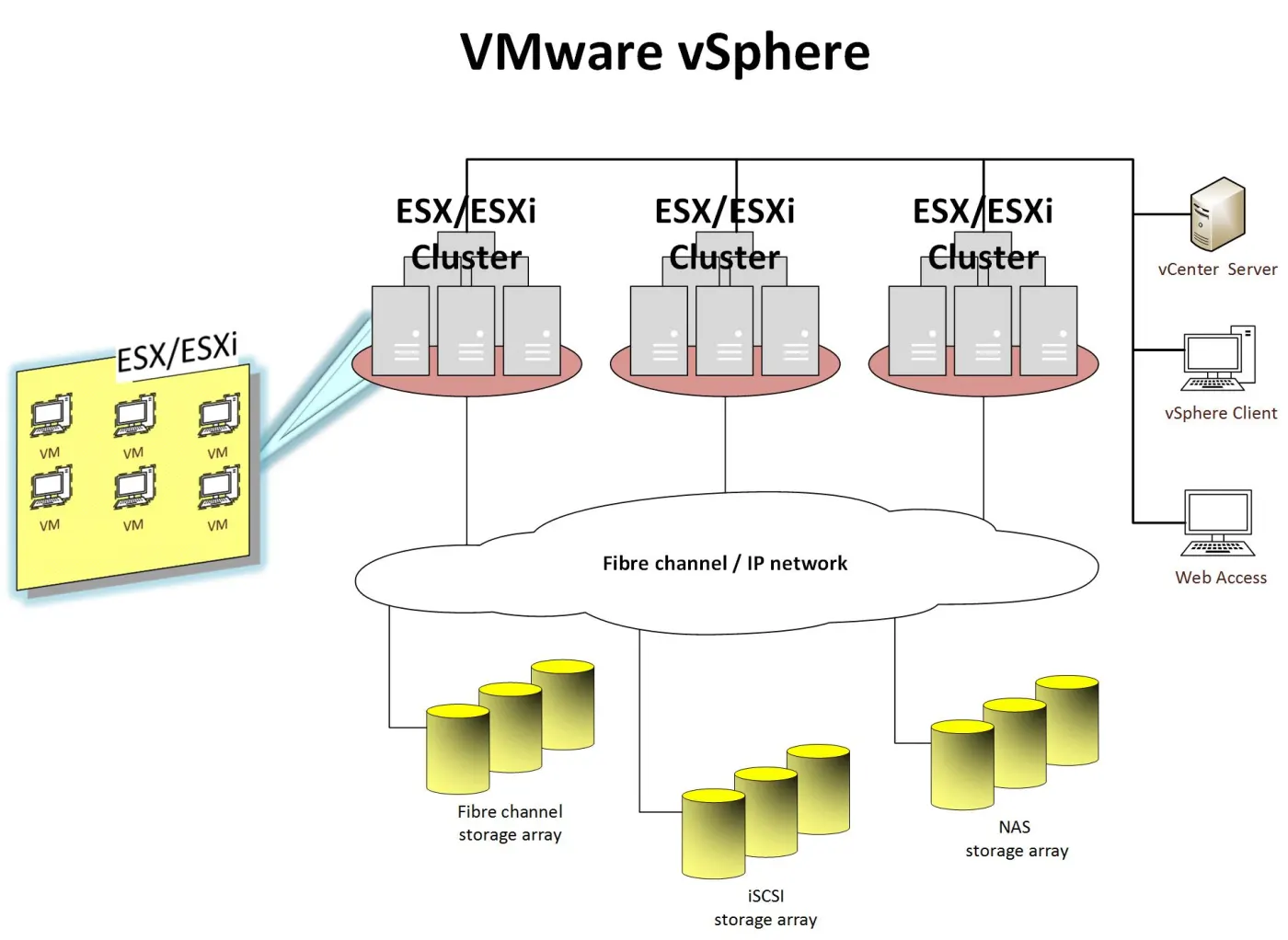
Image: Wikimedia Commons - VMware vSphere, TimeWaitsForNobody, CC BY-SA 4.0. Optimized as WebP.
What Does Cannot Connect to Host Mean?
vCenter does more than keep ESXi hosts in inventory. It communicates continuously through host-side management agents, network reachability, DNS resolution, trust information, and vCenter services. Cannot Connect to Host means that one part of that communication chain has failed.
Separate the failure into three classes:
| State | Likely meaning | First risk |
|---|---|---|
| Host is truly unreachable | power, hardware, physical network, or management IP loss | VM and HA impact may exist |
| Host runs but vCenter cannot connect | DNS, firewall, hostd, vpxa, certificate, or trust issue | management operations fail |
| Many hosts disconnect together | DNS, firewall, network path, vCenter, or storage layer | broad operational impact |
Rebooting the host, restarting all services, or removing the host from inventory before this separation is risky. Start by checking the VMs running on the host, direct ESXi access, management vmkernel reachability, and vCenter logs.
For adjacent alarm classes, read VMware Host Disconnected Errors and VMware ESXi Host Not Responding Issue.
Which Checks Matter in the First 10 Minutes?
The first response should answer one question quickly: is the host actually down, or is vCenter-host communication broken? A safe order is:
- record the vCenter alarm time, affected hosts, and affected cluster
- check application and network reachability for critical VMs on the host
- from vCenter Server Appliance, test ping and DNS resolution to the ESXi management IP
- verify whether direct Host Client, SSH, or DCUI access to the ESXi host works
- check physical switch, firewall, routing, and VLAN changes around the same time
- separate single-host impact from multi-host impact
- review vCenter
vpxd.log, ESXihostd.log,vpxa.log, andvmkernel.logfor the same time window - before reconnecting, confirm that DNS and management IP data are correct
Broadcom KB 344682 recommends progressing through disconnected or not responding troubleshooting steps in order and trying to reconnect the host after each step. That sequencing matters because restarting or removing things too early can make incident analysis harder.
This response flow directly relates to Business Management Services, especially Network Monitoring and Management. These incidents require combined visibility across DNS, firewall, switches, vCenter, and storage signals.
How Should Management Network and DNS Be Verified?
DNS and management network hygiene are often overlooked in VMware vCenter Cannot Connect to Host incidents. If the host was added by FQDN, vCenter must resolve the correct host name to the correct management IP. Old IP records, duplicate A records, or reverse DNS mismatch can make vCenter connect to the wrong target.
Check these items:
- does
nslookupfrom vCenter return one correct management IP for the host FQDN? - are forward and reverse DNS records consistent?
- is there routing between vCenter and the ESXi management vmkernel?
- does a firewall or ACL block vCenter-host communication ports?
- is the management VLAN trunk and switch port stable?
- can time skew affect certificate or trust behavior?
- was the host added by FQDN or IP, and what is the operations standard?
Broadcom KB 425252 explains that multiple or incorrect DNS mappings for an ESXi host name can cause vCenter to contact the host through the wrong management IP. Broadcom KB 418297 shows that when all hosts appear disconnected or not responding after a vCenter reboot or DNS change, DNS reachability and resolution should be investigated.
For repeated network-driven issues, read How to Fix VMware Network Not Working, VMware Management Network Down, and How VMware Network Architecture Works.
When Should hostd and vpxa Services Be Checked?
If management networking and DNS look correct, inspect the host-side management services. On ESXi, hostd handles host management operations, and vpxa handles the agent communication between vCenter and the host. If either service hangs, faces resource pressure, or produces repeated log errors, vCenter may not connect to the host.
Logs and signals to check:
/var/run/log/hostd.log/var/run/log/vpxa.log/var/run/log/vmkernel.log/var/run/log/vobd.log- vCenter-side
vpxd.log - host resource usage through DCUI or SSH
- host management agent response time
Broadcom KB 320280 provides individual restart commands for hostd and vpxa, but it also warns against services.sh restart or broad DCUI management agent restarts in environments using vSAN, LACP, NSX, or shared graphics. So "restart management agents immediately" is not safe in every environment.
A safer approach:
- check VM impact and whether vSAN, NSX, LACP, or shared graphics are in use
- separate clear
hostdorvpxaerrors from network symptoms - assess the effect of restarting individual services
- try reconnect from vCenter after service recovery
- if the issue repeats, investigate firmware, driver, storage, and network root causes
This stage also relates to Hardware & Software Services and Enterprise Virtualization Platforms Sales and Licensing. If the platform standard, lifecycle management, and host baseline are unclear, the same alarm can repeat.
How Should Storage, HA, and VM Impact Be Separated?
The Cannot Connect to Host message may not be limited to management networking. Storage path loss, APD/PDL states, host resource pressure, or hardware failure can also cause the host to appear as not responding in vCenter. Track live VM impact separately.
Questions to answer:
- are VMs reachable through the application network?
- do datastores show APD or PDL events?
- if vSAN is used, what do vSAN health signals show?
- did HA create an isolation response or restart attempt?
- does the host show CPU, memory, or storage queue pressure?
- if multiple hosts are affected, do they share a storage or network path?
Broadcom KB 318938 states that All Paths Down conditions can make an ESXi host appear disconnected or not responding in vCenter inventory. That means restarting hostd or vpxa alone is incomplete when storage alarms exist.
For storage-related context, use VMware iSCSI Datastore Setup Guide with datastore and storage connectivity guides already present in the VMware content cluster.
Prevention Plan
Even if reconnect works once, the same host or cluster can disconnect again if the root cause is not closed. A practical 30-day prevention plan is useful.
Days 1-7: Evidence and quick hygiene
- collect vCenter alarm time, affected host list, log slices, and network changes in one incident record
- clean DNS forward/reverse records and duplicate A records
- validate vCenter-host management port reachability in firewall and ACL layers
- preserve
hostd,vpxa,vmkernel, and storage logs after reconnect
Days 8-20: Standardization
- define whether hosts should be added by FQDN or IP
- tie management VLAN, vmkernel, gateway, DNS, and NTP settings to the host baseline
- update the agent restart procedure with vSAN, NSX, LACP, and shared graphics exceptions
- correlate host disconnect, reconnect, DNS failure, and management latency signals in monitoring
Days 21-30: Review and automation
- prepare a 90-day trend report for repeated host events
- review vCenter and ESXi lifecycle, driver, and firmware baselines
- standardize switch and firewall log correlation with the network team
- add reconnect and escalation steps to the operations procedure
This plan moves the issue beyond "we reconnected the host" and turns management-plane health into a continuously monitored operations metric.
Related Content
- VMware Host Disconnected Errors
- VMware ESXi Host Not Responding Issue
- VMware ESXi Host Connection Lost
- VMware Management Network Down
- How to Fix VMware Network Not Working
- How to Monitor VMware for ISO 27001
Checklist
- confirmed whether VMs on the host are still running
- tested host management IP and FQDN reachability from vCenter
- checked DNS forward/reverse records and duplicate A records
- reviewed firewall, ACL, VLAN, and routing changes
- tried direct ESXi Host Client, SSH, or DCUI access
- reviewed
hostd.log,vpxa.log,vmkernel.log,vobd.log, andvpxd.login the same time window - evaluated vSAN, NSX, LACP, and shared graphics restart risks
- separated storage APD/PDL or datastore access issues
- recorded root cause and permanent action after reconnect
- updated monitoring correlation for host disconnect/reconnect alarms
Next Step with Leon-X
VMware vCenter Cannot Connect to Host can clear with a single reconnect, but repeated cases usually point to deeper gaps in management networking, DNS, storage, vCenter services, or host lifecycle management. Leon-X makes these events observable and manageable through Business Management Services, Network Monitoring and Management, System Maintenance and Management, and 24/7 Expert Technical Support.
On the virtualization platform side, Hardware & Software Services, Enterprise Virtualization Platforms Sales and Licensing, VMware, Hyper-V and Proxmox Deployment Service, and Network and System Monitoring Platform Integration help establish a durable operations standard. To review your current vCenter/ESXi environment or request a proposal, continue through the Contact page.
Relevant pages:
- Business Management Services
- Network Monitoring and Management
- System Maintenance and Management
- 24/7 Expert Technical Support
- Hardware & Software Services
- Enterprise Virtualization Platforms Sales and Licensing
- Network and System Monitoring Platform Integration
- Contact
Frequently Asked Questions
Does VMware vCenter Cannot Connect to Host mean the host is powered off?
No. VMs may continue running while only the vCenter management connection is broken. Separate host liveness from management access first.
Should DNS or network be checked first?
Check both. If the host was added by FQDN, wrong DNS records, duplicate A records, or reverse DNS mismatch can make vCenter connect to the wrong IP.
Is it safe to restart hostd and vpxa?
It is not automatically safe in every environment. Environments using vSAN, NSX, LACP, or shared graphics should assess the effect before broad management agent restarts.
Where should root cause investigation start if many hosts disconnect together?
Start with DNS, firewall, routing, physical network, vCenter services, storage access, and shared management paths. Rebooting individual hosts is usually not the right first move.
Is the incident closed after reconnect succeeds?
No. Reconnect can remove the symptom. Logs, DNS/network changes, storage events, and agent behavior should still be reviewed before closing the incident.
Sources
- Broadcom KB 344682 - Troubleshooting an ESXi host in a not responding/disconnected state
- Broadcom KB 320280 - Restarting Management Agents in ESXi
- Broadcom KB 425252 - Troubleshooting ESXi Host in Disconnected State and Unable to Connect to vCenter
- Broadcom KB 418297 - All ESXi hosts are disconnected or in not responding state after vCenter reboot
- Broadcom KB 377738 - Troubleshooting Mass ESXi Host Not Responding States
- Broadcom KB 318938 - ESXi hosts in All Paths Down condition may appear as Not Responding
- Wikimedia Commons - VMware vSphere