A Dell iDRAC not responding issue does not always mean the server itself has failed. iDRAC is the out-of-band management plane for PowerEdge servers, and web access, SSH, RACADM, ping, or iDRAC Direct can fail for different reasons. The short answer is this: first separate whether the issue is in the iDRAC management layer, the physical power or POST layer, or the network path; then use the least disruptive reset and long-term firmware or network fixes.
This guide is written for:
- system teams responsible for remote management of Dell PowerEdge servers
- data center operations teams that cannot reach the iDRAC web interface
- infrastructure teams standardizing
racadmerrors, ping failures, and iDRAC timeouts - IT leaders who need to understand scope before opening a maintenance window
Quick Summary
- Dell's iDRAC reset KB lists not-responding symptoms such as
ERROR: Unable to perform requested operation, SSH/Telnet timeout, browser access failure, and failed ping to the iDRAC IP. - Dell iDRAC connectivity troubleshooting recommends checking link lights, gateway ping, iDRAC initialization, and commands such as
racadm racresetwhen appropriate. - "iDRAC is not responding" and "server has no power/no POST" are not the same issue; if there is no power, iDRAC not replying to ping can be expected.
- Holding the physical
ibutton for at least16 secondscan reset iDRAC on many PowerEdge systems without rebooting the operating system. - After recovery, validate firmware, iDRAC network selection, VLAN/gateway, certificates, DNS, and OpenManage or monitoring visibility.
Table of Contents
- Classify the Symptom First
- Network and iDRAC Port Checks
- What to Check with RACADM and Local Access
- When and How Should Reset Be Used?
- Permanent Fix and Prevention Plan
- 30-Minute Emergency Response Flow
- Related Content
- Next Step with Leon-X
- Frequently Asked Questions
- Sources
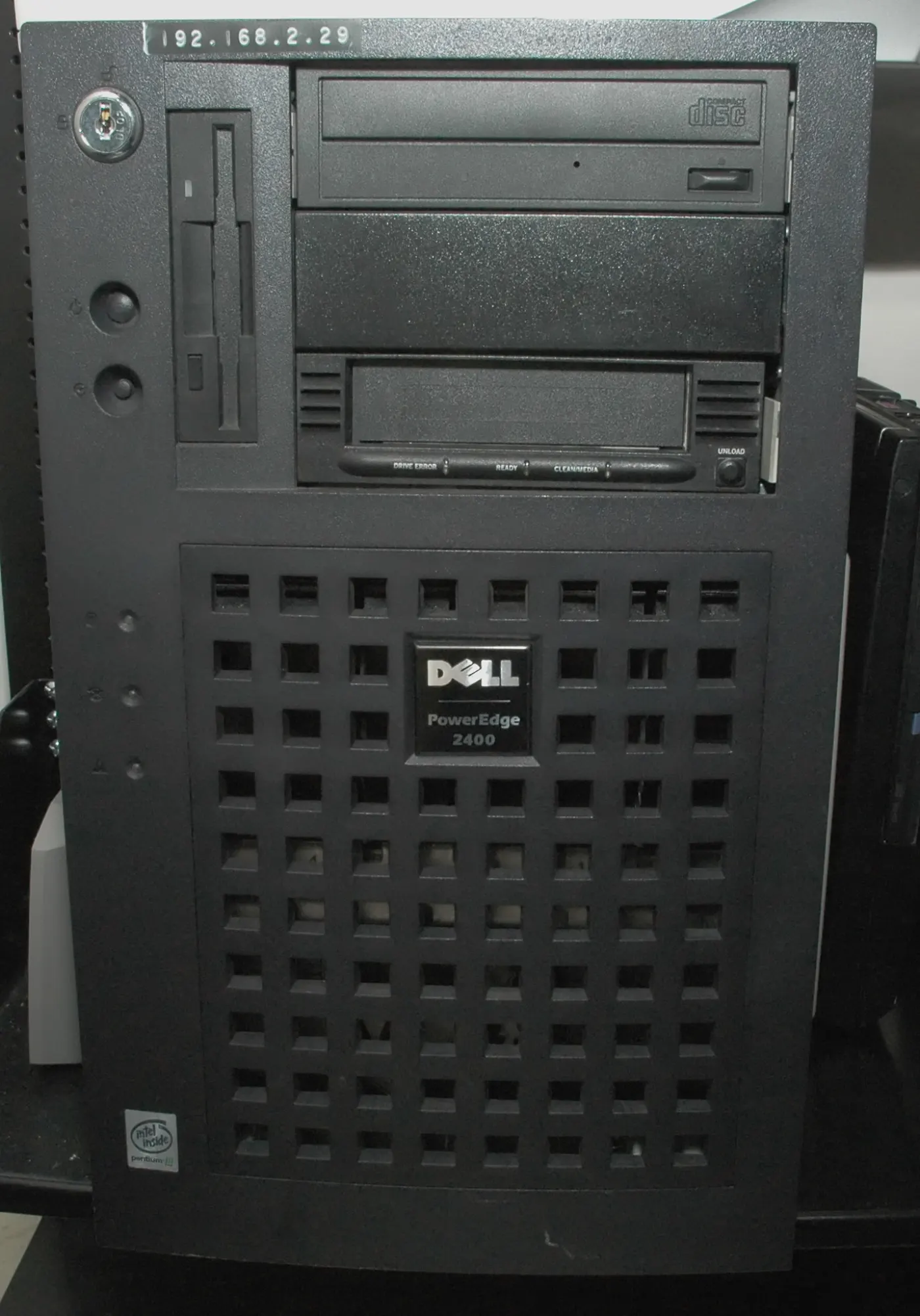
Image: Wikimedia Commons - Dell PowerEdge 2400 Front. Optimized as WebP.
Classify the Symptom First
The first mistake in iDRAC troubleshooting is treating every case as "iDRAC is broken." Dell's official reset article frames typical unresponsive symptoms as:
- RACADM commands return
ERROR: Unable to perform requested operation - SSH or Telnet connection attempts time out
- the browser cannot open the iDRAC interface
- ping to the iDRAC IP address fails
These symptoms point to the management plane, but they do not always prove hardware failure. Start with this separation:
| Symptom | Possible layer | First check |
|---|---|---|
| No ping and no link light | physical port, switch, cable, NIC selection | port LED, switch MAC table, cable swap |
| Ping works but web fails | HTTPS service, certificate, browser, TLS | another browser, SSH/RACADM, service reset |
| Web works but login fails | user, password, lockout, LDAP | local admin, directory reachability, audit log |
| RACADM returns errors | iDRAC service stability or privilege | local RACADM, soft reset, firmware level |
| Fans at 100% and POST warning | iDRAC initialization or hardware state | LCD/LED, Lifecycle Log, service window |
| No signs of power | no power | PSU, PDU, cable, power path |
If the server is in a no-power condition, iDRAC not responding to ping is normal. iDRAC troubleshooting should not begin without ruling out power and POST state.
Network and iDRAC Port Checks
Dell iDRAC connectivity troubleshooting treats connection validation as a core step: link lights, gateway reachability, iDRAC initialization, and web access must be reviewed separately. Use this order in practice.
1. Which NIC is selected?
Depending on model and license level, iDRAC may use a dedicated port or shared LOM. Wrong NIC selection can make the IP look correct while the device is unreachable on the physical network. In BIOS/iDRAC setup or RACADM, validate:
- dedicated or shared LOM mode
- VLAN ID assignment
- DHCP or static IP
- gateway inside the correct subnet
- failover LOM behavior
2. Does the switch see iDRAC?
Do not check only from the server side. On the switch, review port state, speed/duplex, MAC learning, VLAN membership, and access/trunk mode. If the management VLAN moved to the wrong switch or port profile, iDRAC settings may look correct while access still fails.
3. Is the management network separate from production?
iDRAC access should not depend on production network changes. During Hardware and Software Solutions and Server Installation, Configuration and Commissioning, the iDRAC segment, firewall rules, and access role model should be designed early. Router, Switch and Firewall Installation Service completes the network side of this dependency.
What to Check with RACADM and Local Access
If the operating system is running but iDRAC is unreachable externally, local RACADM or iDRAC Service Module provides more controlled diagnostics. The goal is not to reset immediately, but to separate a network issue from a service issue.
Use this sequence:
racadm getsysinfo
racadm getniccfg
racadm get iDRAC.NIC
racadm lclog view
These checks can show:
- iDRAC firmware and model information
- active IP, gateway, VLAN, and NIC selection
- link status and shared/dedicated port behavior
- Lifecycle Log events related to iDRAC, network, or firmware
If RACADM also returns ERROR: Unable to perform requested operation, the issue may not be limited to external network access. At that point, an iDRAC service hang becomes more likely and a soft reset is reasonable.
When and How Should Reset Be Used?
Reset should not replace root cause analysis, but it is the least disruptive recovery step when the iDRAC management service is stuck. Dell's reset KB describes several methods:
- physical reset with the System Identification button
- reset from the iDRAC web interface
- reset through iDRAC Service Module
- reset with RACADM
Use this safer order:
- confirm power and POST state.
- check link, VLAN, gateway, and switch port.
- collect data with local RACADM if possible.
- if iDRAC appears hung, use
racadm racresetor the physicalibutton for soft reset. - after reset, verify IP, users, logs, and health state again.
For detailed command differences, see How to Reset Dell iDRAC. The key decision here is simple: if the not-responding issue is network-related, reset will not provide a durable fix; if it is service-related, soft reset can clear the symptom quickly.
Permanent Fix and Prevention Plan
When iDRAC access returns, the work is not done. Repeated not-responding incidents often come from firmware hygiene, management network design, or missing monitoring.
Use this prevention list:
- bring iDRAC firmware and BIOS versions to a supported baseline
- use OpenManage Enterprise or equivalent tooling for health and firmware compliance visibility
- document iDRAC IP, VLAN, DNS, gateway, and access roles
- operate the management VLAN independently from production changes
- review iDRAC certificate and TLS settings with browser compatibility in mind
- schedule periodic iDRAC access tests for critical servers
- connect Lifecycle Log and audit events to centralized logging or SIEM
At this stage, Network and System Monitoring Platform Integration and Patch Management and Security Update Automation help detect recurrence earlier.
30-Minute Emergency Response Flow
Minutes 0-5: Define the impact
- is one server affected, or the same rack or management VLAN?
- are the host operating system and production services running?
- what are the ping and HTTPS results for the iDRAC IP?
Minutes 5-15: Network and local checks
- check switch port link, VLAN, and MAC learning.
- try access from another management client.
- if possible, check local RACADM or iSM from the OS.
Minutes 15-25: Least disruptive recovery
- if iDRAC service appears stuck, use
racadm racresetor the physicalibutton. - follow Dell's
16 secondsguidance for the physical button. - consider host reboot or AC power cycle only when no power, no POST, or persistent hardware symptoms justify it.
Minutes 25-30: Evidence and permanent action
- after iDRAC returns, collect Lifecycle Log and firmware level.
- record switch-side port events.
- attach the recurrence risk to firmware, network, or monitoring actions.
Related Content
- How to Reset Dell iDRAC
- Dell Firmware Version Mismatch Issue
- Dell Server Firmware Update Failed Issue
- How to Configure Dell iDRAC Security for ISO 27001
Next Step with Leon-X
Even if a Dell iDRAC not responding issue clears with one command, recurrence means the management network, firmware baseline, and monitoring model should be reviewed together. Leon-X strengthens the iDRAC access model through Hardware and Software Solutions, Server Installation, Configuration and Commissioning, Router, Switch and Firewall Installation Service, and Network and System Monitoring Platform Integration. For firmware lifecycle, Patch Management and Security Update Automation is also relevant. To review your current PowerEdge environment or request a proposal, continue through the Contact page.
Related pages:
- Hardware and Software Solutions
- Server Installation, Configuration and Commissioning
- Network and System Monitoring Platform Integration
- Patch Management and Security Update Automation
- Contact
Frequently Asked Questions
Does Dell iDRAC not responding require a server reboot?
Usually no. If only the iDRAC management service is affected, a soft reset may be enough. Host reboot should be considered separately when power or POST state is affected.
Does failed ping prove iDRAC hardware failure?
No. Wrong VLAN, gateway, dedicated/shared NIC selection, switch port profile, cabling, or no power can also cause ping failure.
Does racadm racreset delete settings?
No. racadm racreset restarts iDRAC and does not change existing settings. Configuration reset commands should be evaluated separately.
What should be checked after iDRAC access returns?
Check firmware level, Lifecycle Log, network settings, user and role model, certificate/TLS state, and monitoring integration.