A Dell Server Fan Error alert should not start with an immediate fan replacement. Short answer: lock the slot and RPM in iDRAC Cooling; read FAN0000 (warning) or FAN0001 (critical) in the Lifecycle Log; reseat the fan in the same slot; swap with a known-good fan; if the fault follows the fan, replace the part—if it stays on the slot, pursue connector/firmware. This article is the step-by-step fix playbook for the existing Fan Failure Error guide.
This guide is written for:
- Systems admins seeing fan RPM / Cooling alerts in iDRAC
- Operations teams dealing with overnight loud fans or FAN0001
- Field techs isolating fan versus slot
- Infrastructure teams validating STD/HPR fan and shroud fit
Quick Summary
FAN0000: RPM below the lower warning threshold.FAN0001: RPM below the lower critical threshold; needs fast physical check.- Dell flow: reseat → slot swap → fan replace → firmware.
- Fault follows the fan → part; stays on the slot → board/sensing.
- Loud fans are not always failed; missing cover/shroud or hot inlet also ramps RPM.
- Spare fan: correct model (STD/HPR) and airflow direction.
- Deeper theory: Fan Failure Error guide.
Table of Contents
- What a Fan Error Means
- First 10 Minutes
- FAN0000 vs FAN0001
- Step-by-Step Fix: Reseat and Swap
- Fan or Slot?
- Loud Fans ≠ Fan Failure
- Firmware and iDRAC
- Spare Part Matching
- Checklist
- Frequently Asked Questions
- Sources
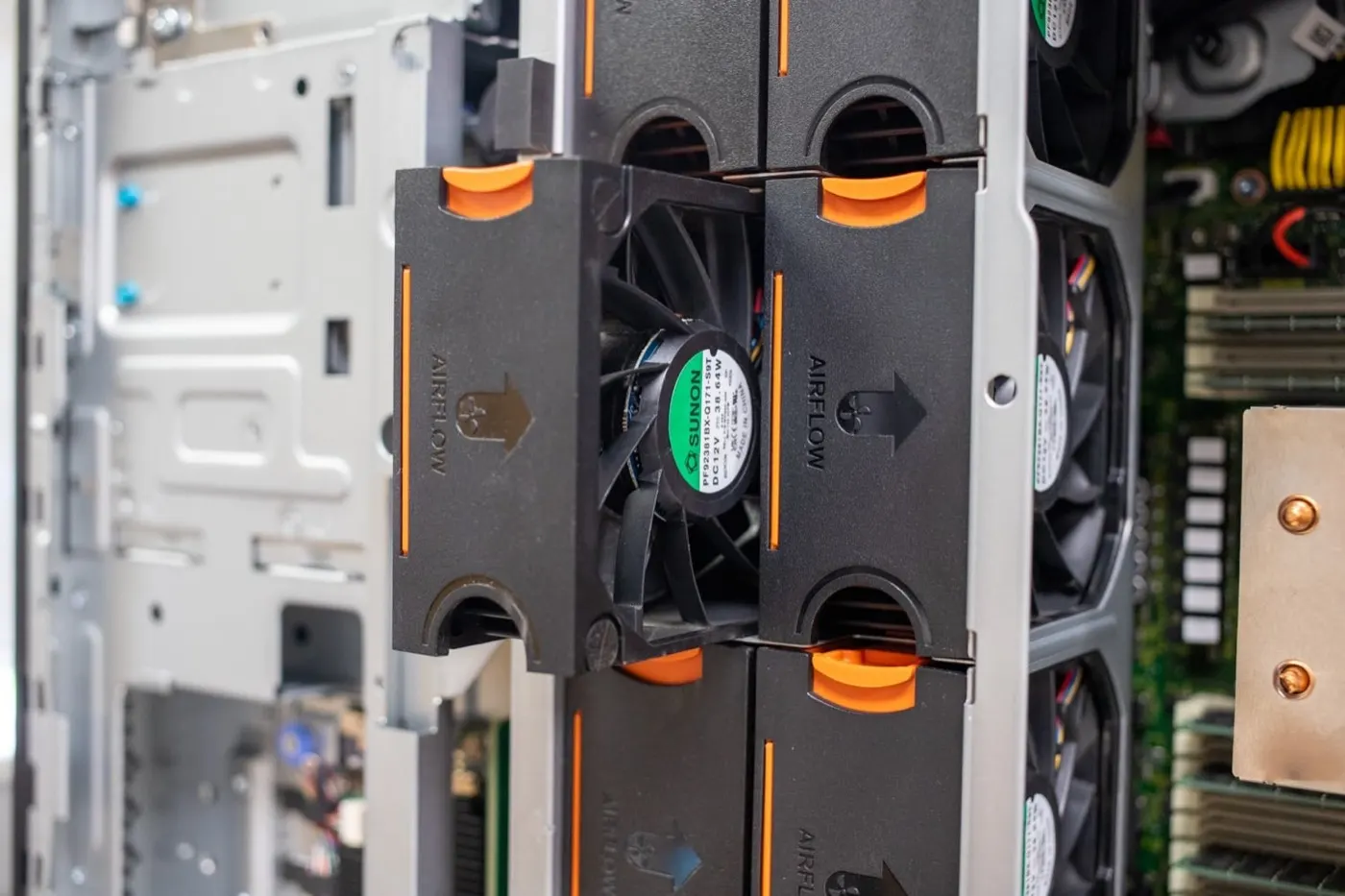
Image: StorageReview - Dell PowerEdge T560 Tower Server Review (hot-swap fan module).
What a Fan Error Means
iDRAC raises a System Health Cooling alert when fan speed (RPM) is outside defined thresholds. Per Dell, low RPM can come from:
- A defective fan
- Poor contact / improper seating on the connector
- Incomplete pressure because the connector is offset from the fan body
- Firmware misreporting sensors
Short definition: A Dell Server Fan Error is an iDRAC Cooling event showing the fan is not running or sensing in the expected RPM range; the root cause is not always a failed fan.
iDRAC basics: What Is iDRAC?.
First 10 Minutes
- iDRAC → System → Cooling / Fans: which fan number?
- Lifecycle Log:
FAN0000/FAN0001/FAN0002/FAN0003 - Note inlet temperature and CPU load
- Was the chassis opened or firmware updated in the last 24 hours?
- Are cover, shroud, and blank fillers present?
- Export SupportAssist / TSR if needed
- Plan workload impact and a maintenance window
Pro Tip: Do not pull fans at random when the alert fires. Match the log fan ID to the physical label first.
FAN0000 vs FAN0001
| Code | Meaning | Tempo |
|---|---|---|
| FAN0000 | RPM below lower warning threshold | Planned reseat/swap |
| FAN0001 | RPM below lower critical threshold | Urgent physical check |
| FAN0002 / FAN0003 | RPM above upper thresholds (too fast) | Thermal/airflow review |
Dell KB 000391086: for FAN0000/FAN0001, remove the fan and swap it to another connector; if the error follows the fan, replace it.
Step-by-Step Fix: Reseat and Swap
Dell’s recommended sequence (per the Installation and Service Manual):
- Safety: ESD, hot surfaces; follow the model’s power-off or hot-swap procedure.
- Open the cover and locate the reported fan (FAN 1, FAN 2…).
- Gently release the fan; check blades for cable interference.
- Reseat in the same slot; press firmly on the touch point.
- Swap with a known-good fan (FAN1 ↔ FAN2).
- Close the cover and monitor iDRAC Cooling.
- If the error moved with the fan → replace the fan.
- If the error stayed on the original slot → firmware (iDRAC/BIOS), then connector/board path.
Physical install guidance: Dell “How to Remove and Install Cooling Fans.” Event interpretation: Fan Failure Error guide.
Fan or Slot?
| Observation | Conclusion |
|---|---|
| Error moved with the fan to another slot | Fan fault / weak contact on the fan |
| Error stayed on the same slot | Slot connector, board, or sensing |
| Alarm cleared after reseat | Seating/contact issue; monitor 24–48 hours |
| All fans at high RPM | Hot inlet, missing shroud, GPU/high TDP |
If the slot stays bad, a new fan alone may not fix it; SupportAssist plus Dell Support is the right next step.
Loud Fans ≠ Fan Failure
If fans sound like a jet but there is no Failed state, check:
- Front/rear airflow blocked; missing drive blanks
- Cooling shroud / memory blank / PCIe filler missing
- Ambient / inlet outside ASHRAE
- GPU or high-TDP CPU with the wrong fan class (STD vs HPR)
- Aggressive thermal profile / fan offset
Power and cooling: PowerEdge Power Consumption, Datacenter Design Guide.
Firmware and iDRAC
If the error stays on the same slot after a swap, Dell recommends updating iDRAC and BIOS to rule out false positives. For temporary communication issues, the EEMI guide suggests restarting iDRAC first.
Spare Part Matching
The wrong fan class can create new alerts or continuous high RPM:
- Correct P/N for R650/R750/R760/T560
- STD vs HPR Silver/Gold
- Airflow arrow must face the rear
- Same chassis generation
Related thermal/power chain: PSU Failure.
Checklist
- Fan ID + FAN code written from Lifecycle Log.
- Inlet temp and recent maintenance noted.
- Cover/shroud/blanks present.
- Reseat done (firm touch point).
- Slot swap test completed.
- Fan vs slot decision clear.
- iDRAC/BIOS updated if needed.
- Correct STD/HPR spare ready.
- iDRAC Cooling green; 24-hour watch planned.
- SupportAssist archived when required.
Next Step with Leon-X
Leon-X combines diagnosis and OEM parts for fan error incidents through Server Maintenance, Warranty and Technical Support, Original Hardware Component Supply, and Server Installation, Configuration and Commissioning. For discovery, contact us.
Frequently Asked Questions
What is the difference between FAN0000 and FAN0001?
FAN0000 means RPM is below the warning threshold; FAN0001 means below the critical threshold. Both need reseat/swap; FAN0001 is more urgent.
Can I hot-swap the fan?
Many PowerEdge models support hot-swap system fans; still follow the model’s Installation and Service Manual. Point the airflow arrow to the rear.
What if the error stays on the same slot after a swap?
Suspect the connector or sensing path, not only the fan. Update iDRAC/BIOS; if it continues, open a SupportAssist case / board path.
Fans are very loud but not Failed—are they broken?
Often no. Missing shrouds, high inlet temperature, or thermal profile drive high RPM. Check airflow and temperature first.
When does an iDRAC restart help?
For temporary fan communication issues, Dell EEMI suggests restarting iDRAC first. Persistent low RPM still needs reseat/swap.