A Dell PowerEdge firmware update brings BIOS, iDRAC, PERC, NIC, and backplane packages to one consistent Catalog/Repository baseline and verifies health. Short answer: back up first (iDRAC config + critical workloads), then apply a Dell Catalog via Lifecycle Controller or iDRAC—OS-side “random driver EXE” piles scatter inventory. Context: What Is iDRAC?, Installation Guide.
This guide is written for:
- Systems admins locking a PowerEdge firmware baseline across a fleet
- Ops teams using Lifecycle / iDRAC in maintenance windows
- Infrastructure teams reducing boot-loop / mismatch risk
- Security teams producing ISO 27001 patch/firmware evidence
Quick Summary
- Source: Dell Catalog / Repository Manager—not a pile of random EXEs.
- Order: typically iDRAC/Lifecycle → BIOS → PERC/NIC → other.
- Config export + maintenance window before you start.
- Interrupted updates can cause boot loops — BIOS Boot Loop.
- BIOS settings: BIOS Optimization.
- Security: iDRAC ISO 27001.
Table of Contents
- What Is a Firmware Update?
- Update Methods
- Pre-Update Checklist
- Step by Step: iDRAC / Lifecycle
- Dell Repository Manager / Catalog
- Recommended Order and Wait Rules
- Validation and Rollback
- Most Common Mistakes
- Related Articles
- Checklist
- Next Step with Leon-X
- Frequently Asked Questions
- Sources
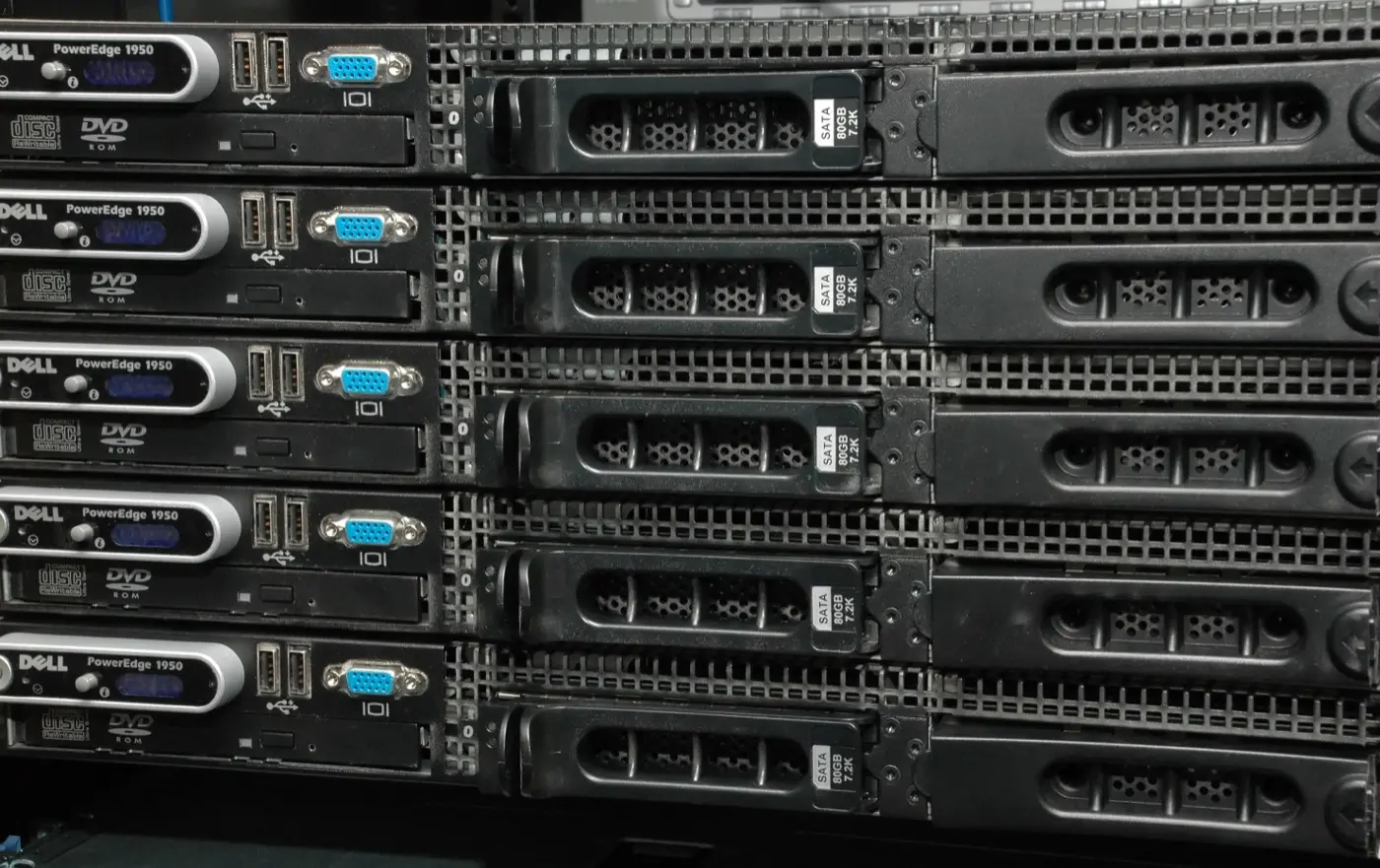
Image: Wikimedia Commons - Five Dell PowerEdge 1950s Front (fleet / rack PowerEdge context).
What Is a Firmware Update?
Short definition:
A PowerEdge firmware update brings platform components (BIOS, iDRAC, storage, network, PSU firmware, etc.) to the same baseline using Dell’s validated Catalog packages.
Goals: security fixes, stability, new hardware support, and supportable inventory. Architecture: What Is PowerEdge?.
Update Methods
| Method | When | Note |
|---|---|---|
| iDRAC Web UI | Remote, maintenance window | Catalog / DUP upload |
| Lifecycle Controller (F10) | Local / Virtual Console | Ideal before OS deploy |
| Dell Repository Manager (DRM) | Fleet / offline catalog | For offline sites |
| OpenManage Enterprise | Many servers | Central policy |
| In-OS DUP / SUU | Emergency / exception | Inventory can drift |
Pro Tip: Use one source for the fleet (DRM Catalog or OME policy). Per-server random EXE sets create “firmware mismatch.”
Pre-Update Checklist
- Service Tag / model and current version inventory captured
- iDRAC config export + backup of critical VMs/workloads
- Maintenance window and rollback plan written
- UPS / PDU stable; no power loss mid-update
- Target Catalog version chosen (Dell Support / DRM)
- Cluster rolling order clear (not all hosts at once)
If iDRAC is unreachable first: iDRAC Not Responding, iDRAC Reset.
Step by Step: iDRAC / Lifecycle
- Connect to iDRAC on the mgmt network; verify license — What Is iDRAC?
- Maintenance → System Update (or Lifecycle → Firmware Update)
- Choose Dell Online Catalog or offline Repository / DUP
- Select components (BIOS, iDRAC, PERC, NIC…)
- Start the job; watch the iDRAC Lifecycle Log
- Apply required reboots in order; do not cut power mid-job
- Wait until Health = OK; no critical SEL failures
If it will not boot: Boot Failure, BIOS Boot Loop.
Dell Repository Manager / Catalog
For offline or controlled environments:
- Build a model-specific Repository in DRM
- Import the Catalog into iDRAC / Lifecycle or serve from a share
- Lock the same Catalog across the fleet
- Read release notes (fixed CVEs, known issues)
ISO / change evidence: PowerEdge Audit Log, ISO PowerEdge.
Recommended Order and Wait Rules
Practical order (Dell notes for the model win):
- iDRAC / Lifecycle platform packages
- BIOS
- PERC / BOSS / storage backplane
- NIC / HBA / GPU, etc.
- PSU / CPLD (if required; extra reboot)
Wait rules:
- Do not start the next package until the job is completed / success
- Do not skip packages that request dual reboots
- Put cluster hosts into maintenance mode
BIOS profiles can drift after updates — BIOS Optimization.
Validation and Rollback
| Check | Target |
|---|---|
| Firmware inventory | All components on target versions |
| System Health | OK / Warning with reason |
| SEL / Lifecycle Log | No critical failures |
| OS / hypervisor | Boot + storage / network up |
| Config | BIOS/iDRAC settings on baseline |
Rollback: Dell may offer a previous version; otherwise re-apply the prior Catalog. Emergency iDRAC: Reset.
Most Common Mistakes
- Updating production hosts without a maintenance window
- Mixing random old/new DUPs instead of a Catalog
- Power-cycling while an iDRAC job is running
- Updating BIOS without verifying System Profile
- Updating every cluster host at once
- Skipping export / inventory records
Related Articles
- What Is iDRAC? Features and Usage
- PowerEdge Installation Guide
- How to Optimize BIOS Settings
- BIOS Boot Loop
- Boot Failure
- iDRAC Not Responding
- iDRAC Security for ISO 27001
- ISO 27001 PowerEdge Configuration
Checklist
- Inventory and target Catalog defined.
- iDRAC config exported.
- Maintenance window / cluster order clear.
- Update done via Lifecycle or iDRAC Catalog.
- Job success; health OK.
- BIOS profile / Secure Boot verified.
- OS/hypervisor smoke test passed.
- New versions recorded in CMDB / runbook.
- Rollback note archived.
Next Step with Leon-X
Firmware baselines lock with install and security. Leon-X builds PowerEdge firmware standards under Server Installation, Configuration and Commissioning and High Availability Server Infrastructure. Start at Contact.
Frequently Asked Questions
Can I update firmware while the OS is running?
Some packages apply online; most BIOS/PERC updates need a reboot. Use a maintenance window in production.
Lifecycle or iDRAC?
Both can use a Catalog. Prefer iDRAC for remote management; F10 Lifecycle is practical locally.
How often should I update?
Per policy + CVEs; a common enterprise rhythm is quarterly or emergency for critical patches. Keep one fleet baseline.
No boot after update—what next?
Check power/LEDs, last successful job, boot order; then Boot Failure / Boot Loop.
Is a single DUP enough without a Catalog?
For one emergency component, yes; for a fleet, prefer Catalog/DRM.