A FortiGate firmware update upgrades FortiOS for security patches, bug fixes, and new features. Short answer: pick a compatible target build, back up config and confirm support access, open a maintenance window, install per Fortinet procedure on a standalone unit or HA pair, then validate policy/VPN/sessions. An unplanned upgrade risks internet, VPN, and the HA cluster at once.
This guide is written for:
- Network and security teams owning FortiGate patching
- Engineers planning low-downtime HA upgrades
- IT managers producing ISO 27001 patch-management evidence
- Operations teams running controlled change windows on production edges
Quick Summary
- Firmware is the FortiOS image; it is separate from FortiGuard licensing, but both should be planned together.
- Before upgrading: config backup, valid FortiCare access, and a rollback plan are mandatory.
- Expect downtime on a single appliance; in Active-Passive HA, upgrade secondary first, then primary.
- Major jumps may require intermediate builds—read the upgrade path in release notes.
- After upgrade, validate policy, VPN, routing, HA sync, and FortiGuard connectivity.
- Keep TFTP/console recovery ready for failed boot / image mismatch cases.
Table of Contents
- What Is a FortiGate Firmware Update?
- Pre-Update Checklist
- Target Version and Upgrade Path
- Standalone Step-by-Step Update
- Firmware Update in HA
- Post-Update Validation
- Rollback and Recovery
- Most Common Mistakes
- Related Articles
- Checklist
- Next Step with Leon-X
- Frequently Asked Questions
- Sources
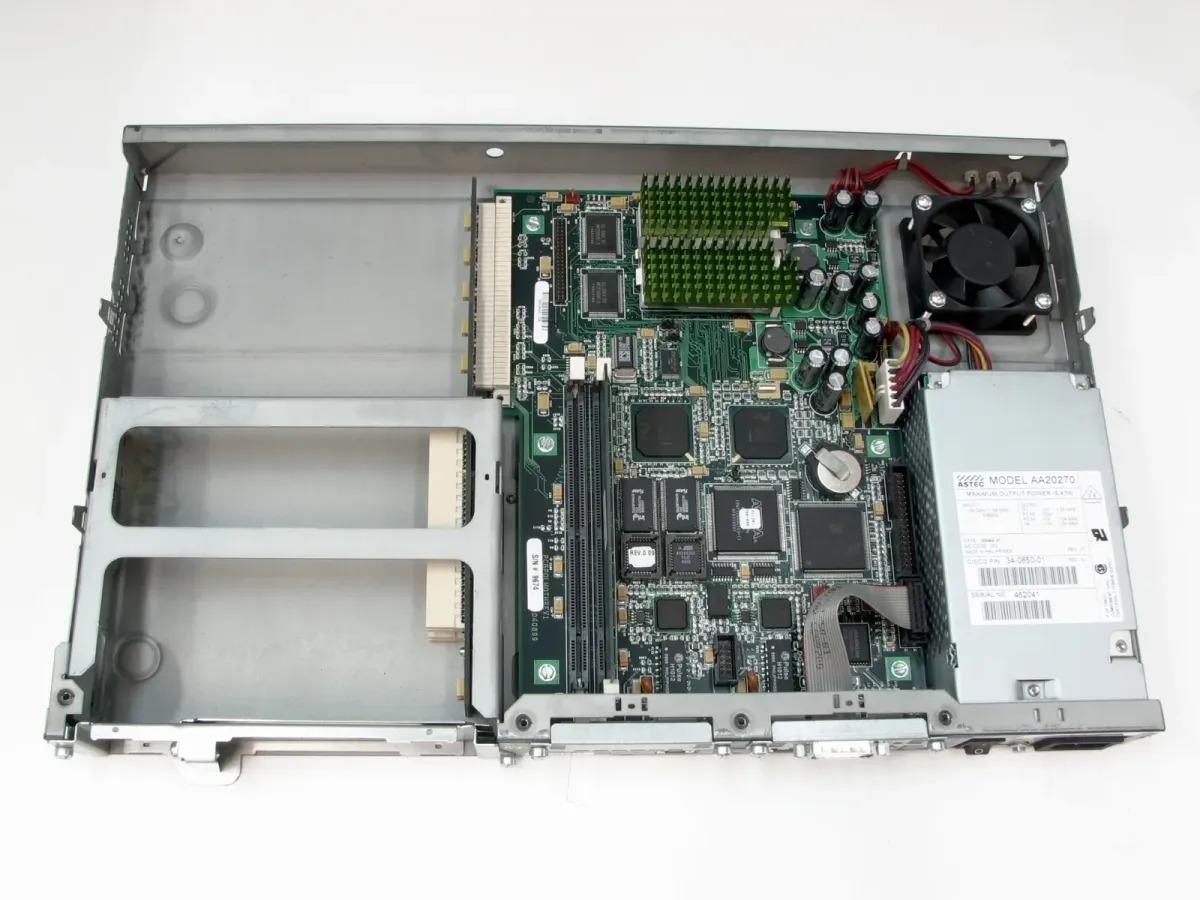
Image: Wikimedia Commons - Cisco PIX 515 (example enterprise firewall form factor).
What Is a FortiGate Firmware Update?
FortiGate runs FortiOS. A firmware update moves the appliance to a new FortiOS image. That closes vulnerabilities, fixes known bugs, and can change policy/VPN behavior with new features. For product context, see What Is a FortiGate Firewall?; for packet/policy behavior, see How Does a Fortinet Firewall Work?.
Short definition:
A FortiGate firmware update is a controlled FortiOS image upgrade that manages production risk through backups, compatibility checks, HA ordering, and post-change validation.
Firmware is not the same as a FortiGuard subscription. For license families, see Fortinet License Types.
Pre-Update Checklist
| Check | Why it matters |
|---|---|
| Config backup (GUI/CLI) | Rollback and diff |
| Current FortiOS build | Upgrade-path math |
| FortiCare / support access | Image download and support |
| Disk / log space | Room to load and boot |
| Maintenance window + comms | User/VPN impact |
| Console access | Recovery if boot fails |
| HA health (if any) | Correct node order |
Confirm the policy set is healthy first: Policy Configuration. Without HA, announce downtime clearly; with HA, see HA Installation.
Pro Tip: Store the backup off-box on a secure share. “Backup is on the same appliance” does not help if the box will not boot.
Target Version and Upgrade Path
- Choose the model-correct image from the Fortinet support portal.
- Read release notes for resolved issues, known issues, and upgrade information.
- Check whether major jumps require intermediate builds.
- Pick mature vs feature branch based on risk appetite.
- Rehearse the same path on lab/spare hardware when possible.
Model sizing is a separate decision; upgrades do not change the SKU, but new inspection features can raise CPU load: Model Selection.
Standalone Step-by-Step Update
- Open a change record listing impacted services (internet, SSL VPN, IPsec).
- Take a config backup; note date/hash.
- Confirm the running version in GUI System > Firmware or CLI.
- Download the image and verify integrity (checksum when available).
- Upload via GUI, or use TFTP/USB per Fortinet procedure.
- Watch console/logs during reboot (
2-10 minutestypical; model-dependent). - After login, confirm FortiOS build, interface up state, and basic health.
- Smoke-test DNS, internet, critical policies, and VPN.
Plan SSL VPN user impact with SSL VPN Setup. For site-to-site tunnels, see Site-to-Site VPN.
Firmware Update in HA
In Active-Passive HA the goal is to keep user impact to seconds. Safe general order:
- Verify cluster health (heartbeat, config sync, monitored interfaces).
- Upgrade the secondary/passive node first; wait for it to rejoin.
- Fail traffic to secondary (or follow Fortinet’s recommended failover order).
- Upgrade the former primary; confirm sync completes.
- Optionally fail back to the preferred primary.
Both nodes need matching FortiOS and balanced license levels. See License Types and the Buying Guide.
Post-Update Validation
| Area | What to verify |
|---|---|
| Version | Target FortiOS build |
| Policy | Critical allow/deny and order |
| Sessions / logs | New sessions forming |
| VPN | SSL and IPsec up |
| Routing / SD-WAN | Default route and health checks |
| FortiGuard | Update/signature connectivity |
| HA | Sync OK, no split-brain |
If you see “no internet” or NAT oddities: No Internet Access, NAT Troubleshooting. For patch evidence under ISO 27001, see ISO 27001 Network Security.
Rollback and Recovery
- Return to the previous image using a Fortinet-supported method when available.
- Restore the config backup onto a compatible FortiOS build.
- For boot loop / image mismatch, use console + TFTP/USB recovery.
- Keep at least
30-60 minutesof monitoring before closing the change window.
If you use Security Fabric / FortiManager, align firmware policy there too: What Is Fortinet Security Fabric?.
Most Common Mistakes
- Upgrading without an off-box backup
- Skipping release notes / upgrade path
- Patching a single-box edge during business hours
- Upgrading the HA primary first
- Skipping post-upgrade VPN/policy smoke tests
- Burning the window without FortiCare access to download images
Related Articles
- What Is a FortiGate Firewall?
- FortiGate Policy Configuration
- FortiGate HA Installation
- Fortinet License Types Explained
- FortiGate Firewall Buying Guide
- FortiGate No Internet Access Troubleshooting
- ISO 27001 Network Security: Firewall and VPN
- What Is Fortinet Security Fabric?
Checklist
- Config backup stored off-box
- Target FortiOS + upgrade path confirmed
- Maintenance window and impacted services announced
- Console/OOB access ready
- Standalone vs HA order decided
- Post-upgrade version, policy, VPN, FortiGuard checked
-
30-60 minutesmonitoring completed - Change record and evidence archived
Next Step with Leon-X
A FortiGate firmware update is both a security patch and a continuity exercise. Wrong order or no backup can drop the edge. Leon-X runs the window, HA sequence, and validation checklist under Hardware and Software Solutions, especially Router, Switch and Firewall Deployment Service and Network Security, Firewall and IPS/IDS Solutions. For discovery, continue through Contact.
Frequently Asked Questions
How long does a FortiGate firmware update take?
It varies by model and image size; planning 10-30 minutes including reboot is common. HA windows can be longer overall while user impact stays short.
Will internet drop during the update?
On a standalone unit, usually yes during reboot. With correct Active-Passive HA order, user impact can be seconds—but VPN sessions may still reset.
Can I skip major versions?
Not always. Fortinet may require intermediate builds. The upgrade information in release notes is mandatory reading.
Is firmware the same as FortiGuard?
No. Firmware is the FortiOS image; FortiGuard is the signature/intel subscription. Plan them separately.
What if the update fails?
Use console to inspect boot state, recover with supported TFTP/USB methods, restore the config backup, and avoid random image retries inside a shrinking window.