A Dell storage firmware update applies array OS (e.g. PowerStoreOS), node/controller firmware, and drive firmware packages per the support matrix—preferably non-disruptive (NDU)—then validates health. Short answer: open a maintenance window; read the compatibility matrix; pass Pre-Upgrade Health Check (PUHC) / System Health Check; download packages from Dell Support and upload in Manager; run the upgrade; re-run health checks. The server path is different — PowerEdge Firmware Update. After performance work: Improve Performance. Mismatch issues: Firmware Version Mismatch.
This guide is written for:
- Storage teams locking PowerStore / PowerScale / PowerMax fleet baselines
- Operations planning host paths and replication around NDU
- Infrastructure and security teams producing CAB/change evidence
- Organizations that must not treat array updates like server EXE installs
Quick Summary
- Storage update ≠ PowerEdge iDRAC/Lifecycle Catalog—family-specific packages and Manager/CLI.
- PowerStore: Settings → Upgrades; OS + node firmware; separate drive firmware package.
- Dell recommends running Pre-Upgrade Health Check at least ~7 days before upgrading (PowerStore upgrade guide).
- During NDU the primary node may fail over; Manager session drops—expect re-login.
- Duration (PowerStore): roughly ~1–1.5 hours per appliance (environment-dependent).
- Do not alter package file names (browser suffixes can break upgrades — Dell NDU KB).
- OneFS / PowerMax need their own Supportability guides and release notes.
Table of Contents
- What Is a Storage Firmware Update?
- Pre-Update Checklist
- PowerStore: NDU Steps
- Drive Firmware
- PowerScale (OneFS) Notes
- PowerMax Notes
- Validation and Rollback
- Common Mistakes
- Checklist
- Next Step with Leon-X
- Frequently Asked Questions
- Sources

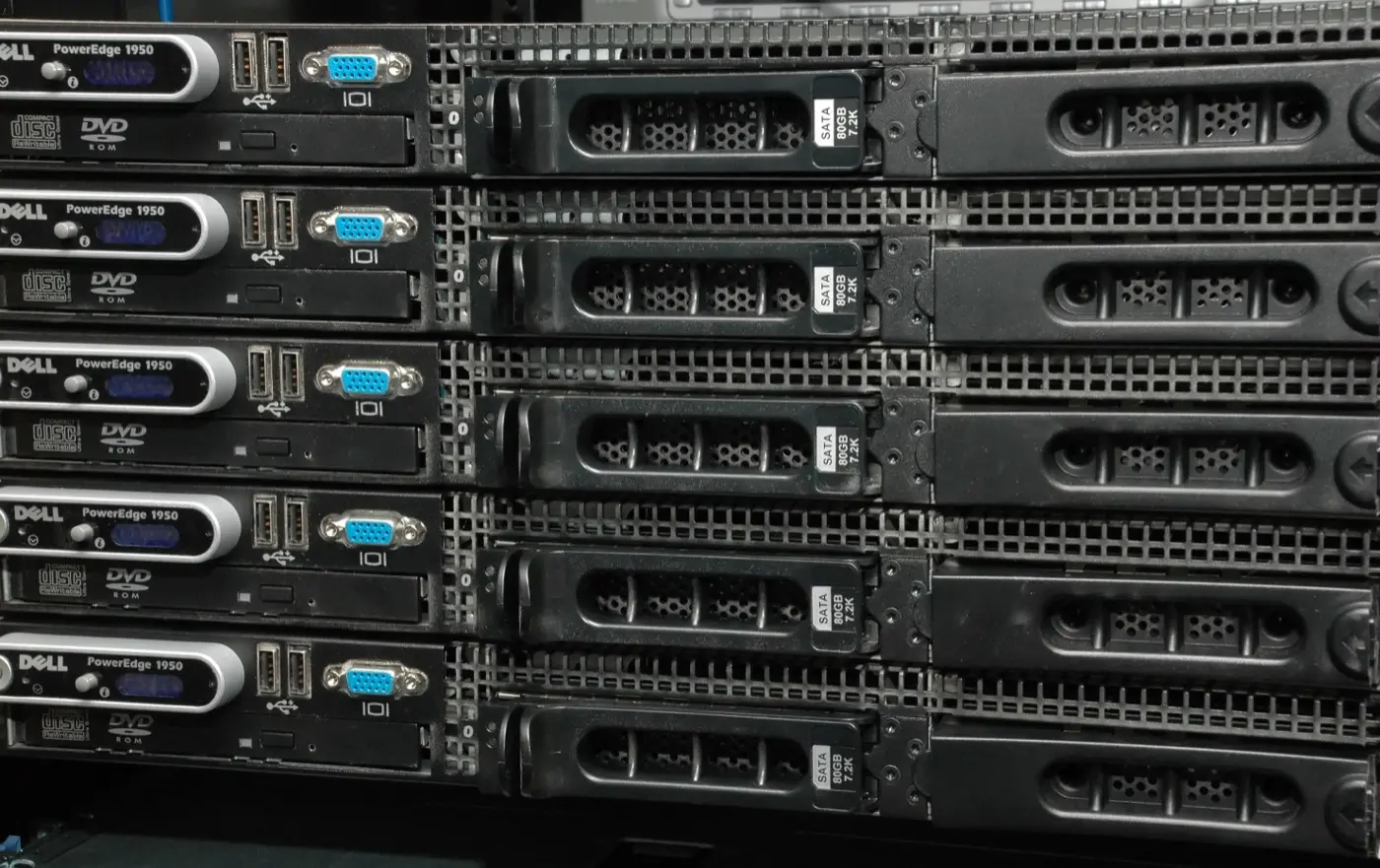
Image: Pexels - Data center / network infrastructure (enterprise maintenance context).
What Is a Storage Firmware Update?
On enterprise Dell storage, “firmware” usually covers:
| Layer | Example | Tool |
|---|---|---|
| Array OS | PowerStoreOS, OneFS | PowerStore Manager / OneFS upgrade |
| Node / controller FW | Node firmware package | Same upgrade flow (by product) |
| Drive FW | NVMe/SAS drive package | Separate drive firmware upgrade |
| Language / health packs | Language pack, Health Check, RxDefinitions | Upload + install |
Short definition: A Dell storage firmware update raises OS/node/drive versions with supported packages after cluster health checks, via NDU or a planned window.
SAN vs NAS does not change the package type, but it shapes path/failover expectations — SAN vs NAS.
Pre-Update Checklist
- Target version: Dell Support + release notes + compatibility matrix (host OS, multipath, replication peer)
- Maintenance window: Support notifications / maintenance window (PowerStore Manager)
- Backup / config export: Cluster config, critical volume/NAS config
- Health: PUHC + System Checks; no critical alerts
- Path / multipath: At least dual paths on hosts; failover test if possible
- Replication / metro: Peer version alignment; healthy sync state
- SupportAssist / Remote credentials: Recommended in Dell’s NDU prep KB
- Comms: App owners + on-call
Pro Tip: Do not run PUHC for the first time on upgrade morning; Dell’s guide says at least seven days prior—leave time to fix findings.
PowerStore: NDU Steps
Summary from the Dell PowerStore Software Upgrade Guide:
- Download the Health Check package from Dell Support → Settings → Upgrades → upload/install
- Run Pre-Upgrade Health Check; clear failures
- Keep System Checks (Monitoring) clean
- Download the target PowerStoreOS package (keep the file name intact)
- Settings → Upgrades → upload the package
- Enable the maintenance window
- Select the package and start Upgrade
- Manager disconnect during failover is normal; re-login when ready
- Re-run Health Check / System Checks when finished
- Re-install Health Check / RxDefinitions packages removed by the upgrade (Dell NDU KB)
PowerStoreOS 4.0+ note: some failed upgrades may roll back with automatic recovery and retry—still confirm with your service provider.
Post-install baseline: PowerStore Install. Architecture: What Is PowerStore?.
Drive Firmware
Drive firmware is often separate from the OS package:
- Download the drive firmware package from Dell Support
- Upload under Upgrades → run health check
- If clear, run the upgrade
- Do not leave drive FW as the forgotten layer—it generates mismatch alerts
Common confusion: Firmware Version Mismatch.
PowerScale (OneFS) Notes
- OneFS upgrade path is set by the Supportability and Compatibility Guide
- Node version alignment in the cluster is critical; rolling upgrade options vary by model
- Validate front-end/back-end network health before upgrade — PowerScale Install
- Workloads: PowerScale Use Cases
Do not mix OneFS with a PowerEdge Catalog workflow.
PowerMax Notes
- PowerMax / HYPERMAX OS (or current OS name) upgrades follow the Symmetrix/Unisphere operating model
- Read SRDF peer alignment and service-level plans in the release notes
- Mainframe environments need separate change control — What Is PowerMax? · vs PowerStore
Validation and Rollback
After:
- Cluster / appliance health green
- Host paths online; test I/O OK
- Replication / snapshot services normal
- Alerts / SupportAssist clean
- Version inventory (OS + drive FW) written to CMDB
Rollback: Limited by product and version. PowerStore 4.0+ documents rollback+retry for some failed OS upgrades; drive FW and OneFS differ—use Dell Support / your service provider.
Common Mistakes
- Trying to apply a PowerEdge Catalog to storage
- Skipping the compatibility matrix (host multipath / peer array)
- Skipping PUHC or upgrading with red alerts
- Leaving
(1)/.zipsuffixes on package names - Entering NDU with single-path hosts
- Never updating drive firmware
- Upgrading at peak with broken replication sync
Checklist
- Target version + release notes + matrix read.
- Maintenance window and comms list ready.
- Config export / backup taken.
- PUHC / System Checks passed (≥7-day plan).
- Host multipath verified.
- OS package uploaded; file name intact.
- Upgrade monitored; Manager reconnect done.
- Drive FW evaluated/applied.
- Post health + RxDefinitions/Health Check refreshed.
- CMDB / change record closed.
Next Step with Leon-X
Leon-X runs storage firmware/NDU windows—health checks, package plan, and host path validation—via NAS/SAN Storage Installation and Configuration. Discovery: Contact Us.
Frequently Asked Questions
Does a PowerStore update take hosts down?
Design is NDU; nodes fail over and I/O should continue with correct multipath. Single path or a bad HBA risks disruption.
Are OS and drive firmware the same package?
Usually no. On PowerStore, drive firmware is a separate upgrade flow.
How often should you update?
Follow Dell target/minimum versions and security bulletins; a “never touch” strategy leads to mismatch and unsupported states.
Why does the Health Check package disappear after upgrade?
Dell NDU KB: upgrades may remove these packages—reinstall afterward.
Is the PowerEdge firmware guide enough?
No. Server Lifecycle/iDRAC Catalog ≠ storage Manager NDU — PowerEdge Firmware.